
Lettering artist with an existing tablet
You want to check first that the pen works with the exact iPad or Galaxy Tab model you already use.


Start with your exact tablet model and drawing app: a stylus for an iPad, Galaxy Tab or graphics tablet isn’t automatically interchangeable with the others. Then choose the level of stroke control that suits your lettering, and check how to charge and store the pen, and replace a worn nib.
You want to check first that the pen works with the exact iPad or Galaxy Tab model you already use.
You want to know whether your brush responds to pressure, tilt or settings for smoother lines.
You regularly clear your workspace, so you’ll want to consider how the pen attaches, charges and how to replace its nib.
Check compatibility first, then compare stroke control and how you’ll charge, store and maintain the pen.
| What to consider | What should you look for? | Who is this important for? |
|---|---|---|
| Compatibility | Check your exact tablet model against the manufacturer’s compatibility list, and see whether your drawing app supports the pen features you want. | If I want to keep using my current iPad or Galaxy Tab, I want to know first whether the pen is designed for it. Around 36% of consumers put compatibility first. |
| Control over lettering strokes | Check whether the pen detects pressure or tilt, and whether your app and chosen brush use that input. | If I want variation or, instead, consistent lines in my comic lettering, I check how my brush works in the app. Around 29% of consumers prioritise stroke control. |
| Charging and storage | Check how the exact pen pairs and charges, where you can store it, and whether suitable replacement nibs are available. | When I clear away my things after a work session, I want to know whether magnetic attachment also means charging, and how to replace a worn nib. Around 21% of consumers focus on storage and maintenance. |
| Equipment you’ll need | Work out what equipment and any accessories your chosen setup requires. | If I only want to buy a pen, I want to avoid finding out that my setup also needs a compatible tablet or a graphics tablet connected to a computer. Around 14% of consumers put the complete setup first. |
Apple lists compatibility for each Pencil and iPad. The Samsung S Pen EJ-PX730BWEGEU is designed for the Galaxy Tab S11 and S11 Ultra.
Compare your tablet’s full model name with the manufacturer’s compatibility information before weighing up the pen features.
Logitech describes tilt-based line variation for Crayon; Samsung describes pressure sensitivity for the S Pen mentioned here. These are different ways to control a stroke.
Check which input your brush uses and whether the exact version of the pen supports that feature.
Apple describes the Pencil (USB-C) as attaching magnetically for storage, but charging via a USB-C cable. For Pencil Pro, Apple describes magnetic pairing and charging with supported iPads.
Check the charging method for the version you choose and factor it into your routine for clearing away.
The Apple Pencil (USB-C) needs a USB-C cable for charging.
Apple Pencil Pro and Apple Pencil (USB-C) are designed for different, specifically supported iPads.
The S Pen EJ-PX730BWEGEU is designed for the Galaxy Tab S11 and S11 Ultra, not Android tablets in general.
Crayon (USB-C) is a pen for writing and sketching on compatible iPads.
Intuos S is a graphics tablet with its own pen, designed for a computer-based drawing setup.
Inspiroy 2 M is a graphics tablet with its own pen, designed for a computer-based drawing setup.
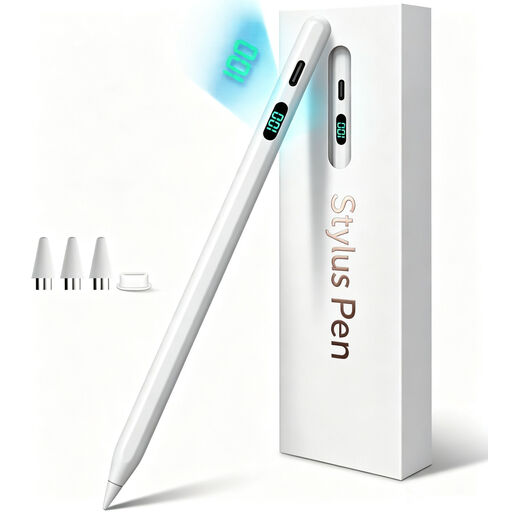
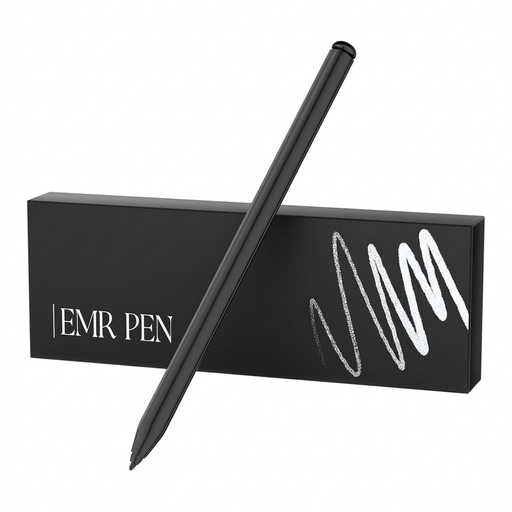
These product picks are for drawing on compatible iPads and e-ink tablets, including models that the product names state are supported.
 No image available
For drawing and sketching on an iPad; check whether your exact model is supported.
The product name mentions USB-C charging. The product information lists tilt detection and states that pressure sensitivity is not supported.
 No image available
For drawing on a compatible e-ink tablet, not as a stylus for an iPad or Galaxy Tab.
The product name mentions reMarkable 1 and 2, Kindle Scribe and 4096 pressure levels. Check compatibility with your exact device.
 No image available
For drawing on a compatible iPad; check compatibility with your exact model.
The product name mentions USB-C charging, tilt detection, palm rejection and magnetic attachment. The attachment is for storage; wireless charging is not supported.
 No image available
For writing and drawing on a compatible iPad.
The product name mentions USB-C. The product information lists iPad models from 2018 onwards and iOS 12.2 or later; check that your device meets these requirements.
 No image available
For comic lettering on an iPad that supports this Pencil. Apple describes magnetic pairing and charging for Pencil Pro.
The listed compatibility is limited to iPad Pro 11-inch (M4), iPad Pro 13-inch (M4), iPad Air 11-inch (M2), iPad Air 13-inch (M2) and iPad mini (A17 Pro).
No. Before choosing, check your exact iPad model and, where Apple lists one, the minimum iPadOS version in Apple’s compatibility list.
No. Apple describes magnetic attachment for storing the Pencil, but pairing and charging are done via a USB-C cable. For Apple Pencil Pro, Apple describes magnetic pairing and charging with a compatible iPad.
Procreate offers settings for pressure response and overall stabilisation. Try them with the brush you use for lettering; the result depends on the pen and brush you’re using.
First, check the exact pen model. Samsung describes how to replace the nib on the Galaxy Tab S11 series S Pen; Logitech describes a replacement process for Crayon nibs. Use parts that are suitable for your version.
For distance purchases, the Dutch government says you’ll usually have 14 days to change your mind in many cases. Check whether this applies to your purchase and read the relevant returns policy.