Start with the exact model of your tablet or drawing tablet: pens from the same brand aren’t automatically interchangeable. Then check that the pressure and control features you want work with your drawing app. For longer sessions, grip, nibs, and charging or storage also matter. A higher number of stated pressure levels doesn’t, by itself, mean your lines will look better.
Who is this guide for?
Comic artist with an existing iPad
You want to choose a Pencil that fits your exact iPad model, and you care about pressure-sensitive lines, app features and controls. Apple and Clip Studio Support provide compatibility information for specific models and apps.
Comic artist with a Galaxy Tab
You’re looking for a replacement S Pen that fits your tablet model and want to know whether your drawing app supports the pen features you need. Samsung lists the Galaxy Tab S11 Series S Pen for the Tab S11 and S11 Ultra.
Hobby artist with a graphics tablet
You want to choose a compatible replacement pen and, if needed, nibs for an existing graphics tablet or pen display, without replacing your whole set-up. Wacom, Huion and XPPen publish compatibility information for specific models.
What should you look for in a stylus?
Start with the full model number of your tablet or graphics tablet. Then check that the pen feature you want works in your drawing app. Only then should you consider factors such as grip, nibs and charging.
| What to consider |
What should you check? |
Who is this most important for? |
| Compatibility |
Compare the full device model and pen variant with the manufacturer’s compatibility list, including any software version requirements. |
If I’m looking for a pen for my existing tablet, I first want to make sure the full model is compatible with that pen variant. Device compatibility is the top priority for around 36% of consumers. |
| Control over your ink lines |
Check whether the pen, device and app combination supports pen pressure, and whether the app has pressure settings. |
For controlled outlines, I want to know whether my set-up supports pressure variation, not just how many pressure levels are listed. Line control is the top priority for around 29% of consumers. |
| How it works with your drawing app |
Check whether the app supports your pen model and the features you want, and whether you can adjust the pressure response. |
If I’m inking a page in a particular drawing app, I want the pen features to work in that app. App compatibility is the top priority for around 21% of consumers. |
| Use and maintenance |
Check which nibs fit and are included, and whether the pen needs charging. |
For long inking sessions, I want to know how the pen feels in my hand and what maintenance it needs. Practical use and maintenance matter most to around 14% of consumers. |
Common buying mistakes
-
Choosing a pen by brand rather than device model
Manufacturers list compatibility for specific models or generations. So a pen from the same brand won’t necessarily work with your tablet.
Make a note of your device’s full model number and compare it with the compatibility list for the exact pen you’re considering.
-
Confusing tilt sensitivity with pen pressure
Tilt sensitivity and pen pressure are different features. Apple describes tilt sensitivity for the Pencil (USB-C), but that doesn’t confirm that pen pressure is available for the way you use your app.
Before choosing a pen for variable ink lines, check that the pen, device and drawing app combination supports pen pressure.
-
Using pressure levels as a ranking of line quality
A manufacturer’s pressure-level specification isn’t an independent comparison of the quality of the lines you draw. Your drawing app may also have its own pressure settings.
Check compatibility and app support first, then adjust the pressure response to suit your hand, if you can.
Brands to compare
Apple
Apple Pencil variants are designed for specific iPad models. Check that the pen version is compatible with your iPad.
- Apple lists features for Pencil Pro including squeeze, barrel roll and magnetic charging.
- Pencil Pro and Pencil (2nd generation) have different compatibility lists. Check features such as pen pressure with your drawing app too.
Samsung
According to Samsung, the Galaxy Tab S11 Series S Pen is designed for the Galaxy Tab S11 and S11 Ultra.
- Samsung lists pressure detection and a replaceable nib for this pen model.
- The name S Pen doesn’t prove that the pen works with other Galaxy Tab models. Check your tablet’s full model number.
Wacom
Wacom offers replacement pens for specific graphics tablets and pen displays. The right choice depends on your device’s full model number.
- Wacom lists 8192 pressure levels and tilt response for Pro Pen 2.
- According to Wacom, Pro Pen 2 doesn’t work with standard Intuos models. Check your device’s compatibility list.
Huion
According to Huion’s compatibility list, the PW550S is a slim, battery-free replacement pen for selected Inspiroy and Kamvas models.
- Huion lists interchangeable standard and felt nibs for the PW550S.
- The model list is what matters; a shared brand name doesn’t guarantee compatibility with other tablets.
XPPen
The X3 Pro Smart Chip Stylus is a replacement pen for certain Deco Pro and Artist devices.
- XPPen lists two shortcut buttons, a digital eraser, battery-free operation and 16K pressure levels for this pen.
- These are stated features, not an independent comparison with other pens. Check the list of compatible devices.
Styluses at Joybuy
These product picks are styluses for existing tablets and graphics tablets. Before choosing, check that the pen is compatible with your exact device model and drawing app.
 No image available
Wacom Pro Pen 3, customisable battery-free EMR stylus, black
An option for a compatible Wacom set-up if you want to adjust the feel of your pen.
The compatible models listed are MovinkPad 11 and Cintiq Pro 17, 22 and 27. According to the product information, you can adjust the pen’s weight, grip thickness and balance point. It also has pen buttons.
View at Joybuy
 No image available
Apple Pencil USB-C, white
An option for drawing on a compatible iPad if tilt sensitivity and USB-C charging suit the way you work.
Apple describes tilt sensitivity; the pen attaches magnetically and charges via USB-C. Don’t choose it without checking separately if your drawing app workflow requires pen pressure.
View at Joybuy
 No image available
Apple Pencil Pro (2024) for iPad Air and iPad Pro
An option if your iPad is compatible and you want to use the stated pen controls in your drawing workflow.
The compatible models listed are iPad Pro M4, iPad Air M2 and iPad mini A17 Pro. The pen is described as having pressure and tilt sensitivity, squeeze and barrel roll, as well as magnetic pairing and charging.
View at Joybuy
 No image available
Apple Pencil 2nd generation
An option for a compatible iPad; the exact tablet generation determines whether this pen will work.
The models listed include iPad Pro 12.9-inch (3rd to 6th generation), iPad Pro 11-inch, iPad Air (4th and 5th generation) and iPad mini (6th generation). Magnetic attachment and charging are also listed. Clip Studio Support includes this pen among the pressure-sensitive pens it supports.
View at Joybuy
 No image available
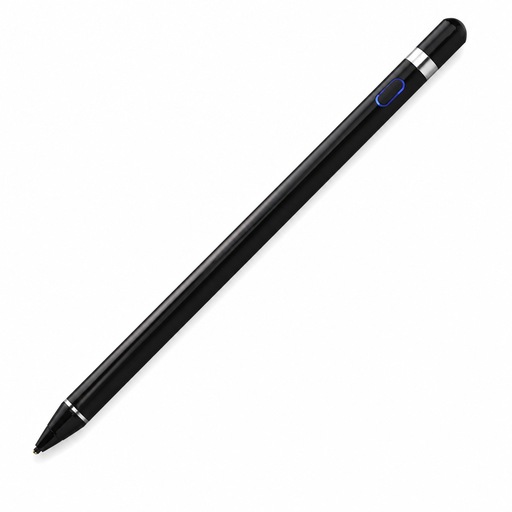
VoxorAI HL-U05, black stylus
A possible option for drawing on a capacitive screen, but first check that the pen and its companion app support the features you need for your ink lines.
The pen is described as having a pressure-sensitive tip, built-in battery and Bluetooth pairing, and as being suitable for use with iOS, iPad, Android and PC. The description mentions a companion app that you download using a QR code; support for pen pressure on specific models and in specific apps hasn’t been confirmed.
View at Joybuy
Frequently asked questions
Can I use any Apple Pencil with my iPad?
No. Apple lists separate iPad models for each Pencil version and, for some versions, also specifies a minimum iPadOS version. Compare your exact iPad model and software version with the pen’s compatibility information.
How do I set pen pressure for inking?
In Clip Studio Paint, you can adjust the pressure response if you’re using a supported pressure-sensitive pen and device. First check that your combination supports this feature, then adjust the pressure setting to suit your drawing hand.
Can I replace the nib on the Galaxy Tab S11 Series S Pen?
Yes. Samsung explains how to carefully remove the existing nib and fit a new one. Use a nib that’s suitable for this pen model.
How long is the statutory guarantee on a stylus in the Netherlands?
There’s no fixed statutory guarantee period in the Netherlands. According to the Dutch government, the seller must offer a solution if a product is faulty. What you can expect from a product depends, among other things, on the product itself and normal use. A manufacturer’s guarantee is separate from this.
Do I have a cooling-off period when buying online in the Netherlands?
For many distance purchases from a business, consumers have a 14-day cooling-off period. The Dutch government lists some exceptions; these rules don’t apply in the same way when you buy from a private individual.


