
Diagram drafter with an existing tablet
You want to check first whether a new pen will work with your exact iPad or Galaxy tablet.


Start by checking your exact tablet model, then decide whether you want to sketch or need an editable electronic schematic. For sketching, you’ll need a pen that’s confirmed to be compatible and has the right drawing features; for an editable schematic, you’ll need suitable software. A compact graphics tablet may work with desktop software, but it won’t replace that software.
You want to check first whether a new pen will work with your exact iPad or Galaxy tablet.
You draw symbols and connections by hand and want to know how the pen responds when your hand rests on the screen.
You create editable schematics on a computer and are considering a small drawing surface as an input device, not as a replacement for schematic software.
First check that your tablet and pen are compatible. Then decide whether you’ll mainly be sketching or working in schematic software, and how much desk space you have.
| What to consider | What should you look for? | Who is this important for? |
|---|---|---|
| Compatibility | Check the exact tablet model, pen version and any feature requirements. | If you’re looking for a pen for your existing iPad or Galaxy tablet, you’ll want to make sure that exact combination works. Around 36% of consumers say compatibility is their main concern. |
| Fine lines and symbols | Check whether the pen and device support features such as tilt sensitivity or palm rejection. | If you’re drawing closely spaced symbols, you’ll want to position the tip accurately and rest your hand comfortably. Around 29% of consumers prioritise precise sketching. |
| Sketch or editable schematic | Check whether your software supports drawing only, or also symbols, connections and checks. | If you want to edit the electronic design later, you’ll need more than a freehand drawing. Around 21% of consumers are mainly looking for an editable schematic. |
| Workspace | Measure the space available and allow for a separate drawing surface or charging. | If you have a small desk, you’ll want to know whether you can draw directly on an existing screen or also need space for a separate input device. Around 14% of consumers focus mainly on space and everyday use. |
Apple publishes separate compatibility lists for Pencil (USB-C) and Pencil Pro. A pen that isn’t compatible with your model won’t work for your drawing tasks.
Look up your exact iPad model and compare it with the compatibility list for the version you’re considering.
Choosing the wrong one could mean spending extra time arranging an exchange.
With the Adonit Dash 4, palm rejection is linked to the mode for newer iPads; it isn’t automatically available on every device in general mode.
Check which drawing features are available for each device and pen mode.
A stylus stroke won’t automatically create a schematic with movable symbols, connections and electrical checks.
First decide which final file and software workflow you need. You may need to spend extra time transferring a sketch into schematic software.
Allow for possible extra redrawing if your sketch ultimately needs to become an editable schematic.
The Wacom One S has its own drawing surface; you don’t draw directly on your computer screen with it.
Measure the space available on your desk and decide where the computer, keyboard and drawing surface will go.
Apple Pencil versions are designed for specific supported iPads, so they’re most relevant if you’ve already chosen your iPad.
S Pen versions are designed for supported Galaxy devices, including certain replacement pens for tablets.
Crayon (USB-C) is an iPad pen for sketching and annotating on supported iPads.
Dash 4 has a general touchscreen mode and a separate mode for newer iPads.
Wacom One S is a compact graphics tablet for drawing alongside a computer, not a standalone screen stylus.
This selection includes stylus pens for compatible iPads and Galaxy tablets, as well as pens for certain PC and tablet devices. Before buying, check that your device and the features you want are supported.
 No image available
An option for sketching and annotating on a supported iPad.
Logitech lists palm rejection and tilt for varying line thickness. Check that your iPad model is supported.
 No image available
An option for sketching on a compatible iPad if the extra controls on this version are useful to you.
Check your exact iPad model against Apple’s compatibility list; Pencil Pro and Pencil (USB-C) have different compatibility lists.
 No image available
An option for sketching on an iPad that supports this version.
Apple lists tilt sensitivity, and pairing and charging via a USB-C cable. Magnetic attachment is for securing the pen to the iPad; check the compatibility list beforehand.
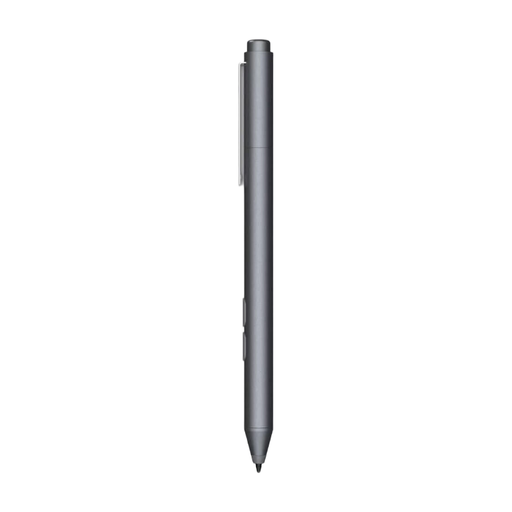 No image available
May suit drawing or writing on a compatible PC or tablet screen; check whether your device supports MPP.
The product name lists customisable buttons and one replaceable tip.
 No image available
An option for sketching on a Galaxy Tab S9 FE or Tab S9 FE+ if you’re looking for a compatible S Pen.
The product name lists a weight of 8.7 g. Check compatibility with your exact tablet model.
No, a stylus alone won’t create an editable electrical schematic. You’ll need suitable schematic software for things such as symbols and connections; check that the software you want to use supports this workflow. For example, KiCad documents a schematic editor.
Apple says this version pairs and charges via a USB-C charging cable. Magnetic attachment is for securing the pen to the iPad. Also check that your exact iPad model and software version are supported.
No, Samsung lists S Pen features and compatibility by pen and device. Some pens supplied with tablets don’t support Bluetooth, so check the exact pen and tablet models if you need this feature.
This depends on the product rules that apply to the specific item. The Dutch government says that CE marking is mandatory for designated product groups and may only be applied to those products. This alone doesn’t tell you whether a specific stylus model falls under those rules or complies with them.
For online purchases, ACM ConsuWijzer says you’ll usually have a statutory cooling-off period of up to 14 days after delivery, with some exceptions. A product must also meet what you could reasonably expect from it under normal use; if it’s faulty, the seller is responsible for providing an appropriate solution.