First, choose a stylus that works with your exact tablet model; extra features are only useful if your tablet and drawing app support them. If you want to control line thickness with pressure, check the pressure sensitivity. For outlines, a compatible pen with tilt control may be enough. Also compare the charging methods and set up your workspace so you can alternate between standing, moving around and sitting.
Who should consider this stylus advice?
Artists who want to control line thickness
You draw faces with varied outlines and want to know whether pressure sensitivity and tool controls suit the way you work. First, check that your tablet and drawing app support these features. Apple Support Netherlands describes pressure and tilt sensitivity for certain Apple Pencil models, among other features.
Artists sketching at a sit-stand desk
You regularly make quick expressive sketches and, alongside pen controls, consider charging, screen positioning and changing your posture. Arboportaal provides information on prolonged standing and computer work.
Owners of an existing tablet
You’re looking for a separate pen rather than a new tablet. The exact tablet model determines which Apple, Samsung or Lenovo pen may be suitable, so check the manufacturer’s compatibility information.
What should you look for when choosing?
| What to consider |
What should you check? |
Who is this important for? |
| Compatibility |
Look up your full tablet model and the required software version in the pen manufacturer’s compatibility information. |
I want to avoid choosing a pen that won’t work with my current tablet. Around 33% of consumers prioritise compatibility for this reason. |
| Line control |
Check pressure sensitivity and tilt control separately, and see whether your drawing app supports the features you want. |
I want to vary outlines using pen pressure or angle. Around 27% of consumers put line control first. |
| Working at a sit-stand desk |
Check how the pen charges and where you can put it between uses. Position your screen comfortably and alternate standing with moving around or sitting. |
I want to pause my sketching session without having to keep awkwardly moving the pen or screen. Around 20% of consumers prioritise their working routine. |
| Accessories and service |
Check whether you need an adapter or charging accessory, and what to expect if your purchase develops a fault. |
I want to know in advance what extra accessories my chosen pen needs and who to contact if it doesn’t work properly. Around 20% of consumers look at this first. |
Buying pitfalls
-
Assuming all Apple Pencils are interchangeable
Compatibility varies by generation and may depend on a software version or adapter. A pen that works with another iPad won’t necessarily work with yours.
Compare your exact iPad model with Apple Support’s compatibility list and check the packaging. For iPad (A16) and iPad (10th generation), Apple specifies a USB-C to Apple Pencil Adapter for pairing and charging the first generation.
-
Confusing tilt sensitivity with pressure sensitivity
The angle of the pen and the pressure you apply are different input methods. Tilt control alone doesn’t let you change line thickness by pressing harder or more gently.
Check pressure and tilt as separate features, and make sure they work with your drawing app and the brush settings you want to use.
-
Assuming magnetic attachment means magnetic charging
The Apple Pencil (USB-C) attaches magnetically to the iPad, but Apple says it charges via a USB-C cable. Other models may charge differently.
Check the charging method for the exact model. Don’t rely solely on a mention that the pen attaches magnetically.
-
Assuming there is a fixed warranty period in the Netherlands
The Dutch government states that there is no fixed statutory warranty period in the Netherlands. What you can reasonably expect from a product depends partly on the product itself.
Keep your proof of purchase and contact the seller if something goes wrong. Remember that your statutory rights are separate from any manufacturer’s warranty.
Brands and pen ranges to consider
Apple
Apple Pencil models for specific iPad models; worth considering if you already have an iPad and want features suited to your drawing.
- For Pencil Pro, Apple Support describes features including squeeze, barrel roll and double-tap controls, as well as magnetic charging. The USB-C model is tilt-sensitive and charges via a cable.
- Not every Pencil works with every iPad. Check compatibility and whether your model requires a particular iPadOS version.
Samsung
S Pen models for supported Galaxy devices, including the Creator Edition.
- Samsung lists tilt sensitivity and a wider grip for the S Pen Creator Edition.
- Samsung says this model doesn’t work with the Galaxy Z Fold series and doesn’t have Bluetooth Air Actions. Check compatibility with your exact device.
Lenovo
The Precision Pen 3 is an option for a Lenovo tablet, provided compatibility has been confirmed.
- For this model, Lenovo specifies 4096 pressure levels, tilt support, and magnetic pairing and charging.
- Check system compatibility with Lenovo first. These specifications aren’t an independent comparison of drawing performance.
ZAGG
The Pro Stylus 2 is an iPad-focused option for sketching, with a fine tip and a capacitive tip for navigation.
- ZAGG lists tilt recognition, palm rejection and an included wireless charging cradle.
- Check compatibility with your iPad and make sure the pen features listed work with your drawing app.
Adonit
The Note+ is another iPad option for anyone looking for pressure sensitivity and programmable buttons.
- According to Adonit, the Note+ has 2048 pressure levels, tilt control and replaceable tips.
- Adonit limits compatibility to the iPads listed and says you must disconnect any previously connected digital stylus.
Stylus pens for drawing on Joybuy
This selection includes stylus pens for drawing on tablets, including Apple Pencil models for compatible iPads. For each pen, check compatibility with your exact tablet model and the features supported by your drawing app.
 Image unavailable
iPad stylus with USB-C charging port
An option for sketching where tilt control and palm rejection matter.
The product title lists a USB-C charging port, tilt detection, palm rejection, magnetic attachment and an LED battery indicator. According to the title, the pen works with selected iPad models; check exactly which models are included.
Joybuy
 Image unavailable
Apple Pencil Pro (2024)
Suitable for drawing where you want to control line thickness and brush behaviour using pressure or tilt, provided your iPad supports this model.
The product description lists pressure and tilt sensitivity, squeeze, barrel roll and double-tap controls, as well as magnetic pairing and wireless charging. Check the required iPadOS version too.
Joybuy
 Image unavailable
Apple Pencil (USB-C), white
An option for outlines and sketches where tilt control is enough and you don’t need to adjust line thickness using pen pressure.
The product description lists tilt sensitivity, a USB-C charging port and magnetic attachment. Apple says this model charges via a USB-C cable; magnetic attachment is not the same as magnetic charging.
Joybuy
 Image unavailable
Apple Pencil (2nd generation)
A drawing option for iPads that support this generation; check compatibility before choosing.
The product title lists the 12.9-inch iPad Pro (3rd to 6th generation), 11-inch iPad Pro, iPad Air (4th and 5th generation) and iPad mini (6th generation). The product description lists magnetic pairing and charging, and double-tap to switch tools.
Joybuy
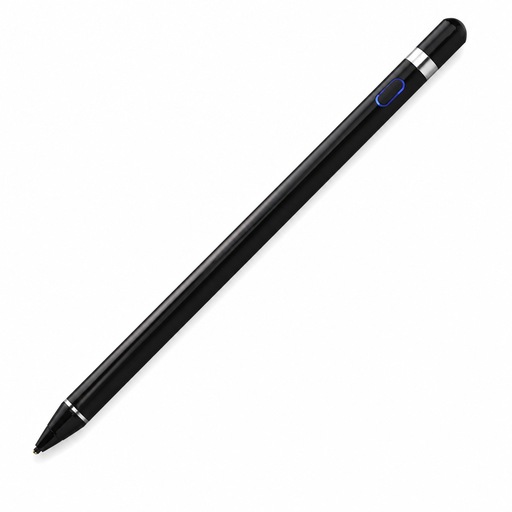 Image unavailable
VoxorAI HL-U05, black
An option if you’re looking for pressure sensitivity; check that your specific tablet and drawing app support it.
The product information lists pressure sensitivity and Bluetooth. The product title mentions iOS, iPad, Android and PC; check before buying that your exact device and software are supported.
Joybuy
Frequently asked questions
Can I use any stylus with my tablet?
No, the pen must be compatible with your exact tablet model. Compare that model with the manufacturer’s compatibility information and check for any required software versions. Manufacturers also distinguish between different pen models.
How can I stay comfortable while drawing at a sit-stand desk?
Position your screen and drawing tools comfortably, and break up prolonged standing with movement or sitting. Arboportaal describes standing continuously for more than an hour as prolonged standing. This is something to bear in mind when considering your posture, but it isn’t a reason to choose a particular pen.
Does the Apple Pencil (USB-C) need to be attached to the iPad to charge?
No, Apple says it pairs and charges via a USB-C charging cable. The pen can also attach magnetically to the iPad, but Apple says this model doesn’t charge that way.
What can I do if a stylus I bought online doesn’t fit or is faulty?
According to the Dutch government, online purchases from a business often come with a 14-day cooling-off period. Check the terms and any exceptions that apply to your purchase. Faulty products in the Netherlands are covered by statutory rights, with no fixed statutory time limit. Contact the seller to arrange a solution.


