
Artists with an existing tablet
You want to check first whether a stylus works with your exact iPad or Galaxy Tab. Apple Support Netherlands and Samsung Netherlands publish compatibility information for specific models.


Start by checking your tablet’s exact model: Apple Pencil, S Pen and Logitech Crayon are not interchangeable. If you want to vary line thickness with pressure, check that the stylus, tablet, drawing app and brush settings all support it. For simple sketches, tilt control or basic touch control may be enough. At a small desk, also consider palm rejection, charging and storage separately.
You want to check first whether a stylus works with your exact iPad or Galaxy Tab. Apple Support Netherlands and Samsung Netherlands publish compatibility information for specific models.
You create variations in smiles, eyebrows and outlines, and want to know whether pressure, tilt and your brush settings give you the line control you need. Wacom notes that performance also depends on the software, brush and settings you choose.
You want to rest your hand on the screen and easily put your stylus away or charge it when you’ve finished, without needing a separate drawing surface on your desk.
| What to consider | What should you check? | Who is it important for? |
|---|---|---|
| Compatibility | Look up the exact tablet model and generation, then compare them with the compatibility list for the specific stylus version. Apple Support Netherlands and Samsung Netherlands provide model-specific information. | If you want to keep using your existing tablet, the stylus needs to match that exact model. Around 36% of consumers say compatibility is their main concern. |
| Line control | Check whether the stylus, tablet, drawing app and selected brush respond to pressure; tilt support is a separate feature. Wacom explains that performance also depends on the software and settings. | If you want to vary lines and outlines to create facial expressions, this matters. Around 29% of consumers prioritise control over lines and details. |
| Resting your hand and storage | Check whether palm rejection works with your setup and whether the stylus charges magnetically, is simply stored magnetically or needs a cable. | If you draw at a small desk, you’ll want to rest your hand and keep the stylus close by. Around 21% of consumers prioritise hand placement and storage. |
| Charging and maintenance | Check how the stylus charges and whether compatible replacement tips are available for that specific model. | If you mainly sketch and want to keep your stylus easy to maintain, check how it charges and whether its tips can be replaced. Around 14% of consumers say charging, wear and cost are their main concerns. |
Even within the Apple Pencil range, different iPads are supported. The Samsung S Pen reviewed here is specifically designed for Galaxy Tab S11 and S11 Ultra.
Before buying, check the exact tablet generation, stylus version and any software requirements.
Tilt and pressing harder or more gently are different ways to affect a stroke. Your drawing app and brush settings also play a part.
If you want to control line thickness by hand, check specifically for pressure sensitivity and make sure your drawing app supports the feature you need.
Apple says Pencil (USB-C) can be stored magnetically, but charges via a USB-C cable. Pencil Pro charges magnetically on a compatible iPad.
Check separately where the stylus can be stored and how it charges.
According to Adonit, palm rejection on the Adonit Dash 4 only works in blue mode with compatible newer iPads, not in general green mode.
Check the stylus mode and your device before relying on being able to rest your hand on the screen.
Apple Pencil Pro, Apple Pencil (2nd generation) and Apple Pencil (USB-C) are designed for different iPad models specified by Apple.
The replacement S Pen reviewed here is specifically designed for Galaxy Tab S11 and Galaxy Tab S11 Ultra.
Crayon (USB-C) is an alternative for writing and sketching on a compatible iPad.
Dash 4 has a general touchscreen mode and a separate mode for compatible newer iPads.
This selection includes styluses for compatible iPads and Galaxy Tab S9 FE models. Before buying, check that the specific stylus is compatible with your tablet; features and charging methods vary by version.
 No image available
For sketching on a compatible iPad; Logitech describes tilt control and palm rejection, but this does not demonstrate pressure sensitivity.
The product information lists compatibility with iPad models from 2018 onwards and charging via USB-C. Logitech describes use without Bluetooth pairing.
 No image available
For drawing on an iPad model that supports this stylus; check the compatibility list and whether your drawing app supports the controls you need.
Apple describes pinch and rotation controls, as well as magnetic pairing and charging. The magnetic charging area needs to remain accessible.
 No image available
For sketching on a compatible iPad model; Apple describes tilt control for this version.
It charges via USB-C. The stylus can be stored magnetically on the iPad, but it doesn’t charge magnetically.
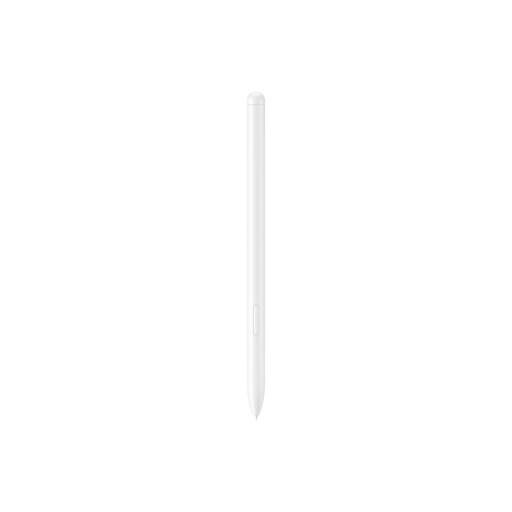 No image available
According to the product information, for Galaxy Tab S9 FE or Galaxy Tab S9 FE+; check your exact tablet model.
The product information lists a magnetic holder for keeping the stylus with the tablet. The features of this version are not automatically the same as those of the S Pen reviewed for Tab S11.
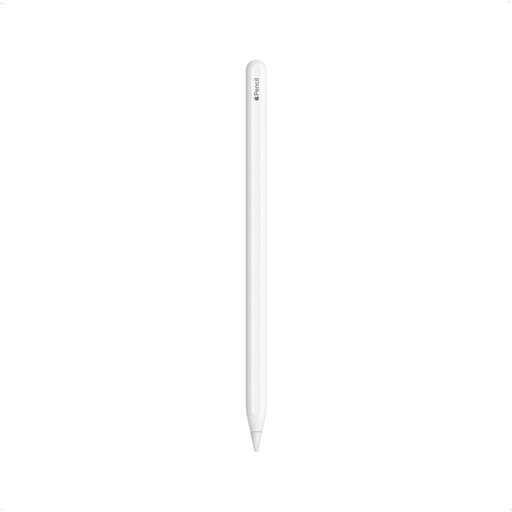 No image available
For the iPad generations specified for this version: iPad Pro 12.9-inch (3rd, 4th, 5th and 6th generation), iPad Pro 11-inch, iPad Air (4th and 5th generation) and iPad mini (6th generation).
Apple describes magnetic pairing and charging, and double-tap to switch tools. Check that your exact iPad model is on the compatibility list.
First, find your iPad’s model name and generation, then compare them with Apple’s separate compatibility lists for Pencil Pro, USB-C, and the 2nd and 1st generations. Apple specifies a minimum of iPadOS 17.5 for Pencil Pro and iPadOS 17.1.1 for Apple Pencil (USB-C).
Check whether your stylus, tablet, drawing app and brush work together to respond to pressure. Wacom explains that the result also depends on software and brush settings; tilt is a separate control and does not, on its own, demonstrate pressure sensitivity.
First, check how it charges: Pencil Pro charges magnetically on a compatible iPad, while Pencil (USB-C) charges via a USB-C cable. Samsung describes a replaceable tip for the S Pen reviewed for Galaxy Tab S11; Adonit lists one for Dash 4 as well.
For most online purchases from a business, the Dutch Government says you have 14 days to change your mind, although exceptions may apply. ACM ConsuWijzer also explains that statutory guarantee applies when a product does not perform as reasonably expected under normal use. This is not simply a fixed two-year guarantee period in the Netherlands.
No, not just because it is a stylus. According to the European Commission, CE marking is required when a specific product version falls under harmonised EU rules that require it. Check the product category that applies to the stylus in question; products outside these CE rules are still covered by general product safety requirements.