Vandaag of morgen in huis

Kwaliteit gegarandeerd

Welkomstaanbiedingen ontgrendelen: GRATIS bezorging | Tot 80% korting | Gratis 30 dagen JoyPlus-proefperiode
Download de app
A stylus can make writing, drawing and navigating a touchscreen much more enjoyable. Yet many people buy a digital pen that doesn’t work properly with their device. A pen may seem technically suitable, but still lack important features or fail to respond altogether.
The most common buying mistakes usually come down to three things:
So, first check the exact model of your tablet, laptop or graphics tablet. Then look at precision, battery life and extra buttons.
A tablet pen isn’t universal. Apple Pencil models are designed for specific iPad generations. A Microsoft Surface Pen works within the Surface ecosystem, while a Dell Active Pen is suitable for certain Inspiron, Latitude and XPS 2-in-1 models.
When comparing pens, check:
A touchscreen doesn’t automatically mean that the screen supports an active stylus. A basic capacitive pen can often tap and swipe, but typically won’t offer accurate pressure detection or palm rejection.
Pressure sensitivity determines how a pen responds to light or firm pressure. When writing, it can give you more control over line thickness; when drawing, it’s particularly useful for sketching, shading and brush strokes. For example, the Dell Pro Plus Active Pen PN5122W lists 4096 pressure levels in its product information.
Tilt sensitivity can adjust the line or shading when you hold the pen at an angle. This is useful for drawing and sketching, but only if both the stylus and the app support the feature.
Palm rejection prevents your hand from making unwanted contact with the screen while you write. The Logitech Crayon and various Apple Pencil models list this feature in their product specifications. Always check that it works with your specific device.
A stylus with a replaceable battery can be practical for business users and students who don’t want to charge their pen regularly. According to the product description, the Dell PN5122W uses an AAAA battery and offers up to 12 months of use.
Rechargeable models usually have a USB-C connection or charge magnetically via the tablet. The Logitech Crayon lists up to 6.5 hours of use per charge. The Apple Pencil USB-C uses a USB-C connection, while some Apple Pencil models connect and charge magnetically.
Don’t just look at the stated maximum battery life. Also check:
Different users need different features. For note-taking and navigation, a basic active stylus is often enough. For digital art, pressure sensitivity, tilt sensitivity, low latency and customisable buttons may be more important.
A Bluetooth connection can enable extra shortcuts, but it isn’t always necessary for writing. According to the product information, the Dell Pro Premium Active Pen PN7522W has Bluetooth, programmable buttons and magnetic attachment. The Microsoft Surface Slim Pen 2 also lists haptic feedback and 4096 pressure levels.
Bear in mind that marketing terms aren’t always directly comparable. “Accurate” and “natural writing experience” aren’t standardised measurements. Focus instead on verifiable details such as compatible models, connection type, battery type and stated pressure levels.

Why it suits this user: According to the product information, this pen for iPad works without a separate pairing process and charges via USB-C. That makes it practical for students and beginners with a compatible iPad.
Compatibility with supported iPad models is clearly specified. Be sure to check your exact iPad model first.
USB-C charging, palm rejection and tilt support according to the product specifications.
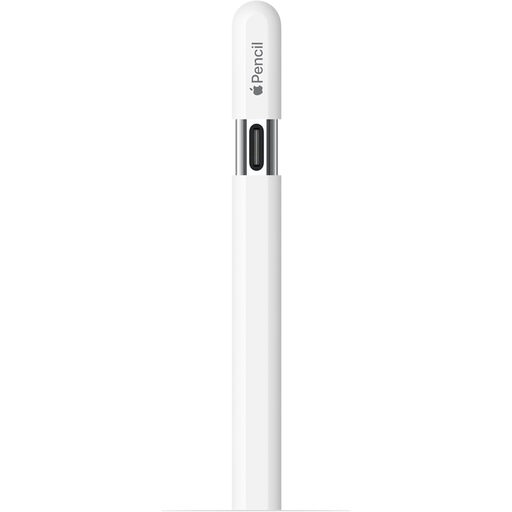
Why it suits this user: This Apple Pencil is designed for iPad users who want to combine writing, drawing and annotating. According to the product information, it offers low latency, tilt sensitivity and hover on selected iPads.
The list of compatible iPad models helps you avoid buying the wrong pen. Hover isn’t available on every model.
USB-C connection and magnetic attachment, with support for palm rejection and tilt.
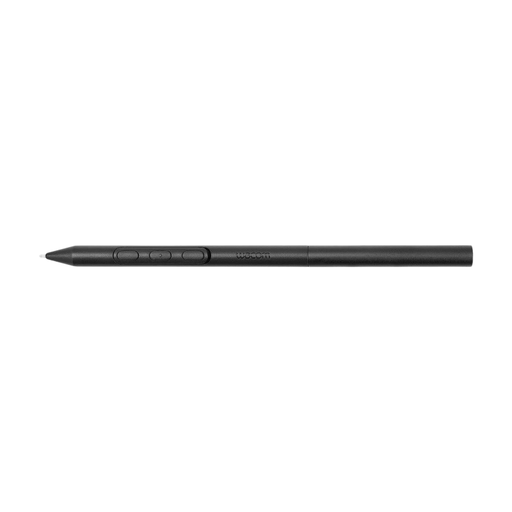
Why it suits this user: This Wacom stylus is designed for users of compatible Wacom devices who do a lot of drawing, sketching or illustration. Its weight, grip, buttons and balance can all be adjusted.
This pen isn’t presented as a universal model: compatibility with specific Wacom devices is the priority.
Battery-free EMR technology according to the product information, plus adjustable ergonomics.
We’ve put together a complete, up-to-date list of products that meet these strict selection criteria and the applicable European safety requirements.
No. A basic capacitive pen can often handle simple touches, but features such as pressure sensitivity, palm rejection and tilt sensitivity require a compatible screen and a suitable active stylus. So always check your device model and the supported pen protocol.
It depends on the power supply and how you use it. A model with an AAAA battery can last for many months according to its product specifications. Rechargeable pens need charging more often, but don’t require a separate battery. The pen’s overall lifespan is affected by drops, moisture, nib wear and heavy use.
Not always. For basic note-taking and navigation, low latency, a suitable nib and compatibility are often more important than advanced drawing features. If you draw a lot, you may benefit more from pressure sensitivity, tilt support, palm rejection and programmable buttons. Choose based on how you’ll use it, not just the brand name.