Vandaag of morgen in huis

Kwaliteit gegarandeerd

Welkomstaanbiedingen ontgrendelen: GRATIS bezorging | Tot 80% korting | Gratis 30 dagen JoyPlus-proefperiode
Download de app
A stylus can make writing, drawing and navigating on a tablet much more precise. Yet buyers often end up with a pen that won’t connect properly, doesn’t support palm rejection or needs recharging after only a short time. With a digital pen, tablet pen or active stylus in particular, it’s important to look beyond its appearance and promised precision.
A pen that works with a touchscreen won’t necessarily work with every tablet. A basic capacitive stylus can often be used with several screens, but usually offers fewer features than an active stylus. These may include pressure sensitivity, tilt recognition, palm rejection and magnetic charging.
So always check:
So a pen for iPad won’t necessarily work with every iPad. The same applies to a Samsung S Pen, Microsoft Surface Pen or Wacom stylus.
A universal touchscreen pen can be handy for navigating and jotting down quick notes. But for drawing or writing for long periods, you may notice a clear difference compared with an active pen. Without digital pressure detection, the line may not respond to how hard you press.
Also be wary of claims such as “no lag” or “paper-like writing experience”. These features may depend on the app, screen technology and settings you use, according to a brand’s own research or product information. So don’t treat them as a guarantee for every use.
A stylus with a built-in battery needs to be charged regularly. Check the charging port, the stated battery life and whether a cable is included. Some models need an AAAA battery, while others charge magnetically when attached to the tablet.
The nib is another thing to consider. A worn or bent nib can affect accuracy and, in some cases, damage the screen. Check in advance whether replacement nibs are available.
The most important specification is the combination of device model and pen protocol. An Apple Pencil works within a specific iPad ecosystem. A Microsoft Surface Pen is designed for compatible Surface devices. Wacom pens are often made for a particular graphics tablet.
Also check how the pen connects:
Pressure sensitivity determines how a drawing app responds when you press harder or more gently. It’s particularly useful for digital artists, illustrators and anyone looking for a tablet drawing pen. More pressure levels can offer subtler variations, but only when the tablet and software support this feature.
Tilt sensitivity can change the line or shading when you hold the pen at an angle. This is useful for sketching and digital pencil effects. For example, the Apple Pencil USB-C lists tilt sensitivity, while the Apple Pencil Pro also lists pressure sensitivity and extra gestures in its product information.
With palm rejection, you can rest your hand on the screen while writing or drawing. This feature needs to be supported by both the stylus and the device. Weight also matters if you’re taking long lectures, attending meetings or drawing for extended periods. A heavy pen may feel tiring, while a very light pen may feel less sturdy.
Finally, check whether the battery:

Why it suits this profile: For iPad users who mainly take notes, navigate and draw from time to time. According to the product information, this pen works with supported iPad models and doesn’t need to be paired.
The compatibility information is specific to iPad models. So it’s clear in advance which ecosystem the pen is designed for, rather than relying on a general promise of universal compatibility.
USB-C charging, palm rejection and tilt for variable line thickness, according to the product description.
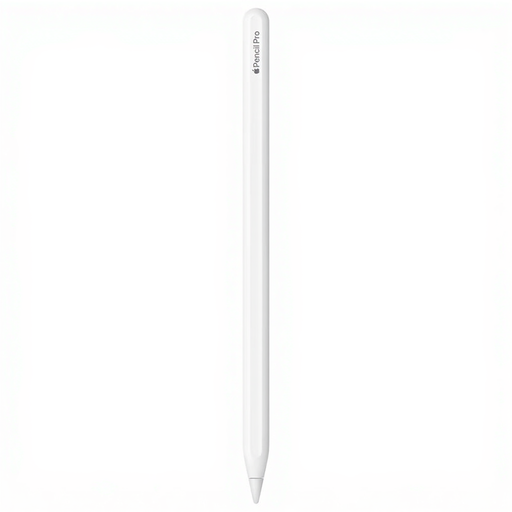
Why it suits this profile: Designed for creative professionals and digital artists with a compatible iPad Pro, iPad Air or iPad mini.
The product information lists specific compatible iPad models. Check this list before you buy; the pen isn’t designed as a general-purpose stylus for every touchscreen.
According to the product details: pressure and tilt sensitivity, magnetic attachment and charging, haptic feedback and quick switching between functions.
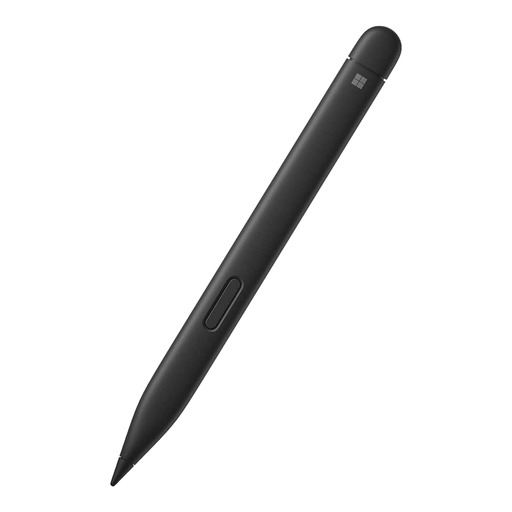
Why it suits this profile: A natural choice for Surface users who do a lot of writing, sketching or working in Windows apps.
The compatibility list names specific Surface devices. This lets you compare it directly with your laptop or tablet model before ordering.
The specifications list 4,096 pressure levels, palm rejection, tilt sensitivity and haptic signals.
We’ve put together a complete, up-to-date list of products that meet these strict selection criteria and the applicable European safety regulations.
No. A basic capacitive stylus often works with several touchscreens, but active features such as pressure sensitivity and palm rejection depend on the device and pen protocol. Always check the exact tablet model.
It depends on how often you use it, how hard you press and the screen surface. Replace the nib when you feel more resistance, the line becomes inaccurate or the nib is visibly damaged. Keep the pen protected in a bag or case.
Often, yes, but the available features vary by model. For taking notes, a good grip, palm rejection and battery life are important. For drawing, pressure sensitivity, tilt recognition and support from the app you use matter most. Check each of these features separately in the product specifications.