Vandaag of morgen in huis

Kwaliteit gegarandeerd

Welkomstaanbiedingen ontgrendelen: GRATIS bezorging | Tot 80% korting | Gratis 30 dagen JoyPlus-proefperiode
Download de app
A stylus can make note-taking, sketching and touchscreen control much more precise. However, a digital pen won’t necessarily work with every tablet or laptop. For example, a pen for iPad won’t automatically work with a Samsung Galaxy Tab or a Dell 2-in-1.
The most common buying mistakes usually come down to three pitfalls:
The most important question isn’t which stylus looks the most modern, but which device it works with. Check the exact model number of your tablet or laptop and compare it with the manufacturer’s compatibility list.
For example:
A so-called universal touchscreen pen may be suitable for basic navigation, but check whether your device and app actually support features such as handwriting recognition, pressure sensitivity and tilt.
A fine tip is often enough for note-taking and navigation. For drawing, shading and calligraphy, other features matter more:
Please note: not every active stylus lists all these features. A model with a pressure-sensitive tip isn’t automatically tilt-sensitive or equipped with palm rejection.
A digital pen may have a built-in battery, use a replaceable AAAA battery or work directly with a compatible device. So consider how you plan to use it:
Also check whether the box includes a cable, battery or replacement tip. This helps you avoid unexpected extra costs.

Why it suits this profile: This tablet pen is designed for iPad users who want to write or draw without Bluetooth pairing. Its flat shape makes it easy to carry in a school bag or laptop bag.
The product information lists support for iPad models from a certain generation onwards, along with USB-C charging. Check your model before buying.
Ready to use without pairing, USB-C connection, tilt function and palm rejection, according to the product description.
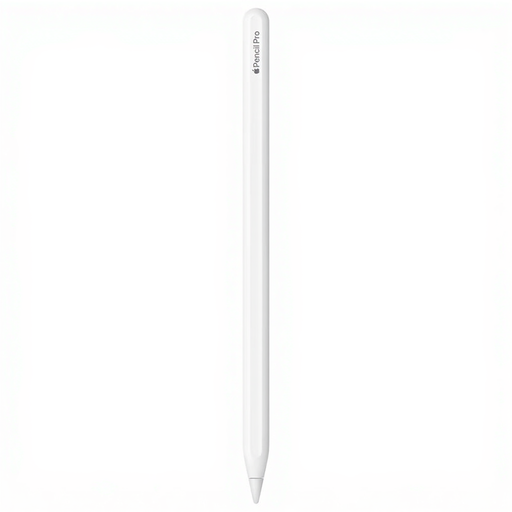
Why it suits this profile: Ideal for iPad users who combine drawing, sketching and note-taking with features such as magnetic attachment, haptic feedback and gestures.
The compatibility list is limited to specific iPad Pro, iPad Air and iPad mini models. This makes it essential to check compatibility in advance rather than assume it works with all iPads.
4,096 pressure levels, tilt and palm rejection support according to the product specifications, plus magnetic attachment and charging.

Why it suits this profile: This active stylus is a good match for users of compatible Dell 2-in-1 devices who regularly write, sign documents or use shortcuts.
This pen isn’t designed for every laptop, but for selected Dell 2-in-1 models. Checking the exact model helps you avoid buying the wrong one.
4,096 pressure levels, programmable buttons, Bluetooth and, according to the product information, up to 40 days of battery life per charge.
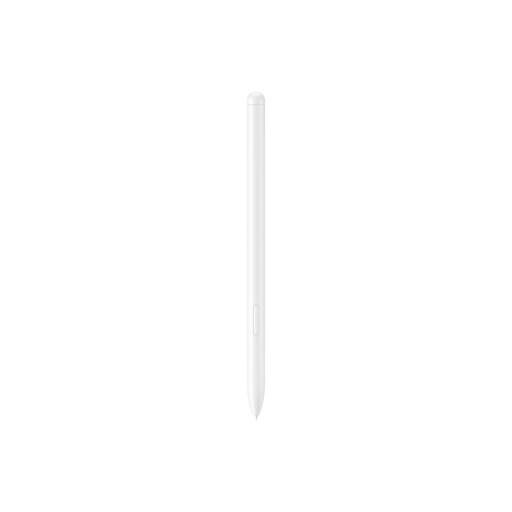
Why it suits this profile: This lightweight pen is designed specifically for Galaxy Tab S9 FE and Tab S9 FE+ users. It’s ideal for note-taking, sketching and navigating Samsung Notes or PENUP.
The compatibility information specifically lists the Tab S9 FE and FE+. This makes it clear which devices are covered by the stated compatibility.
Weighs 8.7 grams, with magnetic attachment and an IP68 rating according to the product information. It must be charged while dry.
We’ve put together a complete, up-to-date list of products that meet these strict selection criteria and the applicable European safety regulations.
A stylus usually has a replaceable tip or battery. So check the following in advance:
An active stylus with Bluetooth isn’t automatically more energy-efficient or more accurate than a model without Bluetooth. Choose the connection type based on the features you’ll actually use.
No. A basic capacitive touchscreen pen can often handle simple taps, but features such as pressure sensitivity, tilt and palm rejection require a compatible active model. So check your exact iPad model and the Pencil technology it supports.
It varies considerably by model. Some pens use an AAAA battery that’s rated to last for several months. Others have a built-in battery and need regular charging via USB-C or a magnetic connection. Actual battery life depends on how often you use it, Bluetooth use and charging habits.
Not always. Some pens work as soon as you switch them on or use them with the right device. Bluetooth may be needed for pairing, programmable buttons, remote control or additional software features. Check the product specifications before ordering.