
Artist with an existing tablet
You want to replace or upgrade your pen without changing tablets. First, check the exact device model: manufacturers such as Apple, Samsung, STAEDTLER and Wacom list compatibility for each pen and device.


First, choose a stylus that works with the exact tablet model and pen technology available at the shared desk: Apple Pencil, S Pen, EMR pens and Windows pens are not interchangeable. Then look at the features supported by your drawing app. Pressure sensitivity can matter for sketch lines of varying thickness, while the nib, palm rejection and software commands also count when annotating and working in CAD. At a shared workstation, pairing, charging and storage are practical considerations too.
You want to replace or upgrade your pen without changing tablets. First, check the exact device model: manufacturers such as Apple, Samsung, STAEDTLER and Wacom list compatibility for each pen and device.
You draw fine contours and varied lines, and want to know which features your app actually uses. Consider pressure or tilt sensitivity, but also check that the app you use supports them.
You want to pick up and put away a pen quickly, without unnecessary interruptions to pair or charge it. Apple, STAEDTLER and Logitech describe different ways to pair, charge and use their pens.
Start by checking that the pen is compatible with your screen. Then consider which drawing features and software functions matter for your work.
| Concern | What should you check? | Who is this important for? |
|---|---|---|
| Compatibility | Note the exact tablet model, generation and software version. Also check the required pen technology, such as EMR or Wacom AES/MPP. | If I want to keep using my existing tablet, I need to know first whether the pen works with that exact model. Compatibility is the top priority for around 33% of consumers. |
| Fine lines and hand position | Check whether the pen and app support pressure or tilt sensitivity and palm rejection; these are different features. | If I draw fine contours and vary the thickness of my lines, I need to know which inputs my app recognises. Around 27% of consumers prioritise control over fine lines and hand position. |
| Easy sharing | Check how the specific pen pairs and charges, where you can store it, and whether replacement nibs are available. | If several people use the same desk, I want to be able to hand over the pen without unnecessary interruptions. This is the main buying concern for around 20% of consumers. |
| CAD workflow | In your chosen app, test a line, a dimension, an annotation and saving a file. Check whether any features require a subscription. | If I need to annotate technical drawings or adjust dimensions, I want to know whether the app supports these tasks. Around 20% of consumers prioritise the CAD workflow. |
Compatibility depends on the specific device and pen technology. Apple lists certain iPad models for Apple Pencil Pro, while Noris digital requires an EMR digitiser and Bamboo Ink Plus is designed for supported Windows devices.
Compare the full model name and screen technology with the compatibility information for the exact pen variant.
These features describe different ways a pen stroke can change. A mention of tilt sensitivity does not mean that pressing harder will change the line.
If varied sketch lines are important, check that both the pen and drawing app support pressure sensitivity.
The pen nib does not determine which drawing, measuring or annotation commands are available. Autodesk documents these features for AutoCAD mobile; according to Autodesk, an active eligible subscription is required to access all features.
Try the tasks you need in the app you’ll be using for the project, and check the software terms.
According to Autodesk, an active eligible subscription is required to access all AutoCAD mobile features. So check software terms separately from your choice of pen.
ACM ConsuWijzer distinguishes between purchases used mainly for private purposes and those used mainly or exclusively for business.
Before ordering, check who you’re buying on behalf of and what the main purpose is. Don’t automatically assume consumer rules apply to business purchases.
Apple Pencil Pro is designed for supported iPads. Apple Pencil (USB-C) is an option for writing, sketching and annotating on the iPads listed by Apple.
Samsung sells model-specific S Pens for supported Galaxy Tabs.
Noris digital classic is a pencil-shaped pen for devices with a compatible EMR digitiser.
Bamboo Ink Plus is a Windows option for devices with supported AES or MPP pen technology.
Crayon USB-C is designed for sketching and annotating on compatible iPads.
This selection includes stylus pens for drawing on compatible Windows devices and iPads. Before buying, check that the pen and the features you need work with your exact device and drawing app.
 No image available
An option for detail work where pressure-sensitive lines and feedback when using the pen are important. Check that it’s compatible with the shared device.
The product description mentions a sharper, pressure-sensitive nib, 4,096 pressure levels and haptic feedback.
 No image available
Suitable for sketching and annotating on a compatible iPad, including when users need to pass the pen around quickly without a separate pairing process.
The product description mentions tilt-dependent line thickness, palm rejection and USB-C charging. Check compatibility with your iPad and app for the features you want to use.
 No image available
For sketching on a supported iPad when varied lines and tool controls while drawing are important.
The product description mentions pressure and tilt sensitivity, haptic feedback, and squeeze and barrel roll controls. Apple limits Pencil Pro compatibility to specific iPad models and iPadOS versions; check the compatibility list.
 No image available
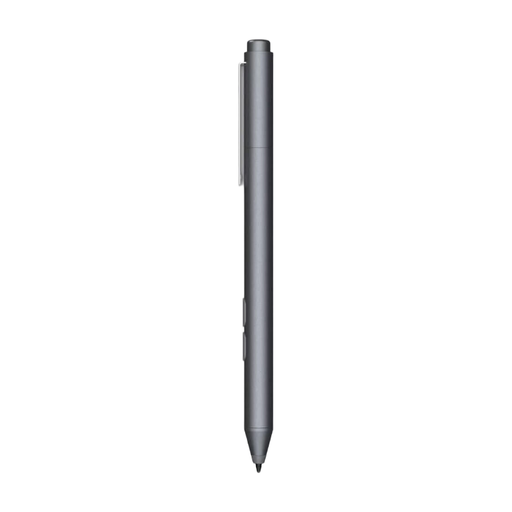
An option for fine, pressure-sensitive strokes on a compatible device. Check that the device supports Microsoft Pen Protocol.
The product name specifies use with PCs and tablets, customisable buttons and one replacement nib. The product description mentions a fine, pressure-sensitive nib and an AAAA battery.
 No image available
For drawing, sketching and annotating on an iPad compatible with this Pencil model.
The product name lists compatibility with iPad Pro 12.9-inch (3rd to 6th generation), iPad Pro 11-inch, iPad Air (4th and 5th generation) and iPad mini (6th generation). The product description mentions magnetic pairing and charging, and double-tapping to switch tools.
No. Pressure sensitivity relates to how a pen stroke is entered. For dimensioning, check the commands and file workflow in your drawing app separately; Autodesk, for example, documents drawing, measuring and annotation commands for AutoCAD mobile.
It depends on the pen. STAEDTLER says the Noris digital classic doesn’t need to be paired or charged when used with a suitable EMR screen. Logitech says the Crayon USB-C works without separate Bluetooth pairing. Apple describes magnetic pairing and charging for Pencil Pro, and pairing and charging via a USB-C cable for Pencil (USB-C).
Check whether the nib is replaceable for the exact pen, and which parts you’ll need. STAEDTLER supplies replacement nibs and a tool for the Noris digital classic; Samsung provides instructions for replacing the nib on the S Pen reviewed, using the included tweezers. Apple sells separate nibs for the Pencil models listed.
That depends on the app and the features you need. Autodesk says an active eligible subscription is required to access all AutoCAD mobile features. Check the terms for the app you use; this requirement doesn’t indicate the cost of other drawing apps.
For an applicable online consumer purchase, you generally have a statutory cooling-off period of up to 14 days after delivery. If a consumer product doesn’t conform to the contract, the seller is responsible for providing an appropriate remedy. If you’re buying mainly or exclusively for business, don’t automatically assume consumer rules apply; ACM ConsuWijzer outlines a different starting point and possible exceptions.