What should you look for in a laptop for your student showreel?
Portable MacBook Air
Choose this if: you use macOS, often travel between workspaces and your showreel doesn’t mainly involve demanding effects.
Trade-off: check that the memory and storage configuration you choose, along with its available connections, suits your workflow.
Windows laptop with a dedicated GPU
Choose this if: your Windows workflow and editing project mean you need to consider both system memory and GPU memory.
Trade-off: compare the full model number and RAM configuration; different versions within the same product range can vary.
Model focused on display and storage
Choose this if: you do a lot of work on your laptop’s display and want to review your showreel on it.
Trade-off: a display specification alone won’t tell you whether the graphics are suited to your editing workload.
Start with the requirements of your own editing software and project. For Premiere on Windows, Adobe recommends 16 GB RAM for HD and 32 GB or more for 4K and above. This advice applies to that software and isn’t a general requirement for every showreel.
| Consideration |
What should you check? |
Who is this important for? |
| Editing performance |
Check your software’s RAM and GPU memory requirements, as well as the exact configuration. For Premiere on Windows, Adobe recommends 32 GB RAM or more for 4K and above. |
If you work with 4K footage or lots of effects, compare your project’s requirements with the full configuration. Around 29% of consumers prioritise editing performance. |
| Software compatibility |
Check the operating system, version and processor and GPU support for the software you actually use. |
If you rely on a particular editing programme, you’ll want to know before buying whether it works on the configuration you’ve chosen. Around 23% of consumers prioritise compatibility with editing software. |
| Space for files and cache |
Choose your SSD capacity based on the size of your projects; the Dutch Consumers’ Association recommends 512 GB or more if you have lots of photo and video files. Adobe recommends fast SSD or NVMe storage for media and cache. |
If you want somewhere practical to keep your source footage, project files and cache, look beyond the space needed for software installation. Around 18% of consumers prioritise storage capacity. |
| Display for editing and review |
Compare screen size, resolution and the specifications of the exact configuration; a larger screen may be less convenient to carry around. |
If you edit and review your showreel on your laptop, you’ll want a display that suits the way you work. Around 18% of consumers put the display above other buying considerations. |
| Portability |
Check the size, weight, connections and which power adapter comes with the exact configuration. |
If you carry your laptop between classes, your workspace and review sessions, weigh portability against screen space and the accessories you’ll need. Around 12% of consumers prioritise portability. |
Joybuy laptops for these scenarios
This selection includes a portable MacBook Air and Windows laptops with dedicated GPUs, for a range of editing workloads and reviewing your work on the laptop’s display.
 No image available
Apple MacBook Air 15-inch M5, 16 GB, 512 GB SSD
A portable macOS option to compare if you often travel between workspaces and work on your laptop’s display.
15.3-inch Liquid Retina display; 1.51 kg; 16 GB memory and 512 GB SSD. The power adapter isn’t included; the description recommends a USB-C adapter rated at 35 W or higher.
View at Joybuy
 No image available
MSI Titan 18 HX AI A2XWJG-492NL
A Windows configuration to compare if plenty of RAM, GPU memory and storage are key selection criteria for your project.
64 GB RAM, NVIDIA GeForce RTX 5090 with 24 GB GPU memory and 6 TB SSD; 18-inch UHD+ Mini LED display with 120 Hz. The stated weight is 3.6 kg, which is worth considering if you carry your laptop around often.
View at Joybuy
 No image available
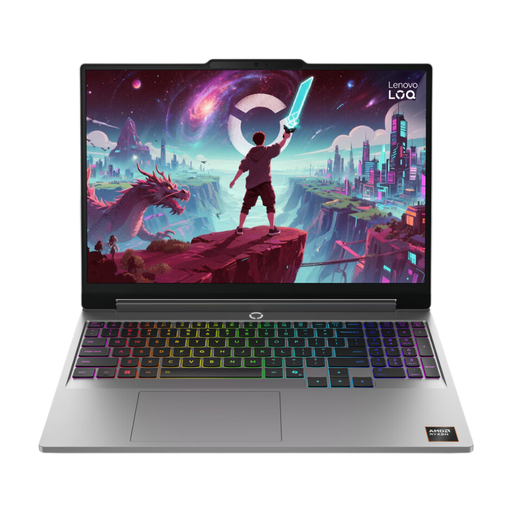
Lenovo LOQ 15AHP11, RTX 5070, 16 GB RAM, 512 GB SSD
A Windows laptop with a dedicated GPU to compare if you’re weighing editing performance against portability.
AMD Ryzen 7 250, RTX 5070 with 8 GB GPU memory, 16 GB RAM and 512 GB SSD; 15.3-inch WUXGA display. The stated weight is 2.1 kg. For Premiere on Windows, Adobe recommends 32 GB RAM or more for 4K and above.
View at Joybuy
 No image available
ASUS ROG Strix G18 G814PM-S9012W, RTX 5060, 16 GB RAM
A Windows configuration with a dedicated GPU and a large display to compare if you review your showreel on your laptop.
AMD Ryzen 9 8940HX, RTX 5060 with 8 GB GPU memory, 16 GB RAM and 1 TB SSD; 18-inch WQXGA display. It weighs around 3 kg, and the power adapter must be bought separately.
View at Joybuy
 No image available
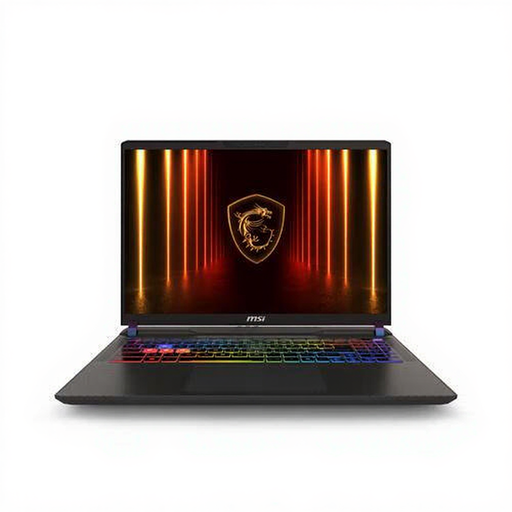
MSI Vector A16 HX A8WIG-025NL
A Windows laptop with a dedicated GPU to compare if you’re also considering screen size and storage for your showreel.
AMD Ryzen 9 8940HX, RTX 5080 with 16 GB GPU memory, 16 GB RAM and 1 TB SSD; 16-inch display with a resolution of 2560 × 1600 pixels. The stated weight is 2.7 kg, and the power adapter must be bought separately.
View at Joybuy
Frequently asked questions
Do you always need 32 GB RAM for a short showreel?
No, not for every showreel. For Premiere on Windows, Adobe recommends 16 GB RAM for HD and 32 GB or more for 4K and above; also check your software version, resolution and effects.
What can you do if high-resolution footage plays back jerkily?
In Premiere, you can create proxies for compatible video clips: lower-resolution copies to use while editing. Adobe notes some limitations, including clips with captions and certain other file types; also leave enough space for the proxy files.
When might you need extra storage as well as the internal SSD?
Adobe distinguishes between the system, media cache and source media, and recommends fast SSD or NVMe storage for video work. Before importing, decide where you’ll keep your source files and cache; the capacity you need depends on your project.
What are the rules on online returns and warranties in the Netherlands?
For many online consumer purchases, you have a statutory 14-day cooling-off period from the date of delivery; ACM ConsuWijzer lists some exceptions. Statutory guarantees are separate from manufacturer’s warranties or cover you’ve bought. According to the ACM, there’s no fixed general time limit for statutory guarantees.


