No, you don’t automatically need a powerful editing laptop if the final edit will be done on a shared workstation. A portable laptop for preparation and editing with proxy files may be enough. Consider extra memory and graphics capacity if you’ll also be working with 4K footage or demanding effects on the laptop itself. Agree on the software, access to the original media files and connections with your team in advance.
Who is this laptop advice for?
Students switching between a laptop and workstation
You want to be able to pick up where you left off on either device without losing any media files. Adobe explains that Team Projects collaborators need access to the same media, so agree on where files and project files will be stored.
Students doing demanding editing independently
You also work with 4K footage or effects away from the workstation. Assess the configuration based on your editing software and the specific tasks you’ll do on the laptop. Adobe recommends 32 GB RAM or more for 4K in Premiere.
Students mainly preparing work on the go
You select footage and do lighter editing in different study spaces, while the workstation handles the demanding finishing work. A suitable proxy workflow may matter more than maximum graphics capacity. Adobe describes proxies as lower-resolution copies used for editing.
What should you look for when choosing?
First decide which tasks you’ll do on the laptop and which will stay on the shared workstation. Then compare the configurations you need.
| What to consider |
What should you look for? |
Who is this important for? |
| Project handover and media access |
Ask which software the workstation uses and how both computers will access the original footage and any proxy files. Also check that the agreed storage and ports work with the laptop. |
If you’re working on the same project across two computers, you’ll want to avoid missing linked footage. Around 33% of consumers say project handover is their top priority. |
| Performance to suit your work |
Compare the software requirements with the exact memory, storage and GPU configuration. Adobe recommends 16 GB RAM for HD media and 32 GB or more for 4K in Premiere. Consider the work you’ll actually do on the laptop. |
If you want enough capacity for your own editing without automatically paying for the most powerful version, choosing a suitable configuration is important. Around 27% of consumers say suitable performance without unnecessary spending is their top priority. |
| Portability and screen space |
Compare the size, weight, screen space, ports and included power adapter of the specific version. Don’t treat the stated battery life as a measure of how long it will last while editing. |
If you travel between study spaces and use the workstation for the most demanding tasks, you’ll want to carry your equipment without unnecessary strain. Around 20% of consumers say portability is their top priority. |
| Demanding editing on your own |
Check the project’s resolution, effects and software version. For 4K in Premiere, Adobe recommends 32 GB RAM or more and 8 GB of GPU memory as a recommended Windows specification. |
If you also need to work with 4K footage or demanding effects without the shared workstation, the memory and GPU specifications for the complete model number matter. Around 20% of consumers say demanding editing on their own is their top priority. |
Common buying mistakes
-
Looking only at the processor or GPU
When you’re working with others, both computers need access to the media being used. Otherwise, files may be missing when you open the project on the second device.
Before comparing laptops, agree on the software, storage and media access your team will use, and which connections you’ll need.
-
Choosing the most powerful 4K configuration as standard
Creative work and demanding 4K editing don’t automatically call for the same configuration. Extra capacity is most relevant if you’ll be doing the demanding work on the laptop itself.
First decide which tasks will stay on the shared workstation, then compare the exact configurations with your software requirements.
-
Mistaking a product range name for a full specification
Memory, GPU, storage and screen can vary between versions. Some models have soldered memory that can’t be upgraded later.
Check the full model number and the specifications of the version you want to buy.
Brands to compare
Apple
The MacBook Air is an option to compare for preparation and lighter editing on a compact laptop.
- For the 13-inch version, Apple lists 16 GB unified memory, a 512 GB SSD, hardware acceleration for formats including H.264, HEVC and ProRes, and two Thunderbolt 4 ports.
- The stated battery life isn’t a measure of how long it will last while editing. Check that adapters, software and file transfers are compatible with the shared workstation.
Acer
The Swift X range is worth comparing if you’re looking for portability and a discrete graphics card.
- Acer Netherlands lists configurations in the range with up to 32 GB memory and a GeForce RTX 5070 laptop GPU.
- These are the range’s maximum specifications, not those of every version. Check the full model number, ports and actual configuration.
Lenovo
The Yoga Pro 9i is a Windows option for anyone looking for a larger screen and the capacity for more demanding editing on their own laptop.
- For version 83SF003UMH, Lenovo lists 32 GB soldered memory, an RTX 5060 laptop GPU with 8 GB graphics memory and a 1 TB SSD.
- Soldered memory limits future upgrades. These specifications apply to 83SF003UMH and not automatically to other Yoga versions.
ASUS
ProArt P16 is a creator range with a variety of versions. H7606WX-SE003X is a specific high-powered configuration to compare with lighter options.
- For H7606WX-SE003X, ASUS lists an RTX 5090 laptop GPU, a 4K OLED screen and a 2 TB SSD, among other specifications.
- The range also includes other GPU and screen configurations. These specifications don’t show that this version is worth the extra cost for every student showcase reel.
Dell
The Dell 16 Plus is an alternative to compare if screen space and general creative use matter more to you than a discrete GPU.
- The DB16250 configuration lists 16 GB memory and integrated Intel Arc graphics.
- This version isn’t an equivalent replacement for a configuration with a discrete GPU when you’re using demanding effects. Dell warns that configuration choices can change the specifications.
Joybuy laptops for video editing
This selection includes laptops for preparation and lighter editing, as well as versions for students who also want to do more demanding editing independently. Check that each model’s specifications suit your software and the workflow agreed with the workstation.
 No image available
HP OmniBook X Flip NG AI PC 16-as0050nd D75LQEA#ABH
A laptop option for preparation. Check that its configuration and connections suit your editing software and shared setup.
The product information lists a 16-inch WUXGA touchscreen, Thunderbolt 4 and USB-A. The 360-degree hinge is useful if you also want to use the laptop in tablet mode.
View at Joybuy
 No image available
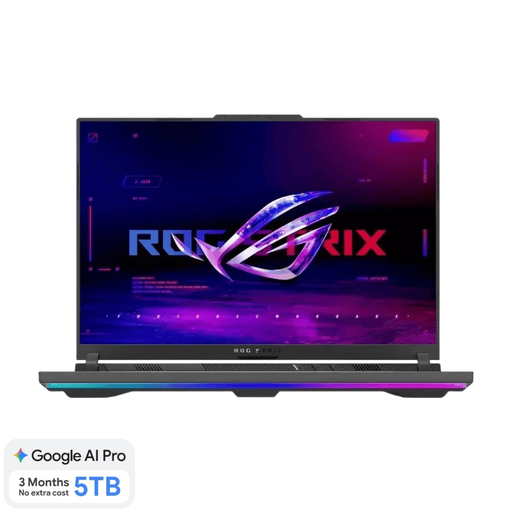
ASUS ROG Strix G16 G614FR-S5252W
This version is worth comparing if you also edit independently. Make sure its configuration suits your project’s resolution and effects.
The product name lists an RTX 5070 Ti laptop GPU, 16 GB RAM and a 1 TB SSD. Adobe recommends 32 GB RAM or more for 4K in Premiere. According to the product information, the power adapter must be purchased separately.
View at Joybuy
 No image available
Thunderobot 16-inch Gaming Laptop i7-14700HX RTX 5070
A configuration to compare if you’ll also be working with larger video projects independently. Check in advance that it suits your software and workflow.
The product name lists 32 GB RAM, a 1 TB SSD and a 16-inch IPS screen with a resolution of 2560 × 1600 and a 240 Hz refresh rate.
View at Joybuy
 No image available
ASUS Vivobook S16 S3607QA-SH109W
This version is worth comparing for preparation and lighter editing. Bear in mind how much editing you plan to do away from the workstation.
The product name lists a 16-inch WUXGA OLED screen, Snapdragon X, 16 GB LPDDR5X, a 512 GB SSD and Windows 11 Home. The product information gives its weight as 1.70 kg. Adobe recommends 32 GB RAM or more for 4K in Premiere.
View at Joybuy
 No image available
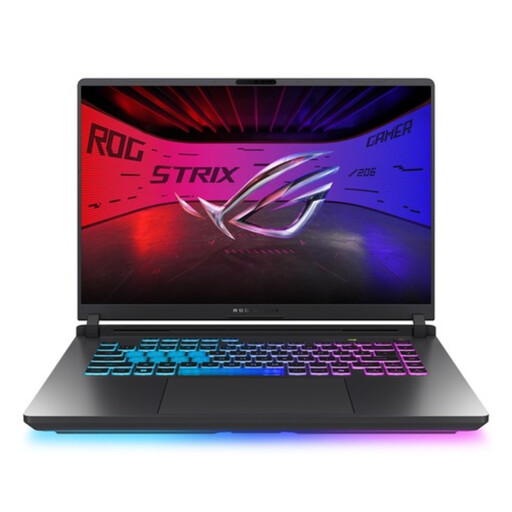
ASUS ROG Strix G16 G615LR-S5396W
An option to compare if you want to edit independently on the laptop. Check that the full model specification suits your software and project.
The product name lists a Core Ultra 9 processor and an RTX 5070 Ti laptop GPU. Adobe recommends 32 GB RAM or more for 4K in Premiere, so check this version’s memory configuration too.
View at Joybuy
Frequently asked questions
Can you start on your laptop and continue on the shared workstation?
Yes, as long as the project workflow and original media files are accessible on both computers. Adobe explains that everyone working on a Premiere Team Project needs access to the same media. Ask your team which software and workflow it uses.
Can proxy files help if your laptop struggles with large video clips?
Proxy files are lower-resolution copies that can make large video files easier to edit. Adobe describes this workflow for suitable video clips. Make sure the original media remains available for the agreed finishing work too.
What extra costs and rights should you check before buying?
Check that you have access to the editing software you need, and whether you’ll need adapters for external drives or monitors. For online purchases from a business in the Netherlands, you usually have a 14-day cooling-off period, according to the Dutch government. There’s no fixed period for statutory guarantees in the Netherlands: you’re entitled to a product that works as it should.
Can a student showcase video show visitors or students who can be recognised?
That depends on the applicable legal basis for recording and publishing the footage. The Dutch Data Protection Authority says an organisation needs a legal basis to publish footage of identifiable people at an event. Agree on filming and publication with your course or organiser in advance.


