What should you look for when choosing?
First decide whether you mainly organise folders and thumbnails or also assess detail and colour. Then compare the space on your desk and the stand dimensions with the screen resolution and your laptop’s connections.
| Factor to consider |
What should you check? |
Who is this important for? |
| Clear view on a small desk |
Measure the available width and depth, including the stand. Compare these with the screen size and resolution of the exact model. |
If I mainly want to organise photos and file names, the screen needs to give me a clear overview without taking over my study space. Around 33% of consumers put desk space and an easy-to-scan view first. |
| Photo detail and colour |
Compare the resolution and stated colour gamut; also check the settings for your complete colour workflow. |
When I also inspect or edit photos more closely, I want to assess detail and colour rather than just manage files. Around 25% of consumers give photo detail and colour top priority. |
| Laptop connection |
Check your laptop’s video output, the monitor port, the cable and the required charging power separately. |
If I regularly connect my laptop, I want to know in advance whether the chosen connection will carry both picture and power. Around 17% of consumers start with the laptop connection. |
| Working posture |
Check the height adjustment, tilt and stand dimensions; also consider reflections where you work. |
For regular sorting sessions, I want to be able to position and adjust the screen properly on my desk. Around 17% of consumers make adjustability their top priority when choosing. |
| Total running costs |
Compare the EU energy label for the exact model and check which features you’ll actually use. |
If I mainly archive photos, I don’t want to pay for features I don’t need. Around 8% of consumers prioritise total costs and avoiding unnecessary features. |
Joybuy products
These product choices range from compact screens for selecting and organising photos to 27-inch 4K models for checking detail. New electrical monitors are subject to the applicable EU product requirements; Your Europe, the European Union’s information service, explains that CE marking is required when the applicable harmonised rules say it is. A product listing alone doesn’t prove that the version on offer meets those requirements, so check the information for the exact model.
 No image available
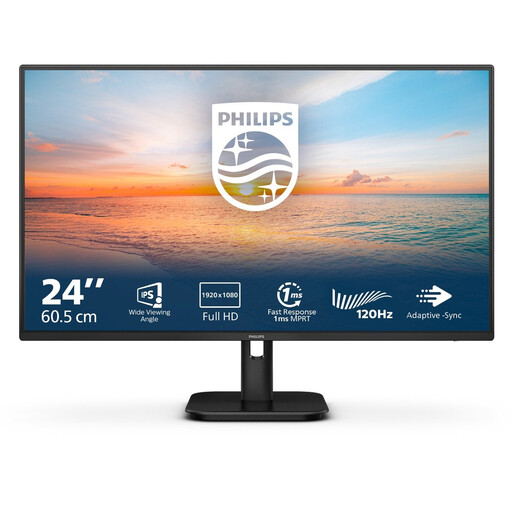
Philips 24E1N1100A, 24-inch Full HD IPS monitor
The 24-inch version is suitable for selecting photos and organising folders in a compact workspace.
The product name lists Full HD IPS, 100 Hz and speakers. Check that the stated HDMI or VGA connection is suitable for your laptop.
View at Joybuy
 No image available
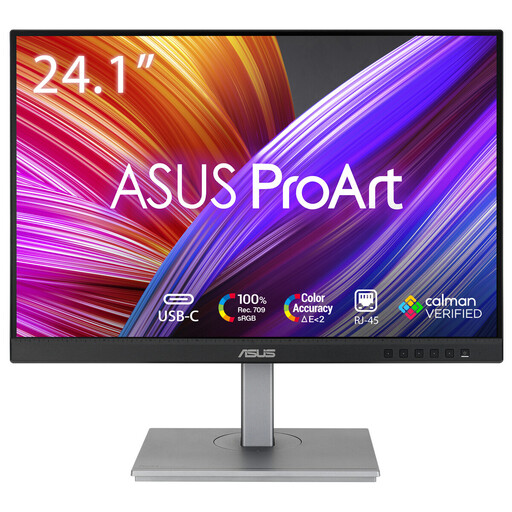
ASUS ProArt PA248CNV, 24.1-inch WUXGA monitor
The 24.1-inch 16:10 format is a compact option for sorting, with extra vertical screen space.
The product name lists 1920 × 1200 pixels. Before buying, check which ports and cables work with your laptop.
View at Joybuy
 No image available
Dell Pro Plus P2425D, 24-inch QHD monitor
This compact QHD option is designed for anyone who wants to see more detail when organising photos on a screen of around 24 inches.
The product name lists 2560 × 1440 pixels. Check that the resolution and connections suit your laptop and workspace.
View at Joybuy
 No image available
Philips 27E1N1800AE/00, 27-inch 4K UHD IPS monitor
This 27-inch model is an option if you want to see more photo detail as well as sort images; bear in mind that it needs more desk space.
The product name lists 3840 × 2160 pixels, 60 Hz, 4 ms, HDMI, DisplayPort and a height-adjustable stand.
View at Joybuy
 No image available
MSI Modern MD272UPHG, 27-inch 4K UHD monitor
The 27-inch 4K version is suited to checking detail or editing photos, but needs more space than a compact monitor.
The product name lists 3840 × 2160 pixels. Compare the space needed for the stand and check which connection works with your laptop.
View at Joybuy
Frequently asked questions
Does a 4K monitor make my photo archive safer?
No. A monitor displays files, but it doesn’t replace storage or a backup. The Library of Congress advises organising files and keeping copies on at least two different storage media in separate locations.
How should you set up a screen for longer sorting sessions?
Adjust the screen to suit your workspace, minimise distracting reflections and take breaks from prolonged screen use. Arboportaal describes the risks of prolonged computer work; the stated employer rules don’t automatically apply to a student working privately in their own room.
Does every USB-C monitor charge my laptop and display video?
No. Dell lists a USB-C downstream port for data at up to 15 W on the P2425; ASUS specifies video over USB-C and up to 65 W Power Delivery for the PA279CV. Before buying, check the functions of both ports, the cable and the power your laptop needs.
What can you do in the Netherlands if your monitor breaks too soon?
According to ACM ConsuWijzer, if a product is faulty under normal use, the seller must put things right free of charge, for example by repairing or replacing it. What you can expect from a monitor depends on the product and the circumstances; there is no single fixed statutory period for every monitor.
Which product information and marking are relevant when buying a new monitor?
The European Commission states that monitors are covered by the rules on energy labels and ecodesign for electronic displays. According to Your Europe, CE marking is required when the applicable harmonised EU rules say it is. A product listing alone doesn’t prove that the version on offer meets those requirements.


