What should you look for?
Start with your design app, then check that the laptop connects to the shared workspace, and finally consider how portable it needs to be and how much screen space you’ll want away from that workspace.
The percentages below show the main buying priority for consumers choosing a laptop for this poster project.
| Priority |
What to look for when buying |
Who should give this more weight? |
| Software and workspace |
Compare the requirements of your apps with the operating system, RAM and storage of the specific configuration. Also consider whether the laptop screen suits the way you work. |
If I’m editing the poster locally in a desktop app, I want to know in advance that the laptop can run it. Around 33% of consumers put software compatibility first. |
| Connecting to the shared workspace |
Compare the video output on the specific laptop with the monitor connection and cables available. Also check whether you’ll need an adapter. |
If I often switch between my own laptop and a shared screen, I want to get started without connection problems. Around 25% of consumers prioritise compatibility with their workspace. |
| Collaboration and delivery |
Agree on which design service and file format the team will use. Test the sharing permissions and check the printer’s file requirements. |
If we’re designing together in a browser, I want everyone to have the right permissions and to be able to submit the poster correctly. Around 25% of consumers prioritise affordable collaboration and delivery. |
| Portability and working on the go |
Compare the size and weight of the specific configuration. Consider the stated battery information in light of how you’ll use the laptop and whether power sockets are available. |
If I also design away from the shared workspace, I want my laptop to be easy to carry. Around 17% of consumers put portability and working in different places first. |
Joybuy laptops for poster design
These laptops are for students who design posters and also want to use their device at a shared workspace. For each specific configuration, check that the software, monitor connection and included accessories suit your needs.
 No image available
HP OmniBook 3 16-by0058ndx
An option to compare if you design locally and want a larger screen. Adobe lists 8 GB RAM as the minimum for Photoshop version 27.x; also check the requirements for any other apps you use.
16-inch 2K IPS screen, AMD Ryzen 5 7520U, 8 GB RAM, 512 GB SSD and Windows 11 Home. The product information says the charger must be purchased separately and the memory cannot be upgraded.
View at Joybuy
 No image available
HP OmniBook 3 14-hy0058ndx
A smaller screen may suit you if you often take your laptop with you and work locally. Compare the screen space with your design workflow, and check in advance which connection your shared monitor needs.
14-inch IPS screen, AMD Ryzen 5 7520U, 8 GB RAM, 512 GB SSD and Windows 11 Home. The product information says the charger is not included and the memory cannot be upgraded.
View at Joybuy
 No image available
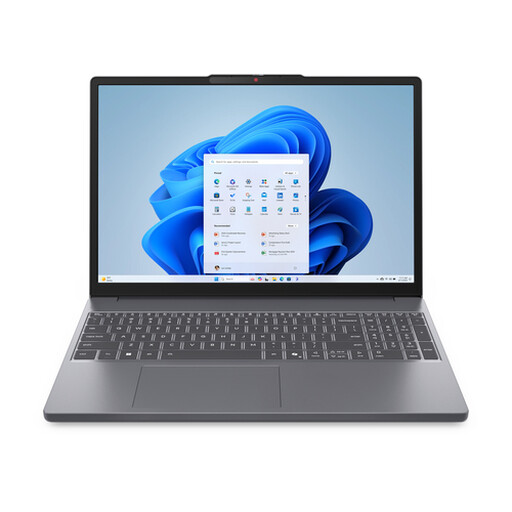
Lenovo IdeaPad Slim 3 15AHP10
A configuration to compare if you want 16 GB RAM and plan to use the laptop with an external display. Adobe recommends 16 GB or more for Photoshop version 27.x; check that the specific ports support video output.
15.3-inch WUXGA screen, Ryzen 7 8840HS, 16 GB RAM, 512 GB SSD and QWERTY keyboard. The product information says the charger must be purchased separately.
View at Joybuy
 No image available
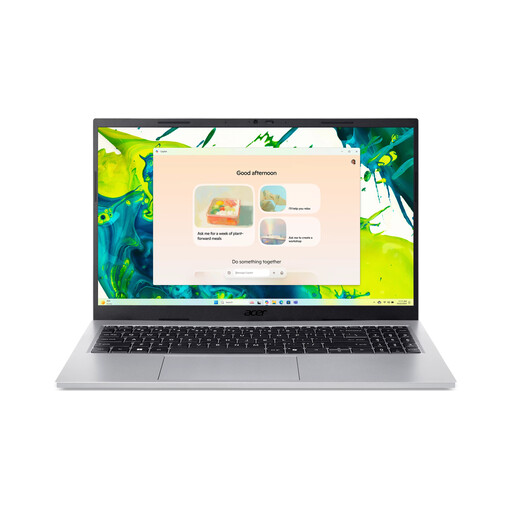
Acer Aspire Go 15 AG15-72P-56BJ
An option to compare if you’re looking for a 15.6-inch screen and 16 GB RAM. Check that the AZERTY keyboard suits your preference and that the connection works with the shared monitor.
15.6-inch Full HD IPS screen, Intel Core 5 120U, 16 GB RAM, 512 GB SSD, Wi-Fi 6 and Windows 11 Home. The product information says the charger must be purchased separately.
View at Joybuy
 No image available
Auusda T156A
A configuration to compare if you want a 15.6-inch screen and room for files for study and work. Check that the laptop supports the design software you and your team use.
15.6-inch FHD IPS screen, 16 GB DDR4 RAM, 512 GB SSD, 3050E processor, fingerprint unlocking and backlit keyboard.
View at Joybuy
Frequently asked questions
Does a laptop for this poster need 16 GB RAM?
Not for every workflow. For Photoshop version 27.x, Adobe lists 8 GB RAM as the minimum and recommends 16 GB or more. If you use a different app, check its requirements.
How do you connect your laptop to the shared monitor?
Compare the monitor connection and cable with the video output supported by the port on the specific laptop. Lenovo lists HDMI and USB-C for external displays on the IdeaPad Slim 3 15IRH10; Windesheim notes that you may sometimes need an adapter at a workspace.
How can you avoid problems when your team shares the poster and sends it to print?
Give team members the intended editing or viewing permissions and check the printer’s file requirements. Canva recommends checking the margins and bleed, and warns that automatic checks won’t necessarily catch every possible printing issue.
Do I have a cooling-off period when I buy a laptop online in the Netherlands?
In many cases, purchases made remotely from a business come with a 14-day cooling-off period. The Dutch government distinguishes between buying from a business and, for example, buying from a private individual, so check the terms that apply to your purchase.
Is the manufacturer’s warranty the same as the statutory guarantee?
No. ACM ConsuWijzer explains that the statutory guarantee exists alongside any seller’s or manufacturer’s warranty. If a product breaks earlier than you could reasonably expect with normal use, contact the seller for an appropriate solution; there is no single fixed statutory guarantee period for every laptop.


