Who is this relevant to?

Housemates who share a busy Wi-Fi connection

If you often make video calls, stream or download at the same time, it’s important to consider how the network will cope with multiple devices. TP-Link Netherlands and ASUS describe Wi-Fi features and routers designed for this type of connection.

Residents with weak Wi-Fi in one room

The connection works, but distance, walls or the modem’s location make Wi-Fi less reliable in certain rooms. Consumentenbond discusses testing with a wired connection; TP-Link describes mesh expansion and a wired connection between mesh points.

Housemates who manage the network

If you want to manage guest access, passwords, updates and the connection to your provider’s modem yourself, the available management features and modem settings are relevant. ACM ConsuWijzer and Ziggo outline things to consider when using your own equipment and bridge mode.

What should you look for when choosing?

Keep your existing modem and improve Wi-Fi

A good fit when: the wired connection works well, but Wi-Fi is weak in one or more rooms; first try a more central location or a separate access point.

Bear in mind: an extra device needs a suitable location and power supply, and may also need a network cable. Check which modem settings will still be available.

One Wi-Fi router of your own

A good fit when: one centrally positioned point reaches the whole compact home and you want to manage the network yourself.

Bear in mind: the router needs to be configured correctly for your existing connection. With Ziggo, bridge mode also disables the modem’s Wi-Fi and router functions.

Mesh with multiple Wi-Fi points

A good fit when: one point still doesn’t reach all the rooms after you’ve tried a better position, and there are suitable places for extra points.

Bear in mind: a multi-point system may be unnecessary in a compact home. In access point mode, your existing main router assigns IP addresses; some Deco features won’t be available.

What to consider What should you check? Who is this important to?
Simultaneous use Compare the Wi-Fi standard, network management features and available LAN ports. Test the connection with a cable first, so you don’t mistake a connection problem for a router problem. If several housemates make video calls, stream or download at the same time, I want to know whether the network can handle it. Around 31% of consumers put shared use ahead of their other buying priorities.
Coverage in the rooms you use Try a central location and check the connection in each room before choosing extra points. When Wi-Fi is weak in a particular room, I want to know whether a better position will be enough or whether I may need to extend the network. Around 25% of consumers make room coverage their top priority.
Connection to the modem Check which connection type and settings your provider supports, and whether router or access point mode suits your set-up. If housemates need to connect and manage the network themselves, I want a set-up that works with the existing modem. An estimated 19% of consumers put straightforward compatibility first.
Management and security Check the guest network and security settings, how updates are handled, and who will take over management if a housemate moves out. If guests need access and several residents share the settings, I want to stay in control of access and updates. Around 13% of consumers make network management and security their top priority.
Shared costs First work out whether the problem is the connection, the positioning or the Wi-Fi; then compare only set-ups that address it. If we’re sharing the cost, I don’t want to buy extra equipment we don’t need. Around 12% of consumers put keeping shared costs down at the top of their list.

Common buying mistakes

  • Buying a faster router without testing the connection

    A Wi-Fi test and a wired test won’t reveal the same bottleneck. A new router won’t make a slow internet connection faster.

    First, test with a computer connected by cable. Then look at the router’s position and Wi-Fi coverage in each room.

  • Going straight for a large mesh system in a compact home

    If one well-positioned point reaches all the rooms, extra points may be unnecessary.

    First try one centrally positioned point, then decide whether you need to extend the network.

    Extra points also need space, power and time to set up.

  • Switching on bridge mode as if it only changes Wi-Fi

    With Ziggo, bridge mode also disables other modem functions.

    Check what this means for your specific modem before changing the setting.

  • Confusing the manufacturer’s warranty with your statutory rights

    A manufacturer’s warranty doesn’t replace your statutory rights against the seller. ACM ConsuWijzer explains that your statutory claim depends on how long you could reasonably expect the product to last.

    Keep your proof of purchase and contact the seller if the product develops a fault early on.

Brands to compare

TP-Link

Archer includes standalone routers, while the Deco X50 is a mesh option for homes that need extra points.

  • TP-Link Netherlands lists a 2.5 Gbps WAN port and LAN port for the Archer BE230. The Archer AX55 is a dual-band Wi-Fi 6 router.
  • Tweakers gave the BE230 positive marks for its range and handling of interference, but found its wireless throughput less impressive and notes that advanced features require a subscription. These findings relate to the BE230, not all TP-Link products.

ASUS

The RT-AX53U is a standalone Wi-Fi 6 router to compare for features such as access point mode and guest networking.

  • ASUS lists three gigabit LAN ports, router and access point modes, and a guest network that restricts access to the local network for this model.
  • Advertised wireless data rates are specifications, not measurements taken in a student house.

FRITZ!

The FRITZ!Box 4060 is designed to work as a standalone router behind a compatible modem. It has tri-band Wi-Fi 6, mesh and telephony features.

  • FRITZ! lists a 2.5-gigabit WAN port and a five-year manufacturer’s warranty for the 4060.
  • Don’t pay for telephony or other extra features if your household won’t use them. The manufacturer’s warranty doesn’t replace your statutory rights against the seller; ACM ConsuWijzer explains those rights.

Linksys

The MR7350 is a standalone Wi-Fi 6 router to compare if guest networking or expandable mesh features are important to you.

  • Linksys lists four gigabit LAN ports and one gigabit WAN port for the MR7350.
  • The listed features don’t show that this model will perform better than other routers in every room.

Routers and mesh systems at Joybuy

This selection includes standalone routers and mesh systems for a shared network in a compact home. Before buying, check the CE mark and relevant documentation for the specific item; the model name alone doesn’t confirm compliance.

ASUS ZenWiFi BD4 dual-band Wi-Fi 7 mesh system

ASUS ZenWiFi BD4 dual-band Wi-Fi 7 mesh system

An option if you need extra Wi-Fi points and want to consider mesh expansion with wired backhaul. The product name specifies dual-band (2.4 GHz / 5 GHz) and Wi-Fi 7 (802.11be).

View at Joybuy

ASUS RT-AX52 AX1800 dual-band Wi-Fi router

ASUS RT-AX52 AX1800 dual-band Wi-Fi router

A standalone router if you want to try one centrally positioned Wi-Fi point, with the option to expand later. The product name specifies AiMesh, gigabit Ethernet and dual-band (2.4 GHz / 5 GHz).

View at Joybuy

TP-Link Deco X50 mesh system with three points, dual-band Wi-Fi 6

TP-Link Deco X50 mesh system with three points

A mesh option for rooms that still have poor coverage from a single point, even when it’s well positioned. A three-point system may be unnecessary in a compact home if one point is enough. The product name specifies dual-band (2.4 GHz / 5 GHz) and Wi-Fi 6 (802.11ax).

View at Joybuy
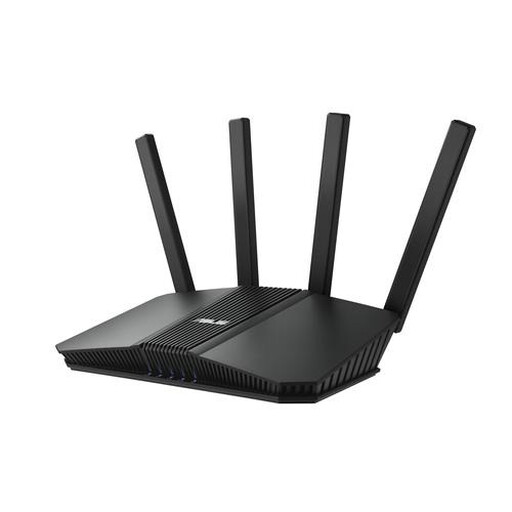
ASUS RT-BE82U BE6500 dual-band Wi-Fi router

ASUS RT-BE82U BE6500 dual-band Wi-Fi router

A standalone router to compare if several housemates connect at once and you may want to connect devices by cable. The product name specifies 2.5-gigabit Ethernet and dual-band (2.4 GHz / 5 GHz).

View at Joybuy

ASUS RT-AX52 Pro AX3000 dual-band Wi-Fi router

ASUS RT-AX52 Pro AX3000 dual-band Wi-Fi router

A standalone router to compare if housemates want to share one Wi-Fi point, with the option to expand later. The product name specifies gigabit Ethernet and dual-band (2.4 GHz / 5 GHz).

View at Joybuy

Frequently asked questions

Do we need to replace our provider’s modem to use our own router?

No, you can use your own router behind an existing modem. The right settings depend on your connection and provider; with Ziggo, bridge mode also affects other modem functions.

How can we check whether a new router will solve our problem?

First, test the connection with a cable, then check Wi-Fi in the areas where it’s weak. Also try moving the Wi-Fi point to a better location, as a new router won’t make a slow internet connection faster.

What changes when Deco points work in access point mode?

According to TP-Link, the existing main router continues to assign IP addresses in this mode. Some features in the Deco app, including port forwarding and address reservation, won’t be available.

Who should we contact if the router we bought breaks down too soon?

Contact the seller. In the Netherlands, your statutory claim depends on how long you could reasonably expect the product to last; this claim is separate from any manufacturer’s warranty. ACM ConsuWijzer explains that there isn’t one fixed statutory period of two years.

What rules must a Wi-Fi router on sale meet?

A Wi-Fi router sold in the Netherlands as radio equipment on the European market must meet the applicable European requirements and carry a CE mark. The Dutch Authority for Digital Infrastructure states that applicable RED cybersecurity requirements have been in force since 1 August 2025; check the mark and documentation for the specific item.
