Start with the software your team uses and whether you already have a suitable screen: an all-in-one combines the computer and screen, while a mini PC or Mac mini lets you choose the screen separately. For Adobe InDesign 21.3 and later, Adobe recommends 16 GB RAM for the Windows version, but that isn’t a general requirement for every student exhibition. Before choosing a configuration, also check your screen options, file-sharing arrangements and any missing workstation essentials.
Who is this choice for?
Student laying out content in two languages
You’re combining translations, images and captions in a single exhibition design, and want to check the layout and fonts before handing over your files. Adobe notes that font licences may restrict the sharing of font files.
Student with an existing workstation
You may already have a screen and want to weigh up whether a compact computer will work with it, or whether an all-in-one would make your workstation simpler. The Lenovo configurations reviewed show that what’s included can vary by model.
Student preparing work for print
Your design will be printed, and you want to assess the on-screen view and final files separately. EIZO describes colour management as a workflow involving, among other things, the screen and printer profile.
What should you look for when choosing?
Start with the software and file-sharing arrangements. Then decide whether you want a built-in screen or would rather choose a monitor yourself.
| What to consider |
What should you look for? |
Who is this important for? |
| Bilingual layouts and file handover |
Check software and font compatibility, and agree which file format you’ll hand over. |
If you want to share editable bilingual files without font issues, this is a key consideration. Around 33% of consumers put layout and file handover first. |
| Working on designs simultaneously |
Compare the RAM and SSD configuration with your software’s current requirements and the size of your project files. |
If you work with layouts and images at the same time, match the configuration to the software you actually use. Around 27% of consumers give working on designs simultaneously their highest priority. |
| Screen and print preparation |
Check the resolution and connections. For print work, also agree on the workflow and proofing arrangements. |
If you want your screen choice to suit your design and any print preparation, assess the monitor separately from the computer. Around 20% of consumers prioritise the screen and print preparation. |
| Complete workstation |
Check what you already have and what’s included with the exact configuration. |
If you still need a screen or peripherals, first find out which items you’ll need to arrange. Around 20% of consumers start by considering the complete workstation. |
Buying pitfalls
-
Assuming a mini PC is a complete workstation
A mini PC may be supplied without a screen, keyboard or mouse. This means the computer alone may not be enough to get you started straight away.
Check what’s included with the exact configuration and make a list of any extra items you’ll need.
-
Assuming a screen specification guarantees a print proof
A stated screen feature on its own doesn’t prove that colours will match a particular printer. EIZO describes colour management as a workflow that also takes the printer profile and screen settings into account.
Ask about the intended printing process and proofing arrangements, and assess the screen separately from the computer.
-
Sending font files without checking the licence
Adobe notes that many font licences restrict sharing files with third parties.
Check the licences and agree whether a suitable PDF will be enough or whether recipients will need access to the fonts themselves.
-
Confusing an additional service plan with your rights if a product is faulty
An additional service plan isn’t the same as the seller’s obligations when a consumer product is faulty.
The Dutch Government says the seller is your point of contact for a faulty product. So consider an additional plan as a separate choice.
Brands to compare
Lenovo
Lenovo offers both an IdeaCentre all-in-one with a built-in screen and a separate ThinkCentre Neo 50q Gen 5 mini PC to compare.
- For the IdeaCentre AIO Gen 10 configuration reviewed, Lenovo lists 16 GB RAM, a 512 GB SSD and a 27-inch FHD screen.
- The ThinkCentre configuration reviewed lists 16 GB RAM and a 512 GB SSD, but no keyboard or mouse; Lenovo says the screen is sold separately.
Apple
The Mac mini is a compact macOS option for which you choose the screen separately. It’s a good fit if your team’s software and collaboration work well with macOS.
- For the M6 base configuration reviewed, Apple lists 16 GB unified memory and a 256 GB SSD.
- Check your storage needs and whether it’s compatible with the software your team actually uses.
Dell
The Dell Pro Micro QCM1250 is a compact Windows configuration to compare with other mini PCs.
- The Dutch configuration reviewed lists Windows 11 Pro, 16 GB DDR5 and a 512 GB SSD.
- Dell offers different configurations and service options, so check the specifications of the model you’re considering.
HP
The HP Pro Mini 400 G9 is a compact desktop you can compare based on its configuration and what’s included.
- For model 6D494EA#ABH, HP lists 16 GB RAM, a 512 GB SSD and a wired mouse.
- Check the availability and specifications of the exact model; product specifications don’t automatically apply to other variants.
ASUS
The NUC 15 Pro range is a compact PC option where you’ll need to compare connections and upgrade options for each configuration.
- ASUS says this product range has a case that can be opened without tools.
- Compare the RAM, storage and connections of the specific configuration you’re considering.
Joybuy products
This selection includes all-in-one PCs and compact computers with a separately chosen screen for creating a student exhibition layout.
 No image available
Apple Mac mini M6, 24 GB, 512 GB SSD
An option with a separately chosen screen if your team’s software and collaboration work well with macOS.
The product title lists an Apple M6 chip, 24 GB memory and a 512 GB SSD. The product description says it supports up to three external screens.
View at Joybuy
 No image available
Acer Aspire C24-A WI5418 NL all-in-one PC
An integrated setup if you want to choose the computer and screen together.
The product details list a 23.8-inch Full HD IPS screen, an Intel Core 5 120U, 16 GB DDR5 and a 1 TB PCIe NVMe SSD. Windows 11 Home, a wireless keyboard and a wireless mouse are also listed.
View at Joybuy
 No image available
FIREBAT R3 mini PC, AMD Ryzen 5 7430U
A compact computer to consider if you’re choosing your own screen; check in advance what other items you’ll need.
The product title lists 16 GB RAM, a 512 GB SSD and Wi-Fi 6. The product description says it supports three 4K screens.
View at Joybuy
 No image available
Lenovo Yoga AIO 27IAH10 F0J2001DNY
An all-in-one to compare if you want to combine the computer and screen in one workstation.
The product title lists a 27-inch QHD screen with 120 Hz, an Intel Core Ultra 7 255H, 16 GB LPDDR5X and a 1 TB SSD. The product description mentions a wireless keyboard and a wireless mouse.
View at Joybuy
 No image available
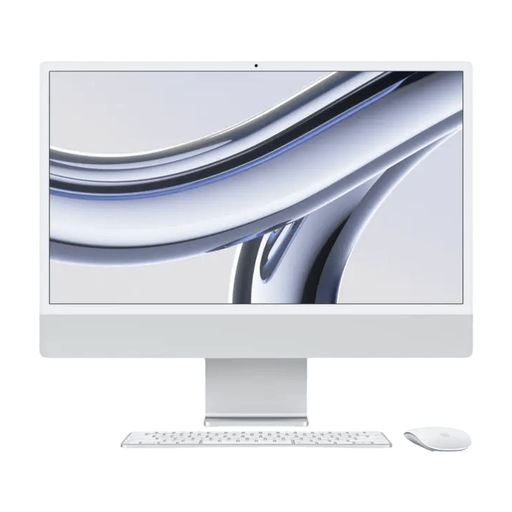
Apple iMac 24-inch M3, 16 GB, 512 GB SSD, silver (2023)
An all-in-one option if you want to choose the computer and built-in screen together.
The product title lists 16 GB memory and a 512 GB SSD. The product description mentions an M3 chip and a 4.5K Retina screen.
View at Joybuy
Frequently asked questions
Do I definitely need 16 GB RAM for bilingual layouts?
No, not as a general rule. For the Windows version of InDesign 21.3 and later, Adobe lists 8 GB as the minimum and 16 GB as the recommended amount. Check the requirements for your own software, version and operating system.
How should I hand over fonts and a design file to a printer or fellow student?
Agree whether the recipient needs an editable file or a print-ready PDF. Adobe notes that many font licences restrict sharing files, so check the licence for the fonts you’ve used and what kind of file handover is permitted.
What do I need to connect or install with a mini PC?
Check what’s included with the configuration you’ve chosen and whether its connections are suitable for your screen. The Lenovo ThinkCentre configuration reviewed doesn’t list a keyboard or mouse, and the screen is offered separately; this doesn’t automatically apply to every mini PC.
Who should I contact about a faulty desktop I bought as a consumer in the Netherlands?
According to the Dutch Government, the seller is your point of contact for a faulty product and shouldn’t simply refer you to the manufacturer. An additional manufacturer’s guarantee or service plan is separate from this.
Can I trade in an old computer when buying a new one?
When you buy a new, similar device, the Dutch Government says private consumers can use the free take-back scheme for old-for-new purchases, including online purchases. The scheme doesn’t apply to equipment owned by businesses.


