
Student editing 4K footage or using effects
Choose a configuration to suit your footage and editing software, not just the ‘gaming PC’ label. Adobe distinguishes between its recommended specifications for HD and 4K in Premiere for Windows.


Start with your editing software, the resolution and codec of your footage, and the export you need. Then compare the memory, storage and connections on the exact desktop configuration. A compact desktop or all-in-one can suit a permanent, straightforward editing setup, while a tower gives you more choice of configurations. None of these form factors guarantees smooth editing or a quiet evening session on its own.
Choose a configuration to suit your footage and editing software, not just the ‘gaming PC’ label. Adobe distinguishes between its recommended specifications for HD and 4K in Premiere for Windows.
You’ll want access to your source files, project and cache during an evening editing session. So check the available SSD space and the connections for any storage you already own. Adobe recommends a fast internal SSD for the application and cache, plus additional fast storage for media.
Also consider the screen and peripherals you already own. An all-in-one has a built-in screen; a Mac mini needs to be connected to an external screen.
A good fit if: your editing software and existing equipment work with macOS, you’re short on space and you can connect a screen yourself.
Check: the memory and SSD configuration, space for your projects, and any cables or adapters you need. The Mac mini base configuration listed has 16 GB of memory and a 256 GB SSD.
A good fit if: you want a built-in screen and expect to work mainly with HD footage; the Acer Aspire S27 configuration reviewed has a 27-inch Full HD screen.
Check: Adobe recommends 32 GB or more of RAM for 4K and above in Premiere for Windows. Don’t assume that a built-in screen or 16 GB of memory means a configuration meets that recommendation.
A good fit if: you want to use a separate screen or compare different configurations with more memory and a specific graphics card.
Check: the Lenovo configuration reviewed has 16 GB of RAM, while Adobe recommends 32 GB or more for 4K and above in Premiere for Windows. You don’t automatically need a more powerful configuration for a short showreel.
For Adobe Premiere on Windows, 16 GB of RAM is recommended for HD media and 32 GB or more for 4K and above. Adobe also specifies 8 GB of GPU memory in its recommended Windows configuration. Treat these as software recommendations, not universal buying thresholds.
| What to consider | What to check before buying | Who is this important for? |
|---|---|---|
| Editing performance | Note down your software version, resolution, codec and effects. Then compare the exact processor, RAM and, where required by the software, GPU memory. | If I’m editing 4K footage or using effects, I want to choose a configuration to suit my project rather than a product label. Around 33% of consumers prioritise suitable editing performance. |
| Project storage | Compare your source footage with the available internal storage. Decide whether you’ll keep media on an additional fast drive, too, and check which ports you need. | If I want to keep lots of source footage, cache and exports close at hand, I’ll check the available space and connections. Around 27% of consumers give project storage top priority. |
| Software compatibility | Check the software list for your course and the system requirements for your editing software version before choosing an operating system. | If my course or editing software requires a particular platform, I want to make sure it works with my existing workflow. Around 20% of consumers prioritise software compatibility. |
| Complete editing setup | Make a list of your monitor and peripherals. Check what’s included and which connections are available for each configuration. | If I want to set up my workspace all at once, I’ll want to know what screen and equipment I still need. Around 20% of consumers start by considering the components of a complete setup. |
Adobe’s recommendations differ for HD and 4K. The specific components in a gaming configuration don’t, on their own, show how it will perform with your footage.
First, note down your software, codec, resolution and effects, then compare the exact configurations.
A Mac mini needs an external screen, while an all-in-one has one built in. Editing also requires space for things such as source files, cache and exports.
Make a list of the equipment you already own and the connections you need. Set aside storage for your files and check which components are included with your chosen configuration.
ACM ConsuWijzer distinguishes between a manufacturer’s or seller’s warranty and your legal rights against the seller.
Keep your purchase details and consider any fault in light of your legal rights, too.
Mac mini as a compact, permanent macOS editing setup if your software and existing equipment are compatible.
IdeaCentre Tower 08IRH9 as a Windows tower to compare if you’re looking for a separate screen and a specific configuration.
Aspire all-in-ones to compare if you’re looking for a Windows desktop with a built-in screen.
OMEN 35L as a reference point for a specific, more powerful Windows tower.
This selection includes compact Mac mini desktops and all-in-ones with built-in screens, for a range of permanent editing setups.
 No image available
A compact desktop for a permanent macOS workspace, provided you connect an external screen yourself.
This configuration lists 16 GB of memory and a 256 GB SSD. The description lists Thunderbolt 4, USB-C and HDMI.
No image available
A compact macOS desktop for a permanent workspace with an external screen.
This configuration lists 16 GB of memory and a 512 GB SSD. The description lists Thunderbolt 4, USB-C and HDMI.
No image available
A compact macOS desktop for anyone using an external monitor and looking for this memory and storage configuration.
This configuration lists 24 GB of memory and a 512 GB SSD. The description lists Thunderbolt 4, USB-C and HDMI.
 No image available
An all-in-one for anyone looking for a Windows workspace with a built-in screen.
The product details list a 27-inch QHD screen, 32 GB of DDR5 memory, a 1 TB SSD and Intel Arc Graphics. Check that this configuration is suitable for your editing software and project.
 No image available
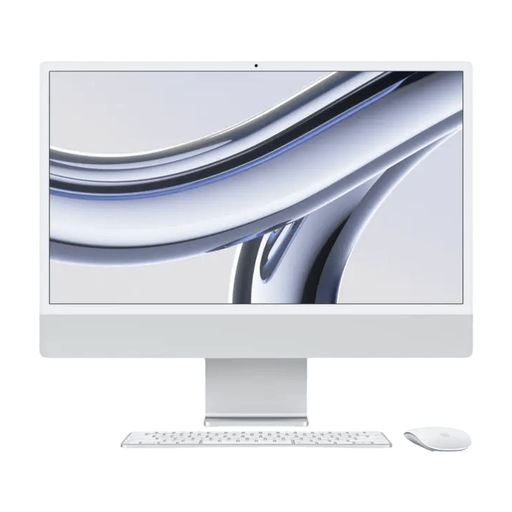
A desktop with a built-in screen for a permanent workspace, so you don’t need to put together a separate monitor setup.
The product details list a 24-inch 4.5K screen, 16 GB of memory and a 512 GB SSD.
It depends on your software and footage. Adobe recommends 16 GB of RAM for HD media and 32 GB or more for 4K and above in Premiere for Windows. Don’t apply these figures automatically to other programmes or macOS.
Set aside space for the application, cache, source footage and exports. Adobe recommends a fast internal SSD for the application and cache, plus additional fast storage for media. Also check that your external drive can connect to the desktop you choose.
According to ACM ConsuWijzer, a typical online consumer purchase usually comes with a cooling-off period of up to 14 days after delivery, subject to legal exceptions. You also have legal rights if a product doesn’t perform as you could reasonably expect under normal use; those rights aren’t simply limited to any stated manufacturer’s warranty.
First, consider whether you need permission or other usage rights. The Dutch Government states that permission is generally required to use copyright-protected music and footage. Educational exceptions come with conditions; a screening outside the curriculum isn’t automatically covered. Ask the organiser which rights have been arranged for the specific screening.
According to Business.gov.nl, sellers of electrical and electronic equipment in the Netherlands must ensure their products comply with the relevant European rules. The requirements depend on the equipment and the role of the market participant concerned.