Who is this buying guide for?

Watching in a busy living room

You watch close to the Wi-Fi point while other people in your household are online too. In that case, simultaneous use and a stable connection matter more than a high advertised top speed. TP-Link lists OFDMA on the Archer AX55 for simultaneous data transmission.

Watching in a room with weak Wi-Fi

Your viewing spot is further from the modem or behind walls. First compare moving the modem to a better position with adding extra Wi-Fi points. Replacing only the main router won’t automatically fix a weak signal in that room.

Managing shared internet

You manage the connection and settings for other people in your household. So check not only the router’s features, but also how it connects to your provider’s equipment and which settings you want to manage.

What should you look for when choosing?

Improve your existing set-up first

Choose this if: the modem is poorly positioned or you first need to test the connection where you watch.

Bear in mind: better positioning won’t necessarily fix a slow internet connection or a persistently weak signal in one area.

A separate Wi-Fi router

Choose this if: the viewing spot already has reasonable coverage and several devices use Wi-Fi at the same time.

Bear in mind: performance also depends on your internet connection, devices and router placement. One router doesn’t guarantee good coverage in every room.

Mesh with multiple Wi-Fi points

Choose this if: the signal is weak mainly in the room where you watch and you can position extra points effectively.

Bear in mind: you’ll need to position several devices. Advertised coverage doesn’t predict how the signal will perform in your home.

A cable to your viewing device

Choose this if: your viewing device supports Ethernet and running a cable to the network is practical.

Bear in mind: running a cable takes some work and won’t make up for a lack of internet speed.

What to consider What should you check? Who is this important for?
Simultaneous use Test the connection on your viewing device while other people in your household are online. Also check whether the router has features for handling network traffic at the same time. If you want to keep watching while others use their devices, this matters more than the advertised Wi-Fi speed alone. Around 36% of consumers say simultaneous use is their top priority.
Coverage where you watch Compare reception near the modem with reception in the room where you watch. Try a higher, unobstructed position and consider where extra points could go. If playback stutters mainly in a room with weak Wi-Fi, you’ll want to know whether better positioning will be enough or whether you need multiple points. Around 29% of consumers prioritise coverage where they watch.
Connection and management Find out whether the router will sit behind your provider’s equipment, and check the connections, features and version of the exact model. If you manage the network for others in your household, you’ll want the connection to be compatible and the management features to suit your needs. Around 21% of consumers put connection and management first.
Identify the cause first Test the connection where you watch and try moving the modem before replacing the whole set-up. If you want to avoid unnecessary purchases, it’s worth working out first whether the weak link is the connection, the modem’s position or the coverage. Around 14% of consumers make keeping costs down their top priority.

Common buying pitfalls

  • Assuming the advertised Wi-Fi speed is the speed of your stream

    The router speed shown on the box isn’t a measurement of the stream where you watch. Your streaming service, picture quality and internet connection also play a part.

    Test the connection on your playback device and check the requirements of the service you use.

  • Buying a separate router for a room with poor coverage

    Distance, positioning and obstacles can weaken reception in a room. So a centrally positioned router won’t necessarily solve the problem if you watch in a room further away.

    Compare reception in each room, try positioning the modem somewhere high and unobstructed, then see whether you need extra Wi-Fi points.

  • Treating a router, modem and mesh system as the same thing

    A network router can connect behind your provider’s modem, while a mesh system is designed to spread Wi-Fi points around your home. The connection you need depends on your set-up.

    Check which device you want to replace, the connections on the exact product and your provider’s instructions.

Brands to compare

TP-Link

The Archer AX55 is a separate Wi-Fi 6 router; the Deco X50 is a mesh range designed to provide Wi-Fi in multiple locations.

  • According to TP-Link, the AX55 supports OFDMA, and Deco units can optionally be connected via Ethernet.
  • Mesh system features don’t automatically apply to a separate router. Advertised speeds aren’t a measurement of performance in your home.

ASUS

The RT-AX58U is a separate Wi-Fi 6 router for anyone who wants to manage features such as guest access and traffic settings.

  • The Dutch model specifications list a guest network, Adaptive QoS and AiMesh.
  • The specifications distinguish between V1 and V2, which have different processors. Check which version is being offered; these features don’t prove that a stream will play better.

FRITZ!

The FRITZ!Box 4060 is a network router with Wi-Fi 6 and expansion options within FRITZ! Mesh.

  • According to FRITZ!, the model has three gigabit LAN ports and can connect behind a cable, DSL or fibre-optic modem.
  • The product description doesn’t mean the model will automatically replace every provider’s modem. For extra mesh coverage, you’ll need compatible additional equipment.

NETGEAR

The Orbi RBK763S is a set with a router and two satellites, designed for a set-up with multiple Wi-Fi points.

  • NETGEAR describes a dedicated connection between the router and satellites, and lists wired ports.
  • Advertised coverage and device capacity aren’t a measurement of performance in your home. First decide whether you need multiple units.

Joybuy products

These Joybuy products include separate routers and mesh systems for shared Wi-Fi use or for a viewing spot where extra Wi-Fi points are needed.
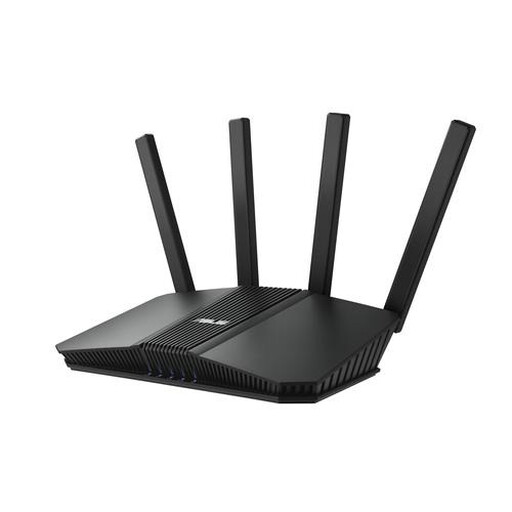
ASUS RT-BE82U BE6500 dual-band wireless router

ASUS RT-BE82U BE6500 router

Could suit a shared network; the product description lists OFDMA for connections with multiple devices.

Dual-band (2.4 GHz / 5 GHz); four Ethernet ports according to the product description.

Joybuy

TP-Link Deco X50-PoE Wi-Fi 6 mesh system, 2-pack

TP-Link Deco X50-PoE (2-pack)

A mesh system with two points to spread Wi-Fi across multiple locations.

Dual-band (2.4 GHz / 5 GHz), Wi-Fi 6 and PoE support. PoE requires compatible cabling and power.

Joybuy

TP-Link Deco XE75 Pro Wi-Fi 6E mesh system, 3-pack

TP-Link Deco XE75 Pro (3-pack)

A mesh system with three points for anyone who wants to spread Wi-Fi across multiple locations.

Tri-band (2.4 GHz / 5 GHz / 6 GHz), Wi-Fi 6E and QoS according to the product description.

Joybuy

TP-Link Deco X50-PoE Wi-Fi 6 mesh system, 3-pack

TP-Link Deco X50-PoE (3-pack)

A mesh system with three points for a set-up that provides Wi-Fi in multiple locations.

Dual-band (2.4 GHz / 5 GHz), Wi-Fi 6, PoE support and two Ethernet ports per unit according to the product description. PoE requires compatible cabling and power.

Joybuy

TP-Link Deco X50 Wi-Fi 6 mesh system, 2-pack

TP-Link Deco X50 (2-pack)

A mesh system with two points for a viewing spot where extra Wi-Fi coverage is needed.

Dual-band (2.4 GHz / 5 GHz), Wi-Fi 6 and optional Ethernet backhaul according to the product description.

Joybuy

Frequently asked questions

How can you check whether the connection is causing playback to stutter?

Test on your viewing device in your usual viewing spot, preferably while other people in your household are online too. Netflix recommends 5 Mbps for 1080p and 15 Mbps for 4K on its own service. For a different streaming service, check its own requirements rather than relying on these figures.

How can you improve your Wi-Fi without buying anything straight away?

If possible, position your existing modem somewhere high and unobstructed, then test again where you watch. Ziggo lists walls and materials among the factors that can affect Wi-Fi. If rooms further away remain weak, look into whether extra Wi-Fi points could help.

Can you choose your own router in the Netherlands?

Yes. ACM ConsuWijzer explains that you’re free to choose your own router. Ask your provider which connection settings you need and check that the device suits your set-up. If you’re using your own modem, check the network connection too.

What should you look for when it comes to safety and support?

The Dutch Authority for Digital Infrastructure states that radio equipment placed on the market in the Netherlands must carry the required CE marking. Since 1 August 2025, the applicable RED cybersecurity requirements have also applied to radio equipment placed on the European market. Check the specific product and find out which firmware and support information applies to the exact model version.
