
Viewer with a specific lecture app
You want to open the lecture directly on your bedroom TV. First, check that the exact app and lesson work on the TV; the Consumers’ Association points out that not every app is available on every smart TV.


In most cases, you won’t need a separate streaming device if the existing app on your bedroom TV plays the history lecture. If that doesn’t work, choose a device only once you’ve confirmed it supports the exact TV app or casting feature you need. If the lesson requires a browser login, a laptop connected via HDMI could be an alternative, provided the connections are compatible.
You want to open the lecture directly on your bedroom TV. First, check that the exact app and lesson work on the TV; the Consumers’ Association points out that not every app is available on every smart TV.
You already have the lesson on another screen and want to know whether the app or browser can cast it to your TV. Google and Apple state that, for Cast and AirPlay respectively, the devices need to be connected to the same Wi-Fi network.
You want to follow the spoken explanations clearly, perhaps with subtitles or headphones. YouTube Help notes that subtitles are only available if the video provides them; listening via Bluetooth depends on the connection options supported by your TV.
First, check how the lecture is provided. Then you can find out which connection and controls suit your TV and bedroom.
| What to consider | What should you check? | Who is this important for? |
|---|---|---|
| Access to the lecture | Check whether the exact TV app is available and whether the lesson opens in it. | I want to open the specific lecture directly on the TV, not just use a general streaming app. Around 33% of consumers give access to the lecture app their highest priority. |
| Casting from another screen | Check whether the lesson app allows Cast or AirPlay and whether the devices use the same Wi-Fi network. | If the lesson is on my phone or laptop, I want to know whether that specific lesson can be cast to the TV. Around 27% of consumers prioritise playing content from another screen. |
| Comfortable viewing with clear text | Check whether the video has subtitles and which headphone connections your TV supports. | I want to follow the spoken explanations without disturbing anyone else in the bedroom. Around 20% of consumers give quiet viewing with clear text their highest priority. |
| Connecting without unnecessary extras | Check for a free HDMI port, Wi-Fi near the TV and whether you need a cable or adapter. | I want to start the lesson without buying something my existing TV can already do. Around 20% of consumers value easy connection and avoiding unnecessary purchases most. |
Resolution doesn’t confirm that a device can access a restricted learning platform. TV apps vary, and casting only works if the app or browser you’re using and the connection support it.
Test the exact lesson using the playback method you plan to use before choosing a device; a general demonstration video is no substitute.
A smart TV can play supported videos directly through an available app, so you don’t need an extra device for that option.
Open the lecture app and try playing the lesson on your current TV first.
Connections can vary between versions. For example, Apple lists Ethernet on the 128GB Wi-Fi and Ethernet version, but not on the 64GB Wi-Fi model.
Check the full model name and the connections on the specific version. Don’t treat conflicting product information as confirmation that a version meets your requirements.
The Google TV Streamer (4K) is a box with a remote control and Cast, for use with a compatible TV app or a lesson that can be sent from another device.
Apple TV 4K (3rd generation) could suit you if you have a compatible TV app or want to play content via AirPlay from an iPhone or iPad.
The Xiaomi TV Stick 4K (2nd Gen) is a compact Google TV stick with HDMI and Wi-Fi.
The LEAP-S3+V2 is a Google TV box with Cast and Ethernet, for use with a compatible TV app or casting connection.
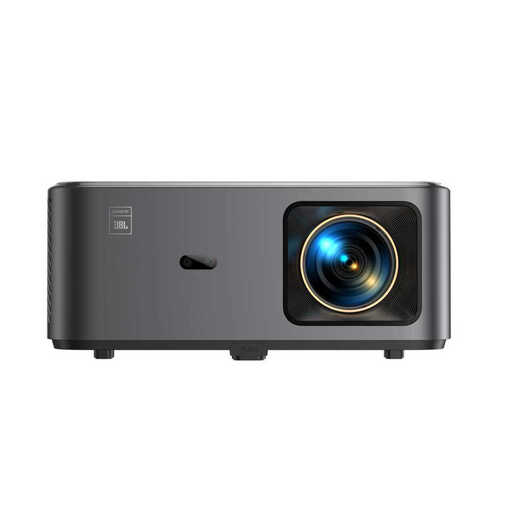
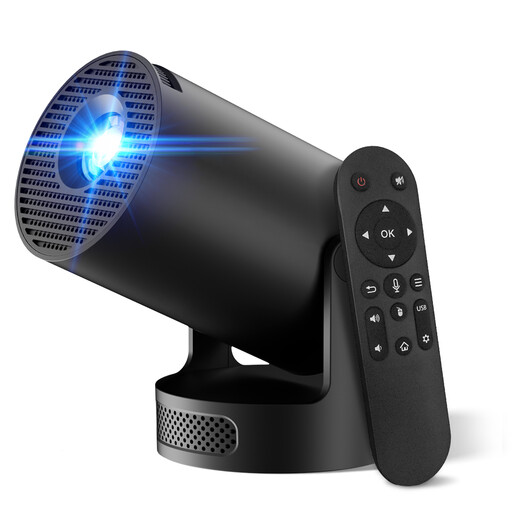
The Joybuy products below are projectors with described streaming features. Before buying, check that the exact lecture works via the app or casting feature mentioned, and that a projector suits your bedroom set-up.
 No image available
The Google TV and streaming app features described may be useful if the lecture plays in an available app; check the exact app and lesson in advance.
The description lists native 1080p, 4K support, autofocus and keystone correction. NFC Screencast is listed for NFC-compatible phones.
Don’t look directly into the lens while the projector is on, and leave at least 30 cm of space around the vents.
 No image available
The description lists built-in apps and access to the Google Play Store; check whether the history lecture app is available on this device.
The product description lists Wi-Fi 6, Bluetooth, automatic image correction, a projection size of 50–200 inches and 180° rotation.
Don’t look directly into the lens while the projector is on, use the supplied adapter and keep the vents clear.
No, not for that playback option. Try the existing app first and check whether the specific lecture opens in it; the Consumers’ Association points out that apps vary between TVs.
Use a compatible Cast app or Chrome browser, and connect the sending device and Google TV to the same Wi-Fi network. Test the lesson itself: general Cast support doesn’t prove that every restricted video will play.
On supported TV devices, you can choose the language and style for a YouTube video with available subtitles, according to YouTube Help. If the video doesn’t have subtitles, the player can’t add them.
Google and Apple state that an HDMI cable is required separately for the boxes mentioned. For an online purchase, you generally have 14 days from delivery to change your mind, subject to legal exceptions. ACM ConsuWijzer also explains that if a product is faulty, you have statutory warranty rights against the seller.