What should you look for when choosing?
Start with what you can see from your seat and the programme you want to watch. Only then choose a streaming device based on the app you need, picture formats and connection.
| What to consider |
What should you look for? |
Who is this important for? |
| Picture from an angled seat |
Look at the same picture from your usual seat. Check whether you can reposition the TV before choosing another source device. |
If I’m sitting at an angle, I want to know whether my TV displays the picture well before I buy another device. Around 36% of consumers put viewing angle first. |
| Access to programmes |
Search for the specific broadcast or series and check which app or service currently carries it, and whether your device supports it. |
If you mainly want to watch a particular space programme, you’ll need a suitable way to access it. Around 29% of consumers give access to programmes top priority. |
| 4K, HDR and dark details |
Check that the programme and TV support the formats, as well as checking the specifications of the exact device. An HDMI setting on the TV may also matter for HDR. |
If I want to use 4K or HDR, I want to know whether my source and TV support the format. Around 21% of consumers start with picture formats. |
| Connection and controls |
Check the available HDMI port, power supply, included cables and network options. Also consider which controls suit the way you’ll use it. |
If you want to match the streaming device to the available port and connection, focus on practical connectivity and controls. Around 14% of consumers put these points first. |
Joybuy products
The Joybuy products below are projectors with listed app-streaming capabilities. Check that the available apps, video connections and projector setup suit the programme and seating position you have in mind.
 No image available
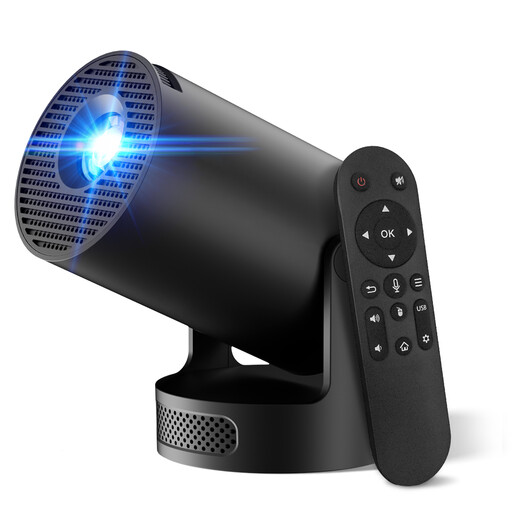
Video projector with built-in apps, Wi-Fi 6 and 180° rotation
An option for using streaming apps on a projector; check in advance whether the app you need is available for the programme you want to watch.
Listed features include Wi-Fi 6, automatic picture correction, 50%–100% digital zoom and 180° rotation. The product name lists a screen size of 50–200 inches.
View at Joybuy
 No image available
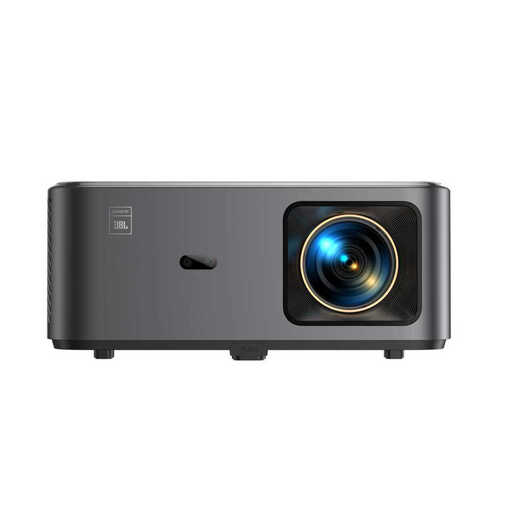
Yaber K2s projector with Google TV
For anyone who wants to use Google TV and streaming apps on a projector; check whether you can watch your chosen programme through an available app.
The listed specifications are native 1080p resolution and 4K support, not native 4K. Wi-Fi 6, autofocus and keystone correction are also listed.
View at Joybuy
Frequently asked questions
Will a 4K streaming device make dark constellations easier to see if I’m sitting at an angle to the TV?
Not necessarily: a streaming device won’t change the TV’s viewing angle. First, assess the screen and how well it displays blacks from your seat. For 4K detail, the programme must also be available in 4K.
Where can I watch NASA programmes?
NASA describes NASA+ as a free service that doesn’t require a subscription, and also mentions the NASA App and other ways to watch. Check which app or service is available on your device for the programme you want; a device listing doesn’t guarantee that every title will be available there.
What should I check when connecting a streaming device?
For the exact model, check that you have a free HDMI port, a suitable cable, a power supply and a network connection. If HDR isn’t working through a Google TV Streamer, Google recommends checking the TV’s HDMI signal setting.
What are my rights when buying a streaming device or paid streaming service online in the Netherlands?
ACM ConsuWijzer says that for a product bought online, you generally have 14 days from delivery to change your mind, subject to some exceptions. The seller is responsible for the legal guarantee if a product is faulty; this is separate from the cooling-off period. A paid digital service must work as you can reasonably expect.


