
Creator switching between multiple scenes
You want to switch quickly between gameplay, commentary and other preset scenes while playing, without having to navigate through action pages first.


Choose a controller based on what you want to control directly while recording: a few recording and scene actions, plenty of dedicated scene buttons, or physical audio controls as well. Then check that the actions you need work with your computer and recording software. A stream controller doesn’t capture gameplay itself; if you’re recording console footage in OBS, you may also need a separate capture solution.
You want to switch quickly between gameplay, commentary and other preset scenes while playing, without having to navigate through action pages first.
You record spoken commentary and want to adjust audio sources using physical controls while recording.
You mainly use a few regular actions, such as controlling the recording and switching scenes, and want to know whether a compact panel will do the job.
First, work out how your gameplay will appear in the recording. Then choose controls that suit your scenes, audio workflow and software.
| What to consider | What to look for | Who is this important for? |
|---|---|---|
| Scenes and recording actions | Count how many actions you want to access directly at once, and check whether your recording software supports scenes and recording commands. | If I want to switch quickly between scenes and control the recording while comparing games, direct access to actions matters. Around 30% of consumers prioritise scenes and recording controls. |
| Audio controls | Check whether you can assign the audio sources and functions you need to the dials. | When recording spoken commentary, I want to adjust game and voice audio as I record. Around 20% of consumers prioritise physical audio controls. |
| Compact controls | Compare the number of regular actions you use with the buttons available at a glance; check whether you need to switch pages to access extra actions. | If I only use a few regular commands, I don’t want to choose a larger panel than my setup needs. Around 20% of consumers are looking for compact controls for a small number of actions. |
| Software and support | Check compatibility with your operating system, OBS version and any plug-ins you need. | Before choosing a controller, I want to know whether I can set it up with my computer and recording workflow. Around 20% of consumers prioritise software compatibility. |
| Capturing gameplay | Decide whether you’re recording PC or console gameplay, and which OBS source or capture solution you’ll need. | If I want to record console gameplay, I need to know how it will feed into OBS; a control panel doesn’t capture the footage itself. Around 10% of consumers prioritise capturing gameplay. |
A button can start a recording action, but it doesn’t capture the video signal from a console.
First, work out how your gameplay will feed into OBS, then choose the controls you need for recording.
A separate capture device may be needed to send console footage directly into OBS.
A controller with pages can store lots of actions without showing them all at once.
Count the actions you need at your fingertips while playing, not just everything you can set up.
Loupedeck stopped selling the product range on 28 March 2025. According to Loupedeck, the announced end of support for Razer devices was reversed on 19 August 2026; support for legacy software 5.8 and its marketplace ended on 30 March 2026.
Check which software version and support apply to your setup for the specific Loupedeck or Razer model.
The key, dial and fader modules depend on the configuration of the set on offer.
Compare the included modules with the actions you want to control, and factor in the companion software and firmware check required before use.
Stream Deck models offer different combinations of buttons you can access directly and physical dials.
The Stream Controller X is an alternative with 15 buttons and Loupedeck software.
MasterHUB is a modular system with, among other things, buttons, dials and faders.
Live S combines touch buttons with physical dials for a workflow that includes actions and audio controls.
MX Creative Console may suit you if you want to control creative editing as well as recording.
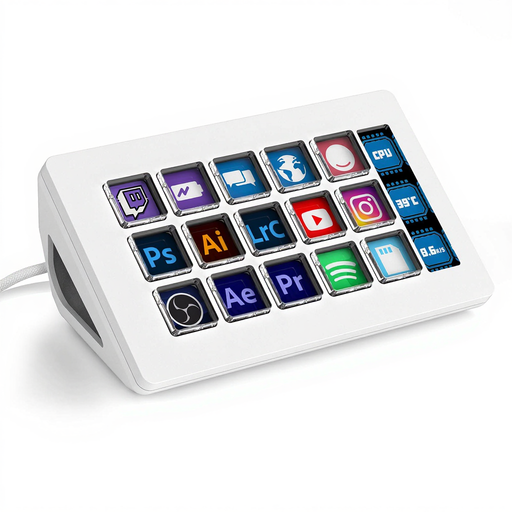
A Joybuy option for anyone who wants to control multiple actions on a stream controller as part of their recording workflow.
 No image available
The stated 15 macro keys are useful if you want to assign multiple actions for direct access while recording.
The product is described as having a side screen and the ability to trigger software actions, including OBS; specific recording or scene actions aren’t listed.
The product information lists a USB connection and use with a desktop or laptop. The controller doesn’t capture gameplay itself.
No. A stream controller triggers actions, but it doesn’t record gameplay itself. For console footage, OBS describes using a separate game capture device as an input source, among other options. Check which video setup is right for your console and computer.
OBS describes Game Capture for a specific game window, as well as a hotkey method for selecting an active game. Elgato documents a Stream Deck action for selecting a specific OBS scene; test your scenes and assigned actions before recording.
That depends on the controller, the software and the audio sources you can assign to it. Before buying, check that the functions and sources you need are available in the software for that specific model.
Choose a format that suits your recording and editing workflow. OBS describes MKV as recoverable if a recording is interrupted, and notes that you may need to convert it to a more widely supported format for editing software.
For a consumer purchase in the Netherlands, the seller must offer a solution if the product doesn’t meet what you can reasonably expect with normal use. The Dutch Government states that the Netherlands has no fixed statutory guarantee period; any manufacturer’s guarantee is in addition to your statutory rights.