For tournament commentary from your home office, choose based on the actions you need during your stream. OBS hotkeys may be enough for a few tasks, while a control panel gives you dedicated keys for scenes and other configured actions. Dials are particularly useful if you adjust audio levels while commentating. Check the software connection and OBS settings in advance, and arrange image and music rights separately.
Who is a stream controller for?
Scene-focused tournament commentator
You switch between the presenter, match context and prepared clips during your analysis, and want to find the relevant actions quickly. Elgato documents OBS actions for scenes and media sources; the OBS Project guide also explains how to set up the replay buffer.
Commentator with multiple audio sources
You control your microphone and clip audio while speaking. A control panel with dials could suit you if you regularly adjust sound levels; Elgato and Loupedeck both describe models with dials.
Creator with limited desk space
You want straightforward controls, so start by working out which actions you need. Elgato describes, among other models, the Stream Deck Neo, with eight customisable keys. Check whether the number and layout of the keys cover your action list.
What should you look for when choosing one?
OBS hotkeys
Choose this if: you only need a few actions and your keyboard is within easy reach during the commentary.
Trade-off: you won't have a separate panel with clearly labelled physical keys for those actions.
Compact panel with dedicated keys
Choose this if: you mainly want quick access to a limited number of scenes, mute and recording controls.
Trade-off: check that the number of keys suits your action list; a model without dials won't offer this type of audio control.
Panel with more keys
Choose this if: you want to set up multiple scenes, sources and clip actions on physical keys.
Trade-off: check that the OBS integration and plug-ins you need work with your software.
Panel with keys and dials
Choose this if: you regularly adjust the levels of different audio sources while speaking.
Trade-off: consider how many dedicated keys you also need. With the Loupedeck Live S, availability and support are separate considerations too.
| What to consider |
What should you check? |
Who is this important for? |
| Scenes and sources |
Count the actions you want to control directly, then check the OBS integration and layout for your scene collection. Elgato documents OBS actions for scenes and sources. |
If I want to switch quickly between scenes or sources during commentary, I want my key actions to be easy to find. Around 30% of consumers prioritise scene control. |
| Commentary and audio |
Distinguish between muting and adjusting sound levels; check whether the software you use can control your chosen audio sources. |
If I adjust my microphone or clip audio while commentating, I want to do so using controls that suit the task. Around 30% of consumers prioritise audio control. |
| Clips and replay buffer |
Test in OBS that your media source or replay buffer is set up in advance and performs the action you want. Check image and sound rights separately. |
When I want to play prepared clips or a replay, I want to know that the OBS settings work beforehand. Around 20% of consumers prioritise clip control. |
| Simple controls |
First try the OBS hotkeys you need, then count how many actions you want to see at once. |
If I have limited desk space, I only want to add the controls my commentary really needs. Around 20% of consumers prioritise simple, compact controls. |
Common buying mistakes
-
Assuming a replay button creates clips by itself
The replay buffer must be enabled and set up in OBS beforehand; a button can't replace that preparation. The OBS Project guide explains how to set up the buffer and the hotkey for saving a replay.
Before your commentary, test that you can save and find a clip.
-
Choosing lots of keys when you mainly adjust audio
A panel with keys and one with dials offer different ways to control your stream. The number of keys alone doesn't tell you whether the device suits your audio workflow.
Make a note of which actions need a press and which sound levels you want to adjust gradually while speaking.
-
Assuming playback means you have broadcasting rights
A controller can operate a media source, but it doesn't determine whether you may use protected images or audio in public. The Dutch government says that permission is generally required to use protected work publicly; quotations are subject to conditions.
Check the rights for the specific clips, and assess any quotation based on its content and how much of the work you use.
Brands to consider
The features listed apply to the product ranges described. Before buying, check that the software and controls suit the way you use OBS.
Elgato
Elgato describes Stream Deck models with different layouts: the Neo with eight keys, the MK.2 with 15 keys, and the Stream Deck + with eight keys and four dials.
- Elgato documents OBS actions for scenes, audio, media sources and the replay buffer.
- Check which versions of Stream Deck software and OBS your setup requires.
Razer
According to Razer, the Razer Stream Controller X has 15 keys and works with Loupedeck software.
- On 19 August 2026, Loupedeck confirmed that support for the Stream Controller X would continue.
- Check that the software and plug-ins you use are compatible with your OBS setup.
Loupedeck
Loupedeck describes the Live S as a panel with 15 touch buttons and two dials for tasks including scene and audio control.
- The keys and dials combine direct actions with controls for adjusting sound.
- Loupedeck ended direct sales of its product range on 28 March 2025 and says technical and warranty support will continue. Check the condition of the product and the seller's terms.
FIFINE
FIFINE describes the AmpliGame D6 as a USB panel with 15 customisable keys for streaming tasks.
- FIFINE lists the D6 as compatible with OBS.
- FIFINE also says that the D6 requires its own configuration app; check that it fits your workflow.
Stream controller for instant actions
This product selection focuses on stream controllers with multiple customisable keys for pre-configured streaming actions.
 No image available
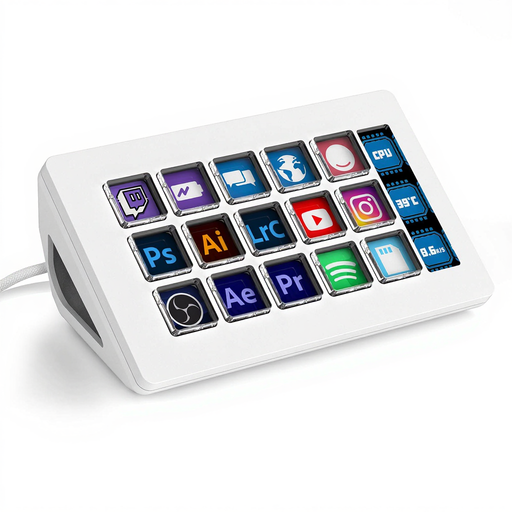
AJAZZ AKP153 Studio Deck, white, 15 macro keys
Suitable for anyone who wants to set up multiple streaming actions on separate keys; the product listing mentions use with OBS.
The product listing mentions 15 customisable keys, a configurable side screen and a removable stand. The title specifies Mac/PC; check that your computer and software suit your workflow.
Joybuy
Frequently asked questions
Do I need to buy a controller before I can control OBS during commentary?
No. First, try using OBS hotkeys to see if they cover the actions you need. You can then decide which actions you'd prefer to have on their own clearly labelled keys.
Why doesn't my button save a replay clip?
If you use the OBS replay buffer, you must first enable and set it up in OBS. The OBS Project guide explains the buffer settings; Elgato documents separate OBS actions for controlling the buffer and saving a replay.
Which software versions should I check when using Loupedeck with OBS?
Loupedeck's setup guide specifies OBS Studio 28.0 or later with Loupedeck software 5.3, and software version 5.2 for OBS 27 or earlier. Check the instructions for the versions you're actually using.
Can I use tournament footage or music in my public commentary?
Not automatically. According to the Dutch government, permission is generally required to use protected work publicly. Auteursrecht.nl explains that a quotation must be relevant to the content and must not use more than necessary. Whether a specific clip meets the conditions depends on the work and how it's used.
What consumer rights apply when buying a controller online in the Netherlands?
For a standard online consumer purchase, you generally have a statutory 14-day cooling-off period after delivery; ACM ConsuWijzer lists some exceptions. You also have a statutory guarantee if, under normal use, the product doesn't meet what you could reasonably expect. A manufacturer's warranty doesn't replace these statutory rights.


