
Solo analyst using live scenes
You switch between match footage, an analysis view and a break scene while commentating, and want to find controls without searching through OBS menus. Elgato and Razer describe control options for OBS.


For analysing a tournament at a small desk, a compact keypad is most useful if you want to switch directly between scenes and sources while commentating. If all you need to do is save a replay, an OBS hotkey may be enough. Choose six or eight keys if space is your priority, more keys visible at once if you want to control lots of actions without switching pages, or a controller with dials or dedicated audio controls if adjusting individual audio sources is essential. Before buying, check the software requirements, the space available on your desk and the rights to any footage you plan to broadcast.
You switch between match footage, an analysis view and a break scene while commentating, and want to find controls without searching through OBS menus. Elgato and Razer describe control options for OBS.
You want to save key moments and understand the difference between saving an OBS replay buffer and actually showing footage to viewers. OBS Project and Elgato describe replay controls; the Dutch government explains the limits imposed by copyright.
You want to leave room for your existing equipment, so you’ll need to consider the dimensions, key layout and cable routing first. Elgato publishes dimensions for models including the Mini and Neo.
First decide whether you need an extra controller. Then work out how many actions you want to see at once, and only then consider whether dials or dedicated audio controls would be useful.
| What to consider | What to look for | Who is this important for? |
|---|---|---|
| Controlling scenes and sources | Make a note of the scenes, source controls and microphone actions you use live. Check that you can assign the OBS actions you need to keys. | While commentating live, I want to choose scenes and sources without searching through OBS menus. Around 33% of consumers rank live scene control as their top priority. |
| Capturing replay moments | Decide whether you mean the OBS replay buffer, a recording or a media source. Test the assigned action and check separately that you have the rights to broadcast the material. | If I want to save a moment, I want to know whether an OBS hotkey will do the job before adding more equipment to my desk. Around 27% of consumers rank saving replay moments as their top priority. |
| Desk space | Measure the space available, room to move your hands and the cable route. Compare these with the dimensions and connection type of the exact model. | With little space to spare, I want to be able to place the controller alongside my existing equipment. Around 27% of consumers rank saving desk space as their top priority. |
| Separate audio controls | Make a note of which audio sources you want to mute or adjust individually. Check whether you can assign the actions you need to keys or dials, then test the mix. | If I want to control speech and other audio sources separately, I want to test the audio routes before broadcasting. Around 13% of consumers rank separate audio control as their top priority. |
OBS can save a replay buffer, but that’s not the same as showing a saved clip to viewers as a source.
Map out the steps for saving, finding and, if needed, showing the clip. Test each step separately before going live.
The software you need may have its own operating system and version requirements, in addition to the information about the device.
Before buying, check the requirements for both the exact device model and the software you want to install.
A device designed for audio sources and routing won’t automatically replace a keypad with dedicated scene keys.
Decide whether your main live task is choosing scenes, saving replays or controlling audio sources individually, then compare controllers based on that priority.
Saving or playing back footage technically doesn’t give you permission to make copyrighted material available to the public.
Check the rights to the specific match footage, music and broadcast before sharing the material.
The Stream Deck range includes compact panels with six or eight LCD keys, as well as a model with dials.
The Stream Controller X is an option for assigning multiple actions to individual buttons.
Mix Create is designed for controlling and routing individual audio sources.
The MX Creative Console combines a customisable keypad with a separate dialpad and is designed for controlling creative applications.
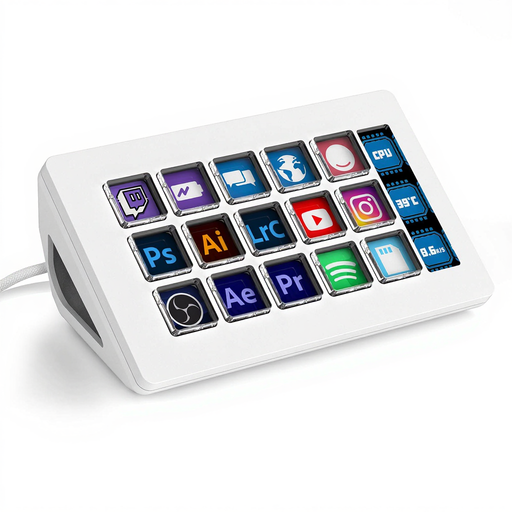
A Joybuy pick for a stream controller with multiple programmable keys for controlling software such as OBS.
 No image available
The product information lists 15 programmable keys and control of software such as OBS. Check that the actions you need work with your software version.
The product name mentions macro keys and a side screen.
Yes, if you use OBS: enable the replay buffer and set a hotkey to save it. Test the setting before your live broadcast.
Check both the operating system and the required software versions. For the documented OBS integration, Elgato specifies Stream Deck 5.3 or later and OBS Studio 27.0 or later; the current Stream Deck software also has its own system requirements.
For online purchases, ACM ConsuWijzer says you usually have 14 days from delivery to change your mind, with some exceptions. Your statutory guarantee isn’t automatically limited to the manufacturer’s warranty period: if a product doesn’t do what you could reasonably expect under normal use, the seller is responsible for providing an appropriate solution.
A stream controller doesn’t grant you the rights to use content. According to the Dutch government, you need the creator’s permission to use copyright-protected films, photographs and music; a private copy for your own use must not be distributed or made public. Check the rights to the specific footage, audio and broadcast before including them in your stream.