
Student recording with OBS only
Wants to start recording, choose scenes or control the microphone while explaining a strategy, without constantly switching to the OBS window. OBS Project documents keyboard shortcuts and recording features.


Start with OBS keyboard shortcuts if you only need a few actions; you don’t need a separate panel to record. Choose physical keys if you want familiar controls close at hand, or dials if you regularly adjust individual audio sources while recording. Check the software requirements and test your settings with a short recording.
Wants to start recording, choose scenes or control the microphone while explaining a strategy, without constantly switching to the OBS window. OBS Project documents keyboard shortcuts and recording features.
Wants a few regular actions close at hand, so compares keyboard shortcuts, an existing phone and a compact panel. Elgato also describes a mobile option with customisable keys.
Records voice and game audio and wants to control them separately while explaining. OBS Project documents audio controls, while AVerMedia describes a more advanced panel for mixing audio.
Choose this if: you only need a few recording actions and want to try keyboard controls first to see if they work while you play.
Bear in mind: you’ll need to set up the shortcuts yourself and check that they don’t conflict with keys in your game.
Choose this if: you’d like to try a touchscreen with up to six free customisable keys on a phone you already own.
Bear in mind: Elgato requires the desktop app and a connection to the same Wi-Fi network; touch keys feel different from physical ones.
Choose this if: you want a few recording, scene or microphone controls close at hand on a small desk.
Bear in mind: with a limited number of keys, you may need to switch between pages or folders for extra actions.
Choose this if: you want to keep more scenes, sources or recording actions visible at once.
Bear in mind: more keys take up more desk space and require more configuration than a compact controller.
Choose this if: you regularly adjust individual audio sources while recording.
Bear in mind: extra audio controls add little if you only record and switch between a few scenes; also check the software and audio routing.
| What to consider | What should you check? | Who is this important for? |
|---|---|---|
| Recording and scenes | Set up the OBS actions you need, then test starting and stopping a recording and switching scenes before making a full recording. | If I want to control recording and scenes while playing, I need to know which actions work with my setup. Around 36% of consumers give these essential controls top priority. |
| Space and keys | Measure the free space on your desk and count how many actions you want visible at once; check the connection and cable length for the exact model. | With limited space, I want enough controls close at hand without the panel cluttering my workspace. Around 29% of consumers prioritise space and easily accessible keys. |
| Voice and people you live with | Make a test recording to check which OBS source is muted and whether other people are recognisable in the footage or audio. | If housemates are in or near the room, I want to be able to check what my recording captures of them. Around 21% of consumers give control over voice and housemates top priority. |
| Adjusting audio sources | Decide which sources you want to adjust separately and check that the panel’s software and audio routing are suitable. | When I want to control voice and game audio separately while recording, I look for controls for multiple sources. Around 14% of consumers prioritise audio control. |
The current Stream Deck software may have different system requirements from those listed on an older hardware specification page.
Before buying, check both the exact model and the current desktop software you plan to use on your computer.
Elgato notes that the OBS pause action doesn’t work with every recording format. A mute action applies to the assigned audio source and won’t remove sound that has already been recorded.
Test the recording format and the correct source in a short test recording before making a full guide.
Loupedeck stopped selling the product range on 28 March 2025. Support for the old software and Marketplace version 5.8 ended on 30 March 2026.
Check which software version you can use, and review the seller’s terms of sale and warranty.
Stream Deck models range from compact key panels to controllers with dials, for anyone who wants to manage actions in an OBS recording workflow.
The Stream Controller X is aimed at users who want fifteen customisable keys and Loupedeck software.
The MX Creative Console combines a customisable keypad with a separate dialpad, including controls for creative software.
The Live Streamer AX310 is designed for more advanced audio control alongside panel actions.
The Live S combines touch controls with physical buttons and dials.
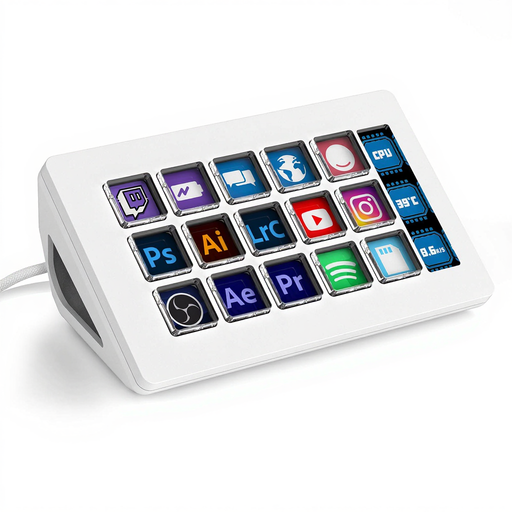
This selection focuses on a panel with multiple assignable actions close at hand, for anyone who wants to set up recording and scene controls.
 No image available
A good fit if you want to set up several recording or scene actions as shortcuts.
The product description lists 15 customisable macro keys, a side screen and support for shortcuts in software such as OBS. Assign the actions you need using the AJAZZ software, and check beforehand that the current software works with your computer.
Yes. OBS supports recording features and keyboard shortcuts. Set up the actions you need and make a short test recording first; a separate panel is a control option, not a requirement for recording.
No. Elgato notes that its OBS pause action doesn’t work with every recording format. Link the OBS actions you need in your panel software, then test the format, selected audio source and result in a short recording.
That depends on the current software requirements, not just the hardware specifications. For the current Stream Deck desktop software, Elgato lists Windows 11 on a 64-bit Intel or AMD computer. Before buying, check that your computer meets the requirements for the software version.
Yes. Elgato lists six free customisable keys for Stream Deck Mobile. The app requires the desktop app on a computer and a connection over the same Wi-Fi network; more advanced Pro features are paid.
Don’t assume you have unlimited rights to publish. The Dutch government states that you may only use copyrighted music, photographs and other works with the creator’s permission; the Dutch Data Protection Authority distinguishes between images someone makes for personal use and other uses. Check the rules and permissions that apply to your recording: a mute button doesn’t grant the right to publish.