
Presenter switching between multiple views
You switch between yourself and close-up or screen views during a showcase, and want to bring up those actions quickly.


Choose based on what you want to control during your mod showcase. Frequent changes between camera views call for easily accessible scene buttons, while dials can be handy if you often adjust audio. Elgato’s models show how the number of buttons and dial controls varies from one model to another. Also check that the controller, software and actions you need will work with your computer and recording programme.
You switch between yourself and close-up or screen views during a showcase, and want to bring up those actions quickly.
You want to adjust the sound while speaking without constantly reaching for the mouse, so assignable audio actions and dials are worth considering.
You only use a few regular actions and want to avoid buttons or features you’re unlikely to need.
| What to consider | What should you check? | Who is this important for? |
|---|---|---|
| Controlling scenes and views | Count the scenes, overlays and recording actions you plan to use. Check how many you can access directly and how you switch to additional layouts. | If you often switch between presenter, close-up and screen views during your showcase, you’ll want to bring up those actions without having to search for them. Around 36% of consumers say instant view changes are their top priority. |
| Audio during your presentation | Make a note of which audio sources you want to control separately, and check that your software has the actions you need. | If you want to adjust your microphone or system audio while speaking, a dial can be a practical alternative for controlling it. Around 29% of consumers prioritise live audio control. |
| Compatibility with your software | Check the supported version of your operating system, the controller software, and any required plug-ins and actions. Loupedeck explains how to configure OBS actions and how an indicator shows when a plug-in is disconnected. | If you want to keep using your existing computer and recording programme, check they work together before you buy and make a test recording. Around 21% of consumers say software compatibility is their main requirement. |
| Ease of use | List the actions you’ll actually use during a single session, then compare them with the buttons you can access directly and the available layouts. | If you only use a few regular showcase actions, you’ll want straightforward controls without features you don’t use. Around 14% of consumers say a simple basic layout is their top priority. |
A controller with lots of buttons and a model with dials support different ways of working. The number of buttons alone won’t tell you whether the layout suits your showcase.
Choose based on the actions you want to access directly and the audio you want to adjust while speaking.
You may need to assign an action first, and the plug-in must be connected to OBS. Loupedeck says a red dot next to the OBS icon indicates that the plug-in isn’t connected.
Check which plug-in you need and test the specific actions in your software setup before recording.
Set aside time to configure your actions and make a test recording.
A button for music or an image doesn’t give you the rights to use it. The Dutch government says that copyright-protected music and photographs may only be used with the creator’s permission.
Before publishing, check the rights for any third-party material you want to use in your video or audio.
The Stream Deck range includes models with different combinations of LCD buttons and dials.
The Live S is worth comparing if you want to combine touch controls with dials.
The Stream Controller X is worth comparing if you’re considering fifteen customisable buttons and Loupedeck software.
The MX Creative Console is worth comparing if you want to use the same controls with creative apps too.
This selection of Joybuy products is suited to bringing up actions directly during a showcase.
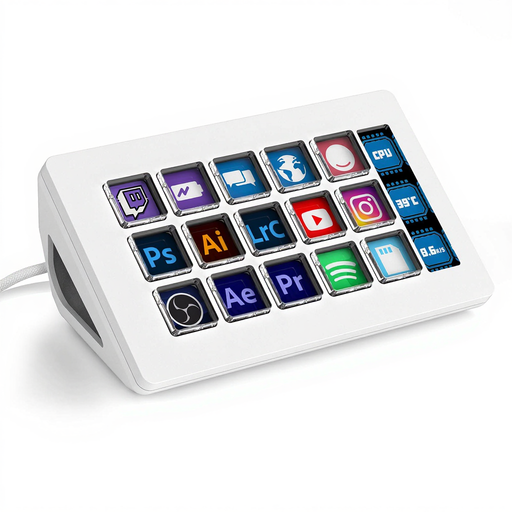 No image available
A good fit for a showcase where you want to bring up several software actions directly.
The product information lists 15 macro keys, a side screen and compatibility with Windows and Mac. You’ll need to assign the keys to the actions you want in the software.
Write down the actions for your video, microphone and recording, assign them in the controller software, then make a test recording. If you use OBS, check that the intended scene or source actually changes. Loupedeck explains how to assign OBS actions to the controls.
According to Loupedeck’s setup guide, a red dot next to the OBS icon indicates that the plug-in isn’t connected. Check that OBS is running; if the dot remains, Loupedeck recommends restarting its software.
When you buy as a consumer, you’re entitled to a product that works properly. The Dutch government says there’s no fixed statutory warranty period for all products. When you buy online from a business, a 14-day cooling-off period often applies. Check whether any exceptions apply and read the seller’s terms and conditions.
Not without permission. The Dutch government says that copyright-protected music and photographs may only be used with the creator’s permission. So check the rights for any material you want to show or play.
If you collect and use personal data, the Dutch Data Protection Authority says you need a legal basis under the GDPR. Consent is one possible basis, but it isn’t automatically the only one. The rules that apply to your recording depend on who you film and how you use the footage.