Choose based on what you want to control directly while recording: starting or stopping a recording, switching between gaming scenes, or adjusting audio too. A compact panel suits a small number of set actions; more keys put more actions within easy reach, while dials are most useful if you want to adjust supported audio sources. Before buying, check compatibility with your operating system, OBS version and preferred actions: OBS records the game sources you’ve set up, not the controller itself.
Who is a stream controller for gaming comparisons suitable for?
Creator switching between two gaming scenes
You want to control the recording and individually configured gaming scenes without having to search for OBS while you play. OBS Project explains how to set up scenes with a specific game source; Elgato documents scene and recording actions for Stream Deck.
Creator adjusting game and voice audio
You adjust audio while recording, so suitable audio controls are more useful than extra scene keys alone. Check which audio sources your software and controller can control; Logitech, for example, documents an OBS plug-in with recording actions.
Creator with a simple home setup
You only use a few set actions and want to know whether a small panel would add anything, or whether OBS controls will do for now. OBS Project explains recording controls in OBS and recommends making a test recording.
What should you look for?
This table is aimed at consumers considering a stream controller for a gaming comparison; the percentages show which purchasing need takes priority.
| Consideration |
What to look for |
Who is this important for? |
| Scenes and recording |
Check that the scene and recording actions you want work with your OBS setup. Decide how many actions you want to have immediately to hand at once. |
If I often switch between pre-set gaming scenes during a comparison, I want to control them directly alongside the recording. Consumers who prioritise scene and recording controls make up around 30%. |
| Game and voice audio |
Check whether your software can control the audio sources you want, and whether you can assign those actions to keys or dials. |
Anyone who regularly wants to adjust game or voice audio while recording will benefit from suitable audio controls. Consumers who make audio their top purchasing priority make up around 30%. |
| Simple controls |
Choose the number of keys to suit your regular actions. OBS also has its own recording controls; a short test recording can help you assess your workflow. |
If I only use a few set actions, I don’t want more controls than my workflow needs. Consumers who prioritise simplicity and a limited number of actions make up around 20%. |
| Software compatibility |
Check your operating system, software versions and support for the OBS actions you want. The Elgato OBS plug-in lists Windows 11 or later, macOS 13 or later, and Stream Deck app 6.9 or later. |
If you want to check first whether a controller works with your system and the OBS actions you need, use that to guide your choice. Consumers who prioritise software compatibility make up around 20%. |
Stream controller buying pitfalls
-
Assuming the controller records game footage itself
The controller triggers actions; OBS records the sources you’ve set up. A panel won’t automatically fix a missing or incorrectly configured game source.
Check and test the recording of both games in OBS before choosing a controller.
If the footage source you need isn’t available in OBS, you may need a different recording setup or additional equipment.
-
Comparing only the number of keys
The OBS actions available and system requirements vary between software ecosystems. A key is only useful for your workflow if its assigned action works with your setup.
Check the latest plug-in requirements and make a note of your essential actions before choosing a model.
-
Treating an older update about Razer support as current
On 19 August 2026, Loupedeck confirmed that support for the Razer Stream Controller and Controller X would continue.
Check the more recent confirmation and make sure your installed software version supports the actions you want.
-
Assuming the manufacturer’s warranty is the same as your full statutory rights
According to ACM ConsuWijzer, Dutch statutory guarantees do not have a fixed two-year term.
Keep your proof of purchase and make any claim under your statutory rights to the retailer.
Relevant brands and their control options
Elgato
Elgato offers Stream Deck models with different combinations of keys and dials.
- According to Elgato, the Stream Deck Mini has six configurable keys, while the MK.2 has fifteen. The Stream Deck + combines eight keys with four dials.
- Elgato documents its own OBS plug-in, with system and app requirements. Check that the actions you want are available on your setup.
Razer
The Stream Controller X is an alternative with programmable keys and software controls through the Loupedeck ecosystem.
- Razer lists fifteen programmable keys. On 19 August 2026, Loupedeck confirmed that support for this model would continue.
- Check the software on your own system and make sure the specific OBS actions you need are available.
Logitech
According to Logitech, the MX Creative Console combines a keypad with a separate dialpad, for creators who also control other creative applications.
- Logitech documents an OBS Studio plug-in with recording actions for OBS 28 or later.
- Check that the scene and audio controls you want are available in your configured profile.
Loupedeck
According to Loupedeck, the Live S combines touch keys and dials for controlling OBS, audio and more.
- On 28 March 2025, Loupedeck announced that it was ending its own sales of the product range, but would continue technical support and handle warranty claims.
- That announcement doesn’t confirm current stock or terms at a UK retailer; check the specific offer and software support.
Joybuy products for controlling game recordings
This selection of Joybuy products is aimed at organising OBS actions with multiple controls within easy reach.
 No image available
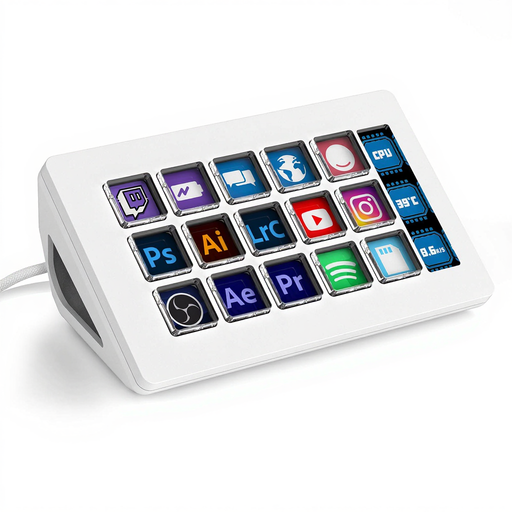
AJAZZ AKP153 Studio Deck stream controller, 15 macro keys, side screen, white
Suited to anyone who wants to organise several OBS actions on a panel with macro keys within easy reach.
The product name lists 15 macro keys, a side screen and Mac/PC compatibility. Before buying, check that the actions you want work with your software versions.
View at Joybuy
Frequently asked questions
Does a stream controller record my two games itself?
No. In this setup, the controller triggers actions in the recording software; OBS captures the sources you’ve set up. OBS Project describes using a specific game source for each scene, or a keyboard shortcut method for the active game. Start with a short test recording.
How do I set up the controls for a gaming comparison?
First set up and test the game and audio sources you need in OBS. Then assign the available recording and scene actions to the controller. The actions and software versions supported depend on the plug-in and setup you choose.
Do I need dials to adjust the sound?
Not necessarily. Dials are one option if you regularly want to adjust supported sound levels while recording. They don’t replace setting up audio sources or testing your recording.
What should I check when buying a Loupedeck Live S?
Check the specific offer to see what’s included and which software you’ll need. Loupedeck announced that it ended its own sales of the product range on 28 March 2025, but would continue technical support and handle warranty claims. That commitment is separate from your statutory rights against the retailer.
What are my rights when buying online in the Netherlands?
According to ACM ConsuWijzer, online product purchases generally come with a statutory 14-day cooling-off period from delivery, with some exceptions. ACM ConsuWijzer also explains that Dutch law does not set a fixed two-year term for statutory guarantees.


