
Artists with an existing tablet
First, check that the stylus works with your specific iPad or Galaxy model. Apple Support Netherlands and Samsung Netherlands publish compatibility information for their styluses.


Start by checking your exact tablet model: an Apple Pencil, Samsung S Pen and third-party stylus are not automatically interchangeable. If you want to vary line weight, choose a compatible stylus with the drawing features you need; for quick panel sketches, ease of use and convenient charging may matter more. Check that your drawing app supports those features too: the features mentioned are based on manufacturers’ information, not the results of a comparative drawing test.
First, check that the stylus works with your specific iPad or Galaxy model. Apple Support Netherlands and Samsung Netherlands publish compatibility information for their styluses.
If you want to adjust outlines or shading as you sketch, compare the stylus’s drawing features and check whether your app supports them. Apple and Adonit describe features for specific models.
If you switch between short panel sketches and notes, instant use, simple controls and a handy place to store your stylus can help you keep up your pace. Apple, Logitech and Samsung describe different control and storage options.
Best for: a compatible iPad and drawing that calls for pressure-sensitive strokes or quick tool changes.
Keep in mind: Apple lists squeeze, barrel roll and magnetic charging; the stylus works only with certain iPads and requires iPadOS 17.5 or later.
Best for: quick outlines, panel sketches and notes on a compatible iPad.
Keep in mind: Apple lists tilt sensitivity and USB-C cable charging for the Pencil (USB-C); Logitech describes instant use, tilt sensitivity and USB-C charging for the Crayon. Check separately whether the stylus is pressure-sensitive if you need that feature.
Best for: a Galaxy tablet that Samsung lists as compatible with this edition, especially if tilt sensitivity and replaceable nibs matter to you.
Keep in mind: Samsung lists two included nibs and magnetic storage; according to Samsung, the Creator Edition has no Bluetooth or Air Actions and does not work with the Galaxy Z Fold series.
Best for: a compatible iPad if you’re considering a third-party stylus; Adonit lists pressure sensitivity and replaceable nibs, while ZAGG lists tilt sensitivity and a second capacitive tip.
Keep in mind: Adonit limits the Note⁺ 2 to certain iPads and notes restrictions on magnetic attachment for certain 2024 iPads. For both brands, check your exact tablet model and the app features you want.
For storyboarding at a sit-stand desk, follow this order: check compatibility first, then choose between line control and quick sketching, and finally check charging, storage and replacement nibs.
| What to consider | What should you check? | Who is this most important for? |
|---|---|---|
| Tablet compatibility | Check the exact tablet model, stylus generation and, where applicable, the required software version. | If I’m using an existing iPad or Galaxy, I want to know first whether the stylus works with it; around 36% of consumers cite compatibility as their main concern. |
| Line control | Check whether the stylus offers pressure sensitivity, tilt sensitivity or both, and whether your drawing app supports these features. | If I want to control line weight or shading in storyboard panels, I look for drawing features my app can use; around 29% of consumers prioritise varying line weight. |
| Quick sketching | Compare the controls, pairing method, charging method and storage options. | If I want to sketch short panels quickly and switch between tools, I want to avoid as many fiddly steps as possible; around 21% of consumers prioritise ease of use. |
| Nibs and maintenance | Check which nibs and accessories are included, and which replacement nibs are compatible with the stylus. | If I want to know what I’ll need for nibs and charging, I check the packaging and compatible replacement parts; around 14% of consumers make maintenance and running costs their main concern. |
Apple distinguishes between Pencil generations and iPad models. For some combinations with a first-generation Pencil, Apple also specifies an adapter.
Before buying, compare the full model name and check how the stylus pairs and charges.
Some combinations may require an adapter; for example, Apple lists a USB-C to Apple Pencil Adapter for the first-generation Pencil with a 10th-generation iPad.
Apple describes magnetic attachment for the Pencil (USB-C), but charging is via a USB-C cable. For the Pencil Pro, Apple lists magnetic pairing and charging.
For the exact edition, check separately how attachment, pairing and charging work.
If charging is via a cable, remember to allow for the charging cable and a suitable spot at your desk.
Samsung distinguishes between S Pen editions. The Creator Edition does not work with the Galaxy Z Fold series and, according to Samsung, has no Air Actions.
Check the edition and your exact tablet model; don’t choose this stylus if you expect Air Actions.
The Government of the Netherlands states that there is no fixed statutory guarantee period in the Netherlands; your statutory rights depend on what you can reasonably expect from the product.
If something goes wrong, distinguish between your statutory rights and any manufacturer’s or seller’s guarantee, and contact the seller.
Apple offers Pencil editions for specific iPads, from the drawing controls of the Pencil Pro to sketching and annotation with the USB-C edition.
The S Pen Creator Edition is designed for supported Galaxy devices and, according to Samsung, focuses on drawing, tilt sensitivity and replaceable nibs.
Adonit lists the Note⁺ 2 for specific iPads when pressure sensitivity and a choice of nibs are important.
According to Logitech, the Crayon (USB-C) is designed for supported iPads where instant use, tilt sensitivity and USB-C charging are important.
ZAGG positions the Pro Stylus 2 as an iPad stylus with a fine drawing tip and a rounded capacitive tip for swiping.
This selection includes styluses for storyboarding and sketching on compatible tablets, including iPads and reMarkable or Kindle Scribe models. Before buying, check that the stylus works with your exact tablet and preferred app.
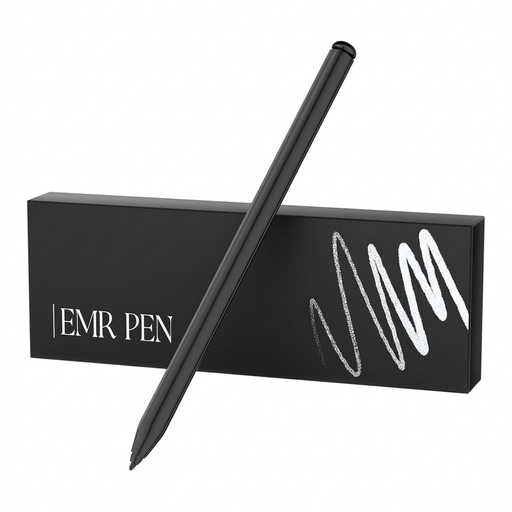 No image available
According to the product title, this stylus is designed for reMarkable 1 and 2 and Kindle Scribe; check whether your specific model is supported.
The title lists 4096 pressure levels. The product information mentions drawing and a stylus that does not need its own battery.
 No image available
For quick sketches on a compatible iPad, Logitech lists instant use without complicated pairing and tilt sensitivity for varying line thickness.
The product information lists compatibility with iPad models from 2018 onwards and iOS 12.2 or later; also check your exact model and drawing app.
 No image available
For storyboard drawing with varied lines, Apple lists pressure and tilt sensitivity; squeeze and barrel roll are designed for stylus control.
Compatibility is limited to certain iPads and requires iPadOS 17.5 or later. Check current compatibility for your model and app.
 No image available
For sketching and shading on a compatible iPad, Apple lists tilt sensitivity.
This edition charges via a USB-C cable. Magnetic attachment does not mean magnetic charging for this model; also check compatibility with your iPad.
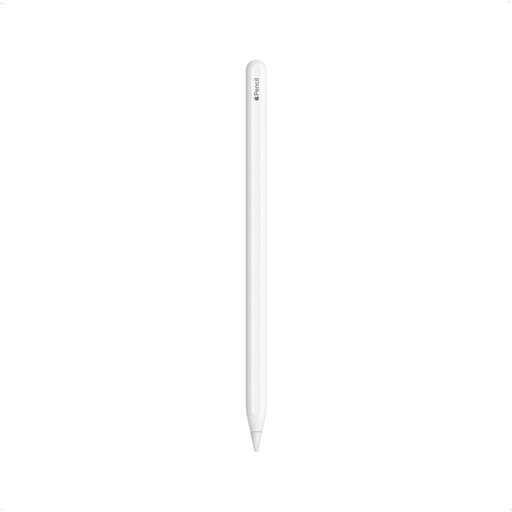 No image available
The product title lists support for certain iPad Pro, iPad Air and iPad mini models; check whether your exact model is included.
The product information lists double-tap to switch tools, and magnetic pairing and charging.
First, find your exact iPad model in the compatibility information from Apple Support Netherlands. Apple describes different pairing and charging methods for each edition; for a first-generation Pencil with a 10th-generation iPad, Apple lists a USB-C to Apple Pencil Adapter.
Use a replacement nib designed for your stylus and follow the manufacturer’s instructions. Samsung includes two nibs and a replacement tool with the S Pen Creator Edition; check what’s included with other editions.
According to the Government of the Netherlands, if you have a problem with a product as a consumer, you can contact the seller about your statutory rights. There is no fixed statutory guarantee period in the Netherlands; normal wear and tear or accidental damage does not automatically entitle you to a free repair.
According to the Government of the Netherlands, distance purchases generally come with a 14-day cooling-off period. There are exceptions, and the rules mentioned for distance purchases do not apply to purchases from a private individual.