Choose a monitor that keeps your catalogue software readable at the magnification you need, while leaving enough room for stamp images and input fields. An adjustable 27-inch 4K screen can be a practical middle ground; a 31.5-inch screen offers more physical display area if your desk and viewing distance allow for it. 4K won’t make text larger by itself, so adjust the text size or display scaling on your computer too.
Who is this choice relevant for?
Collectors who need larger text
If catalogue names, dates or input fields are difficult to read, text size and display scaling may matter just as much as the monitor itself. Koninklijke Visio describes larger text and adjusted colours as some of the computer settings you could use.
Collectors who compare stamp images
If you want to view a digital stamp image alongside catalogue information while entering details, consider the magnification you need and how you want to arrange your windows together. The details you can see will still depend on what’s in the original scan or photograph.
Collectors with a fixed workspace
The screen’s position can be important during longer data-entry sessions. Consider your desk, stand or arm, and viewing distance when choosing your set-up.
What should you look for when choosing?
First, try the text size and window layout you want in your own catalogue software. Then choose a screen size and set-up that keep both the image and input fields visible in that layout.
| What to consider |
What should you check? |
Who is this more important for? |
| Readability of enlarged text |
Test the text size or display scaling in your catalogue software; greater magnification may mean fewer fields are visible at once. |
If I need to display names and input fields at a larger size, I want to know whether the layout will still work for me. Around 36% of consumers say that being able to read enlarged catalogue text is their top priority. |
| Space for stamp images and fields |
Try viewing the image and catalogue windows side by side. Consider the physical screen size and the quality of the source image. |
If I want to view stamp images alongside enlarged catalogue fields, I need enough room at my chosen scaling level. Around 29% of consumers give this combination top priority. |
| Screen position |
Check the height adjustment and tilt. If you’re using an arm, make sure the mount will fit your desk too. |
During longer data-entry sessions, I want to position the screen to suit my workspace. Around 21% of consumers put screen positioning first. |
| Connections and features |
Compare your computer’s video output with the monitor, cable and any power requirements. Don’t pay for features you won’t use. |
If I want to connect my existing computer without unnecessary extra features, I want to know in advance which connection and power supply I’ll need. Around 14% of consumers make connections and avoiding unused features their top priority. |
Pitfalls to avoid
-
Choosing based on 4K resolution alone
More pixels don’t automatically mean larger catalogue text. Magnification can also mean that less content is visible at once.
Try your preferred scaling and window layout with your own catalogue software before choosing a screen size and resolution.
-
Buying a larger screen without checking your set-up
A 31.5-inch screen with a clamp-mounted arm needs a different amount of desk space and a different mounting point from a 27-inch screen on a stand.
Check your desk depth, the space needed for a clamp, if applicable, and where you want the screen to sit.
-
Assuming USB-C guarantees video and enough power for your laptop
Connections and stated power outputs vary between monitors, and your laptop must also support the video connection you choose.
Compare your computer’s and monitor’s specifications, and check that your cable supports video and provides the power you need.
-
Expecting a monitor to bring out missing stamp details
A monitor displays the digital scan or photograph available, but can’t add details that weren’t captured in it.
When comparing, assess both the source image and the readability of the catalogue interface.
Brands to compare
Philips
Philips describes the 27E1N1800AE/00 as a 27-inch 4K IPS monitor with height adjustment.
- The stated screen size, resolution and height adjustment are practical features to compare for a desk set-up.
- These specifications alone don’t tell you whether text will be readable at your preferred magnification; check the connection you need too.
LG
LG describes the 27UP850K-W as an adjustable 27-inch 4K monitor and the 32UN880P-B as a 31.5-inch 4K model with a clamp-mounted arm.
- The different sizes and set-ups give you options to weigh up your screen layout and available desk space.
- LG lists 60 W USB-C Power Delivery for the 32UN880P-B; check whether that meets your laptop’s requirements.
Dell
Dell describes the Pro 27 Plus P2725QE as an adjustable 27-inch 4K USB-C hub monitor.
- Dell lists 3840 × 2160 pixels and 90 W power delivery for this model.
- The hub feature is most relevant if your computer and workspace need those connections; the specifications don’t show that it’s specifically suited to catalogue software.
BenQ
BenQ describes the PD2706U as a 27-inch 4K monitor from its creative range, with features including an anti-glare coating, ePaper mode and USB-C.
- BenQ lists 90 W USB-C Power Delivery and colour features.
- Having these features doesn’t prove that enlarged catalogue text will be easier to read than on a simpler model that meets your needs.
EIZO
EIZO describes the FlexScan EV2740X as a 27-inch 4K office monitor with USB-C docking.
- EIZO lists 94 W Power Delivery for this model.
- Consider whether docking is useful for your workspace; the stated specifications don’t offer any benefit for details that aren’t present in the source image.
Monitors at Joybuy
This selection of Joybuy products includes 27-, 32- and 34-inch monitors for a stamp-cataloguing workspace. Compare the screen size, stated resolution and adjustability with your preferred magnification, window layout and computer connection.
 No image available
Samsung Odyssey G5 G50F, LS32FG502EUXEN
The 32-inch screen size may be worth considering if you want more physical room for catalogue fields and a stamp image.
32-inch IPS screen with 2560 × 1440 pixels. The description lists height, swivel and tilt adjustment.
Set the text size or display scaling separately; the monitor won’t enlarge catalogue text by itself.
View at Joybuy
 No image available
LG UltraFine 27U710B-B
This 27-inch model is an option to compare if you’re looking for a more compact screen that still has room for catalogue text and images.
The description lists IPS, 4K, USB-C, HDMI and DisplayPort. Check that the connection suits your computer.
Resolution won’t enlarge text automatically; set the text size or display scaling separately.
View at Joybuy
 No image available
Philips 27E1N1800AE/00
The 27-inch size and adjustable stand are worth considering if you’re comparing 4K monitors for a dedicated cataloguing space.
IPS screen with 3840 × 2160 pixels; the description lists a height-adjustable stand.
Set the text size or display scaling separately on your computer.
View at Joybuy
 No image available
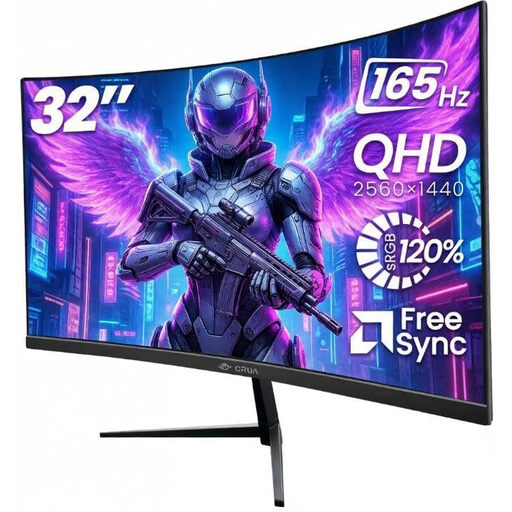
CRUA 32-inch curved QHD monitor, 1500R
The 32-inch screen size may suit a workspace where you want to consider a larger physical display area.
The product name lists QHD, 2560 × 1440 pixels and 165 Hz. The description mentions VESA 100 × 100 mm and tilt adjustment from −5° to 15°.
Set the text size or display scaling separately; the monitor won’t enlarge catalogue text by itself.
View at Joybuy
 No image available
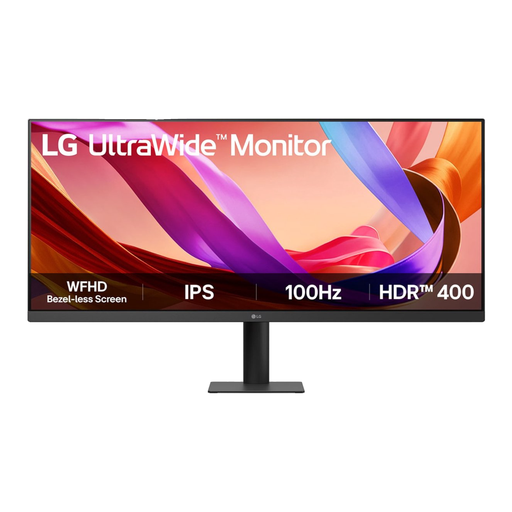
LG UltraWide 34U511A-B, 34 inch
The wide 34-inch format is worth considering if you want to try a wide window layout on one screen and have room for it.
The description lists a 21:9 IPS screen with 2560 × 1080 pixels, anti-reflective coating, HDMI, DisplayPort and VESA mounting.
Check that your desk has enough space. Set your preferred text size separately on your computer.
View at Joybuy
Frequently asked questions
Will 4K make my catalogue text larger automatically?
No. On a Windows computer, adjust the text size or display scaling separately; you can use Magnifier to enlarge part of the screen. Microsoft Support also recommends checking how it looks in the catalogue software you use.
What can I try if larger text is still difficult to read?
As well as magnification, look at the colour, brightness and pointer settings. Koninklijke Visio offers personalised advice on computer adjustments for ongoing reading or usability difficulties; a new monitor isn’t necessarily the complete solution.
Can I connect a USB-C monitor to any laptop with a single cable?
Don’t rely on the presence of a USB-C port alone. Compare support for the video signal, the cable and the power your laptop needs with the specifications of both devices. LG lists 60 W for the 32UN880P-B and BenQ lists 90 W for the PD2706U; check what your laptop requires.
What are my rights when buying a monitor online in the Netherlands?
For an online consumer purchase, you generally have a statutory cooling-off period of up to 14 days after delivery; check the applicable exceptions and return terms. If a product is faulty, the seller is responsible for the statutory guarantee. ACM ConsuWijzer explains that this guarantee in the Netherlands doesn’t have a fixed, general two-year end date.
Does a monitor need an energy label in the Netherlands?
The European Commission states that electronic displays, including computer monitors, are covered by EU energy-labelling rules. The energy label uses a scale from A to G; check the information for the specific model and allow for any applicable exceptions.


