Who is this choice for?

Guardian of family memories

You want to be able to retrieve scans if they’re lost or damaged, so you’re looking for a separate copy in addition to your working drive. VeiligInternetten describes an external drive as one possible place to store a backup.

On-the-go scan organiser

You take your workstation with you and open or move scans in different places. In that case, size, connection and data transfer matter. Kingston Technology and Samsung Nederland describe portable SSD models for this kind of use.

Manager of a growing photo archive

You regularly add scans and want to weigh up the storage space you need against portability and how often you use your files. The Consumentenbond discusses capacity as one factor to consider when choosing an external drive; Western Digital and Seagate both offer portable HDD ranges.

What should you look for when buying?

Portable SSD as a working drive

Choose this option if: you often open, organise or move scans at different workstations.

Bear in mind: capacity and USB connection vary by model, and the stated maximum speed depends on the host device and how you use it. An SSD is not a substitute for a second copy either.

Portable HDD for archive storage

Choose this option if: you mainly copy scans periodically and having more storage space on a single drive matters. The Consumentenbond lists capacity as one factor to consider when choosing an external drive; the My Passport and One Touch models reviewed include 5 TB versions.

Bear in mind: check the exact capacity, connection and file system of the model you’re considering. Don’t keep irreplaceable scans only on this drive.

Concern What to look for when buying Which consumers does this matter to?
A recoverable copy Don’t use your working drive as your only copy, and check that your backup includes your scan folder. I want to be able to retrieve family photos if a drive fails, so I keep a separate copy and test restoring a file. Around 31% of consumers put recoverability first.
Working with scans on the go Check the USB port and cable you need, and make sure the capacity suits the scans you actively use. I want to open and move scans on the go without assuming a speed my workstation may not achieve. Around 25% of consumers give working with scans on the go their top priority.
Space for a growing archive Check the size of your existing scan folders and allow for edited versions and future additions. Then compare this with the capacity of the specific model. I want to store existing and new scans on one portable drive, so I first work out how much space my archive needs. Around 25% of consumers put archive storage first.
File sharing and backup software Check whether you want to share files between Windows and Mac or use the drive as a Time Machine destination. Apple Support recommends APFS or APFS (Encrypted) as the preferred format for a new Time Machine drive. I want to use the drive with the right computers or backup software; these uses may require a different file system. Around 19% of consumers put system compatibility or software compatibility first.

Things to watch out for when buying

  • Mistaking your working drive for your only safe archive copy

    If scans are stored on just one external drive, that drive isn’t a separate backup. VeiligInternetten describes a backup as an additional copy of your files.

    Keep your scans somewhere else too, and regularly test restoring a file from that copy.

    Allow for a separate storage location and time to check your copy.

  • Assuming an advertised SSD top speed is the speed you’ll get every day

    Kingston states that the XS1000’s maximum speed requires a suitable USB 3.2 Gen 2 host, and notes that speed varies depending on the host, software and usage.

    Check your workstation’s port and cable. Don’t treat a maximum speed in MB/s on its own as the transfer speed you’ll get every day.

  • Assuming ‘Works with Mac’ means it’s ready to use with Time Machine

    Apple Support distinguishes between file systems for Windows-compatible files and those suitable for a Time Machine backup.

    First decide how you’ll use the drive, and copy any existing files elsewhere before changing its format.

    Reformatting takes time and can erase existing files, so make a separate copy first.

Brands to consider

Samsung

The T7 Shield 1 TB model reviewed is a portable SSD for anyone who regularly takes scans with them or works with them on the go.

  • For this model, Samsung lists USB 3.2 Gen 2, maximum sequential read and write speeds of 1.050 and 1.000 MB/s, and IP65 protection.
  • These are Samsung’s specifications, not measured speeds or a guarantee against data loss. Actual speed and protection depend on the conditions.

Western Digital

The My Passport range includes portable HDD models; the black 5 TB model reviewed has the model number WDBPKJ0050BBK-WESN.

  • Western Digital lists USB 3.2 Gen 1, a USB-A cable included in the box and password protection for this range.
  • The product specification lists Windows compatibility and a downloadable NTFS driver for certain macOS versions. Check whether the specific model is right for your Mac and backup needs.

Seagate

According to Seagate, the One Touch Portable Storage range consists of USB-powered portable HDDs, with models available up to 5 TB.

  • Seagate lists USB 3.2 Gen 1 and compatibility with Windows and Mac.
  • The manufacturer lists recovery services, but notes that they aren’t available in every country. Check the terms for the specific product you buy, and don’t treat recovery as a substitute for keeping another copy.

Kingston

The XS1000 range includes portable SSD models in 1 and 2 TB capacities.

  • For the XS1000, Kingston lists USB 3.2 Gen 2, a weight of 28,7 g and a maximum read speed of 1.050 MB/s.
  • According to Kingston, speed varies depending on the host, software and usage. Also check the colour and included cable of the model you choose.

Products at Joybuy

This selection includes portable SSDs for scans you take with you or actively work with, and portable HDDs for photo archives where you need to weigh up how much storage space you’ll need.

SanDisk Portable SSD 1 TB

SanDisk Portable SSD 1 TB

Ideal if you want to take scans with you and move them between locations on a portable drive.

1 TB storage; read speeds up to 800 MB/s; drop protection up to 2 m.

You’ll also need a separate copy if you want to be able to recover your files.

View at Joybuy

SanDisk Extreme Pro Portable SSD 1 TB

SanDisk Extreme Pro Portable SSD 1 TB

A good fit if you regularly take scans with you and want to connect the drive at different workstations.

USB 3.2 Gen 2x2; maximum read speed of 2.000 MB/s; IP65; drop protection up to 3 m; 46,9 g; USB-C cable and USB-A adapter.

The maximum read speed requires a suitable USB 3.2 Gen 2x2 host; write speeds are lower. Keep a separate copy as well so you can recover your files.

View at Joybuy

WD My Passport 6 TB White portable hard drive

WD My Passport 6 TB White

A portable HDD option if you want to take extra space for a larger photo archive with you.

6 TB storage; USB 3.0; 210 g; 256-bit AES hardware encryption.

You’ll also need a separate copy if you want to be able to recover your files.

View at Joybuy
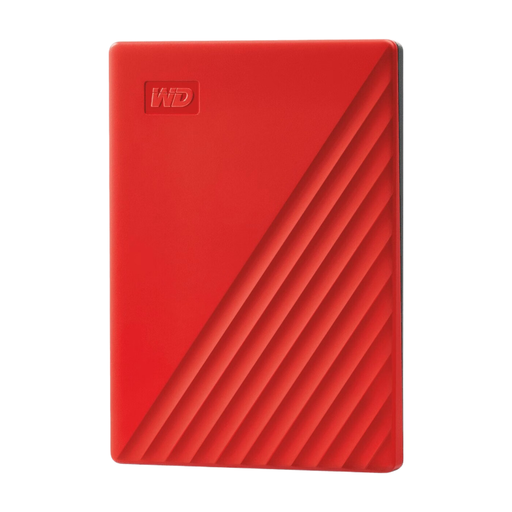
WD My Passport 4 TB Red portable hard drive

WD My Passport 4 TB Red

A good fit if you’re looking for a portable hard drive for a photo archive and want to match the capacity to your scan folders.

4 TB storage; USB 3.2 Gen 1; USB bus-powered; 210 g; 256-bit AES hardware encryption.

You’ll also need a separate copy if you want to be able to recover your files.

View at Joybuy

WD My Passport 2 TB Red portable hard drive

WD My Passport 2 TB Red

A portable HDD option if you want to store and take scans with you, with 2 TB of storage.

USB 3.2 Gen 1; USB bus-powered; USB cable included; 256-bit AES hardware encryption.

You’ll also need a separate copy if you want to be able to recover your files.

View at Joybuy

Frequently asked questions

How do you work out how much storage space your scans need?

Check the size of your scan folders, include edited versions and estimate how many more scans you expect to add. Compare that with the capacity of the specific drive model. The number of photos alone won’t tell you how many terabytes you need without knowing their file sizes.

Can you use the same drive for Windows files and Time Machine?

It depends on the file system and how you plan to use the drive. Apple Support recommends ExFAT for Windows-compatible files and APFS or APFS (Encrypted) as the preferred format for a new Time Machine drive. Reformatting can erase existing data, so make a copy elsewhere first.

How can you check that your scans are actually being backed up?

Check that your scan folder is included in the backup, then test restoring a file. Microsoft Support says that Windows File History includes libraries by default; you can add other folders to a library. The external drive needs to be connected when the backup is made.

Who should you contact if a product is faulty, and is the legal guarantee in the Netherlands always exactly two years?

Report a fault to the retailer. According to the Rijksoverheid, there is no fixed legal guarantee period in the Netherlands. The manufacturer’s warranty is separate from your legal right to a product that works properly. For eligible online consumer purchases, you generally have a 14-day cooling-off period.

Does keeping family photos for personal use fall under the GDPR?

According to the Autoriteit Persoonsgegevens, photos you keep for personal use or share with only a very limited group are covered by the exception for personal or household use. If you share identifiable photos more widely or use them for business, don’t assume that keeping them in a private archive means you can publish them freely.
