If you regularly carry receipt scans with you or hand them over to a client, a portable SSD is an obvious choice; an HDD may suit a larger archive that rarely needs to be moved. Beforehand, check that you can connect and open the drive on the client’s computer, and that any security features work there. A drive used for handovers is no substitute for a separate backup, according to Seagate Support; the Dutch Tax and Customs Administration requires digitally stored scans to be an accurate and complete representation of the original.
Who is this choice relevant to?
Anyone handing over confidential scans
Receipts may contain personal data. For each file, decide who is allowed to receive the scans and what level of security is appropriate for the risk; the Dutch Data Protection Authority stresses that security measures should be tailored to that risk.
Anyone transferring files between different computers
If you and your client use different USB connections or operating systems, check before the handover that the files can be opened and any security features can be unlocked. Apple Support describes ExFAT as compatible with Windows.
Anyone managing a receipt archive
A copy handed over to someone else is not automatically your own backup. The Dutch Tax and Customs Administration sets requirements for digitally stored scans that form part of business records, so decide who manages the records and which copy needs to be retained.
What should you consider when choosing?
First, choose based on how often you carry the drive and the size of the file. Then decide what security you need and test whether the client’s computer can open the drive.
Portable SSD
Suitable if: you carry the drive often or transfer files regularly.
Bear in mind: stated maximum speeds don’t indicate how quickly small scans will transfer; a slower USB port can also be a limiting factor.
Portable HDD
Suitable if: a larger archive is the priority and the drive won’t be moved often.
Bear in mind: according to the Consumers’ Association, an HDD is more susceptible to knocks than an SSD.
| What to consider |
What to look for |
Who is this most relevant to? |
| Access security |
Check whether the scans contain personal data, how security is set up and how the client will unlock the drive. |
If I’m handing over scans that may contain confidential information, I want to limit unwanted access if the drive is lost. Around 36% of consumers make access security their top priority. |
| Opening the drive at the client’s end |
Check the USB connection, file system and whether any unlocking process works on the client’s computer. |
I want the client to be able to open the scans straight away, even if our computers have different connections or systems. Around 29% of consumers give compatibility the highest priority. |
| Your own backup |
Check the files after copying and agree who will manage a separate copy. |
After the handover, I want to retain access to a usable copy if my records require it. Around 21% of consumers put data retention first. |
| Space for the archive |
Check the size of the file and compare the space needed with the capacity of the model you choose. |
If I’m handing over a larger file, I want enough space without choosing more capacity than I need. Around 14% of consumers start by considering the space their archive requires. |
Common handover mistakes
-
Using the handover drive as your only archive
If the original files are deleted and the handover drive is the only copy left, you no longer have a separate backup. Seagate Support recommends keeping a backup separate from the original data.
Check the scans after copying and agree who will manage a separate, accessible copy.
-
Assuming security is enabled automatically
A stated password feature may need to be set up first. The client must also be able to open the secured drive; WD warns that data on supported secured drives will be lost if the password is forgotten.
Set up the security and test the handover process with the client. Don’t leave the password unsecured with the drive.
-
Formatting the drive as soon as the client can’t read it
Formatting can erase files on the drive. Crucial warns that reformatting causes data loss.
First, check the connection and file system. Make a separate copy before reformatting, if necessary, then test the chosen format with a sample file.
Brands to consider
Samsung
The Portable SSD T7 is an option if you’re looking for a compact handover drive supplied with several types of USB cable.
- Samsung Netherlands lists optional AES 256-bit password protection for the T7, along with stated sequential speeds of up to 1.050/1.000 MB/s.
- You need to set up the security feature. The stated speeds don’t represent measured transfer times for receipt scans; also test the connection and unlocking process at the client’s end.
Kingston
The XS1000 is a compact SSD range for transferring files via USB-A or USB-C.
- Kingston lists 1 TB and 2 TB models, supplied with a USB-A cable and USB-C adapter. Kingston states that it comes with a five-year limited warranty.
- Check what’s included with the exact model, and arrange access security separately if you need it.
Western Digital
The portable My Passport HDD range may suit you if archive space and a supported password feature are important.
- Western Digital states that supported My Passport drives can work with WD Security.
- Check support and the unlocking process for the exact model and computer. Western Digital warns that forgetting the password will result in data loss.
Seagate
The Expansion Portable range is an HDD option for portable storage of a larger file.
- Seagate documents the STKM2000400 model as having a capacity of 2 TB and USB power.
- Don’t assume this model has access security without checking the exact version. According to the Consumers’ Association, an HDD is more susceptible to knocks than an SSD.
Portable SSDs at Joybuy
The products below are portable SSDs for storing and transferring scanned receipts. Before buying, check which capacity, connection and security features, if any, are right for your file and the client’s computer.
 No image available
SanDisk Portable SSD 1 TB
A portable SSD option if you want to hand over scans on an external drive.
Capacity: 1 TB.
View at Joybuy
 No image available
SanDisk Extreme Pro Portable SSD 1 TB, 2.000 MB/s
A portable SSD option for transfers if you’re looking for a 1 TB model.
The stated read speed of up to 2.000 MB/s requires a compatible USB 3.2 Gen 2x2 device; the write speed is lower. Check that the client’s computer is compatible.
View at Joybuy
 No image available
Portable SSD 1 TB, 1.000 MB/s
A portable SSD option if you want to store and transfer receipt scans on an external drive.
The product name states 1 TB and 1.000 MB/s. Check the connection and file access on the client’s computer.
View at Joybuy
 No image available
Samsung Portable SSD T7 2 TB, blue
A portable T7 model if you’re looking for 2 TB of storage for the handover.
The product name lists USB Type-C 3.2 Gen 2 (3.1 Gen 2). Check that this connection is suitable for the client’s computer.
View at Joybuy
 No image available
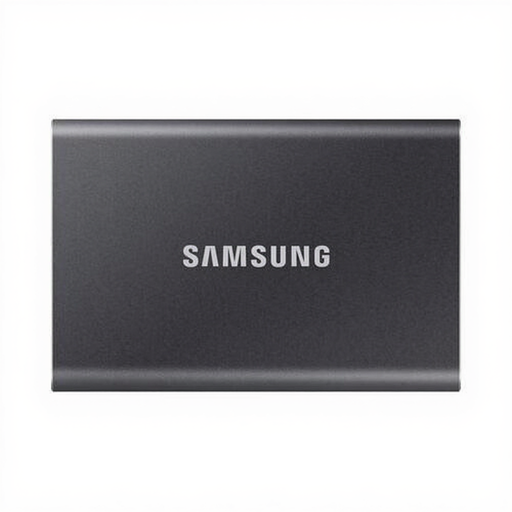
Samsung Portable SSD T7 1 TB, grey
A portable SSD option if you want to hand over scans and have the option of setting a password.
Capacity: 1 TB. Samsung lists optional AES 256-bit password protection for the T7, as well as USB-C-to-C and USB-C-to-A cables. Set up the security and test that the client can unlock the drive.
View at Joybuy
Frequently asked questions
Should you choose an SSD or an HDD for receipt scans?
A portable SSD is a better fit if you carry the drive often; an HDD may suit a larger archive that rarely needs to be moved. The Consumers’ Association describes an HDD as more susceptible to knocks than an SSD. Choose a capacity that matches the measured size of your file.
How can you check that the client can open the drive?
Beforehand, check the USB connection and file system on the client’s computer, and test with a sample file. Apple Support lists ExFAT as a file system that’s compatible with Windows; also test whether any security features can be unlocked there.
Should you set up password protection for receipt scans?
That depends on the contents and the risk involved in transferring the data. The Dutch Data Protection Authority says security measures should be tailored to the risk. If you use a password feature, set it up and check with the client that the drive can be opened.
Is the drive you give to the client also your backup?
Not if it becomes your only copy afterwards. Seagate Support distinguishes between the original files and a separate backup. Check the files after copying and agree who will manage their own copy.
Can you keep receipts as scans only?
The Dutch Tax and Customs Administration allows receipts to be stored digitally, provided the scan is an accurate and complete representation of the original. First, establish whether the scans form part of business records you’re responsible for, and keep the files easy to check.


