Start with a monitor you can position comfortably when sitting and standing, with enough room to arrange your sprite canvas, timeline and preview. Then choose based on what matters most to you, such as colour accuracy, extra workspace or an easy laptop connection. A high refresh rate alone won’t make your sprite frames more accurate. Before buying, check the adjustability of the exact model and your computer’s connections.
Who is this choice relevant to?
Sprite animator who sits and stands
You change your working position while drawing and want to keep your canvas and timeline in view without having to place the screen awkwardly. Arboportaal recommends positioning the screen at a suitable height, directly in front of you.
Pixel artist working with colour-critical content
You assess the colours in RGB sprites and want to know which colour space and settings the screen supports. Aseprite describes colour profiles as indicating the colour space in which RGB values are defined.
Animator with a laptop workstation
You want to connect a laptop easily after adjusting or moving your workstation, without letting convenience of connection take priority over a suitable screen position.
What should you look for when choosing?
First, decide whether you can position the screen comfortably in both working positions. Then compare the space available for your editor with your need for colour settings or a laptop connection.
| What to consider |
What should you look for? |
Who is this important for? |
| Screen position |
Check the height and tilt adjustment range of the exact model and whether it suits your desk. If you’re considering a monitor arm, check the mounting specifications too. |
If I alternate between sitting and standing, I want to be able to position the screen comfortably in both positions; around 31% of consumers prioritise screen position. |
| Workspace |
Compare screen size and native resolution with your viewing distance and preferred layout for the canvas, timeline and preview. Try your usual zoom level and interface scaling. |
If I want to see the canvas, timeline and preview at the same time, workspace comes first; around 31% of consumers prioritise it. |
| Colour accuracy |
Check the stated colour space and colour settings of the exact model, and match the profile to your workflow. |
If I mainly want to assess RGB colours, I look at colour space and settings; around 23% of consumers prioritise colour accuracy. |
| Laptop connection |
Check that the laptop port supports video and that the charging power and required cable are suitable for the monitor and your laptop. |
If I want to connect my laptop easily, I check the ports and charging requirements first; around 15% of consumers prioritise laptop connectivity. |
Common buying pitfalls
-
Assuming a high refresh rate means more accurate pixels
A high refresh rate alone doesn’t mean sprite colours or individual pixels will be displayed more accurately. When creating sprite animations, you work with frames and settings in your editor.
First decide how much editor space you need, how you want to position the screen and which colour settings matter. Then compare refresh rates only if they’re also relevant to how else you use the monitor.
-
Assuming every adjustable stand will suit a sit-stand desk
The right screen position depends on your desk and working posture. Simply stating that a stand is adjustable doesn’t tell you whether its range will work for your setup.
Compare the stated adjustment range with your sitting and standing heights. If you’re using a monitor arm, check its mounting specifications and weight capacity too.
You may need a suitable monitor arm or another adjustment to your workstation to achieve the position you want.
-
Assuming USB-C guarantees a one-cable connection and charging
Your laptop must support video through the USB-C port you’re using. The monitor’s stated charging power may also differ from what your laptop requires.
Check your laptop’s port, video support, charging power and the cable required for the exact monitor model.
Depending on the combination, you may need a suitable video cable or a separate laptop power supply.
Brands to consider
Dell
The UltraSharp U2724D is an example of an adjustable 27-inch QHD work monitor for a setup with a canvas and timeline.
- Dell lists a resolution of 2560 × 1440, a 120 Hz refresh rate and height adjustment for the U2724D.
- The specifications don’t tell you whether the adjustment range will suit every sit-stand setup. Compare it with your own desk and posture.
BenQ
The PD2705Q is a design monitor for those who value sRGB specifications and a USB-C connection.
- BenQ lists 100% sRGB, factory calibration and USB-C with 65 W power delivery for the PD2705Q.
- These are the manufacturer’s specifications and claims, not an independent measurement of an individual unit. Also check whether 65 W and the laptop connection are suitable for your computer.
ASUS
According to its model specifications, the ProArt PA278QV combines colour settings with adjustability.
- ASUS lists 100% sRGB, 2560 × 1440 and 0–150 mm of height adjustment for the PA278QV.
- Check that the UK version and stated adjustment options match the model you’re considering.
Philips
The 27E1N5600AE/00 is a 27-inch QHD work monitor with USB-C for a compatible laptop.
- Philips describes video, data and power delivered through a single USB-C cable.
- Check that your laptop supports the required features over USB-C. The connection doesn’t tell you whether the stand will raise the screen high enough for your standing working position.
Monitors at Joybuy
These monitors are options for sprite animation. When choosing, focus on screen space, resolution and the positioning required for your sit-stand setup.
 No image available
MSI MAG 272QPF E20 27-inch 2K WQHD 200Hz Rapid IPS
The 27-inch QHD model is an option for arranging your canvas and timeline on one screen.
27 inches; 2560 × 1440; Rapid IPS panel; 200 Hz.
View at Joybuy
 No image available
AOC Gaming Q27G42XNE 27-inch Quad HD monitor
The 27-inch Quad HD screen is an option for exploring the workspace available for sprite and editing work.
2560 × 1440; 180 Hz; 1 ms; 2 HDMI 2.0 ports and 1 DisplayPort 1.4.
View at Joybuy
 No image available
Gawfolk 34-inch curved UWQHD monitor
The ultrawide format may suit anyone who wants to arrange their canvas and timeline side by side. Check that the monitor will fit on your desk first.
3440 × 1440; 144 Hz; 1500R curvature; 100% sRGB; VA panel; no speakers.
View at Joybuy
 No image available
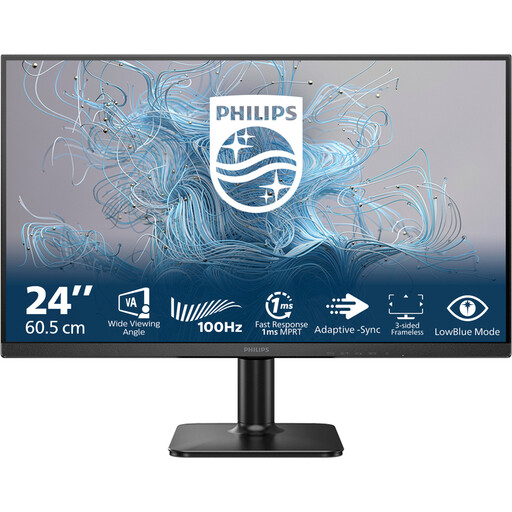
Philips 1000 Series 24E2N1100LB/00 24-inch Full HD monitor
The 24-inch Full HD model is an option for a desktop workstation where a more compact screen size is preferred.
1920 × 1080; 100 Hz; VA panel.
View at Joybuy
 No image available
Dell UltraSharp U3226Q 32-inch 4K UHD QD-OLED monitor
The 4K screen is an option for viewing your canvas, timeline and preview side by side. Adjust the scaling to suit your editor and viewing distance.
31.5 inches according to the product description; 4K; 120 Hz; QD-OLED; 100% sRGB; adjustable stand and integrated colour meter.
View at Joybuy
Frequently asked questions
Do you need to buy a 4K monitor for small sprites?
No, 4K isn’t automatically necessary for viewing small sprites. First decide how much space you need for your canvas, timeline and preview, and whether you can comfortably zoom in and scale the interface in your editor. Aseprite documents separate settings for display and interface scaling; neither is a requirement for using the software.
How should you set up your screen when switching from sitting to standing?
Adjust your workstation and position the screen directly in front of you. Arboportaal recommends placing the top of the screen slightly below eye level and looking straight at it. Check that the stand or monitor arm allows this in both sitting and standing positions; this isn’t a universal minimum height adjustment requirement for every model.
What can you do if a monitor bought online isn’t right for you or breaks too soon?
According to ACM ConsuWijzer, online consumer purchases usually come with a statutory cooling-off period of up to 14 days after delivery, although exceptions apply. You’re also covered by statutory guarantees: what you can expect from a product depends on the product and the circumstances, so every monitor doesn’t automatically come with exactly two years’ cover.
Do Dutch workplace health and safety rules apply to your monitor at a sit-stand desk?
For an employee who works at a screen for more than two hours a day, Arboportaal outlines requirements for setting up a screen workstation, including a height-adjustable screen and measures to prevent reflections. This doesn’t automatically apply to every reader; factors such as your working situation and daily screen time are relevant.


