
Animator working alongside colleagues
You work close to other people and want repeated keystrokes to cause as little disruption as possible. Try the keyboard in the kind of office environment where you’ll be using it.


Start with the sound your colleagues actually hear and the keys you use in your animation software. A scissor-switch keyboard is a sensible choice if a quiet typing experience is your priority. Programmable mechanical keys or a split layout are worth considering if they better suit your shortcuts or preferred hand position. Manufacturer claims about noise or ergonomics are not measurements of your workplace, nor do they guarantee a particular result.
You work close to other people and want repeated keystrokes to cause as little disruption as possible. Try the keyboard in the kind of office environment where you’ll be using it.
You often switch between frames and tools, and want your commands to be easy to reach or customise without unnecessarily interrupting your drawing workflow.
When you work at a computer for long periods, consider the position of your hands, keyboard and mouse. A keyboard is not a treatment for aches and pains.
First, decide what matters most in your shared workspace: less distracting noise, easy-to-reach shortcuts or a different hand position. Then compare the layout and connection with your desk and the keys you use.
Choose this option if: colleagues sit nearby and you mainly use standard keys and existing shortcuts. CHERRY describes the typing action on its STREAM models as quiet.
Bear in mind: the TKL version has no numeric keypad, and both STREAM models mentioned are wired. The quietness claim is not a measurement made in your office.
Choose this option if: you often want to create your own key layouts or macros. Keychron lists remapping and macros among the features of the V6 Max.
Bear in mind: noise also depends on the switch variant; case damping does not prove that a keyboard is quiet. Also check that the layout and software suit your work.
Choose this option if: hand positioning is your deciding factor when working for long periods. According to the manufacturer, the R-Go Split Break consists of two separate parts that can be positioned independently.
Bear in mind: the new layout may take some getting used to; check that your animation shortcuts are still within reach. Its shape does not prove that the keyboard prevents discomfort or is quieter.
| What to consider | What to look for when buying | Who is this important for? |
|---|---|---|
| Typing noise | Try the keyboard in a similar working environment. Compare the exact keys and switches, not just whether damping is present. | If I work close to colleagues and type frequently, I want to know what the keyboard sounds like in my office. Around 36% of consumers say typing noise is their main concern. |
| Shortcuts and remapping | Make a note of the actions you use most often and check that the keys are easy to reach. Test any shortcut or macro settings. | When I often switch between frames and tools, I want my commands to be easy to reach and to customise them only if the standard layout isn’t enough. Around 29% of consumers give shortcuts top priority. |
| Hand position and posture | Look at the position of your keyboard and mouse, and check that your shortcuts are still within reach. If discomfort persists, seek appropriate professional advice. | When I’m animating for long periods, I want to take the position of my hands and input devices into account without seeing a keyboard as a solution to discomfort. Around 21% of consumers put posture first. |
| Space, layout and connection | Check TKL versus full-size, the key layout you want, and whether the available wired or wireless connection suits your needs. | If my desk has limited space, I want to know which keys a more compact layout leaves out and which connection suits my workspace. Around 14% of consumers give space and connectivity top priority. |
Case damping or a manufacturer’s claim doesn’t tell you how much noise a specific switch variant will make on your desk.
Check the exact switch variant and try it in a similar working environment before choosing a mechanical keyboard.
A TKL keyboard has no numeric keypad. Whether its layout works for your frame and modifier keys depends on which keys you use.
Compare your shortcuts with the physical layout, including the arrow and modifier keys.
Working at a screen for long periods involves repeated hand movements and static strain. Changing the shape of your keyboard alone doesn’t address your whole workstation or individual symptoms.
Consider the position of your keyboard and mouse together. If discomfort persists, seek professional advice.
CHERRY offers the STREAM KEYBOARD and STREAM KEYBOARD TKL, both with low-profile SX scissor switches. The TKL version is designed for anyone who rarely uses a numeric keypad.
The MX Keys S has a full-size layout and programmable keys. The ERGO K860 has a fixed, curved, split design.
According to Keychron, the V6 Max combines a full-size ANSI keyboard layout with key remapping, macros and hot-swappable mechanical switches.
According to the manufacturer, the R-Go Split Break consists of two separate parts that can be positioned independently and has light-touch scissor keys.
This selection includes compact layouts and models with macro or remapping features, as well as options with a numeric keypad. Check that each model’s key layout, switches and connection suit your office and animation workflow.
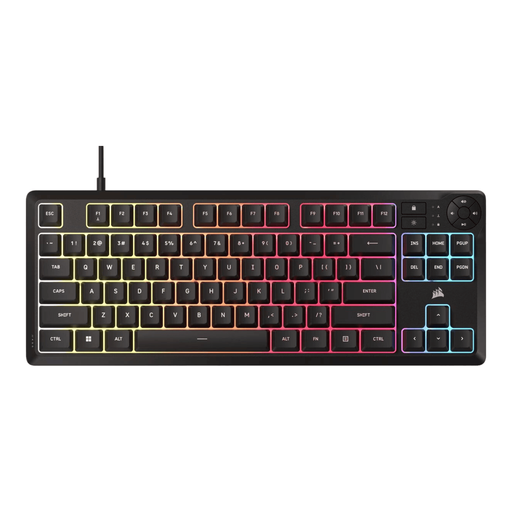 Image unavailable
A TKL layout may suit you if you want a more compact keyboard and don’t need a numeric keypad.
The product description lists membrane switches, remapping via iCUE and quiet typing. The TKL layout has no numeric keypad; check how it sounds in your own working environment.
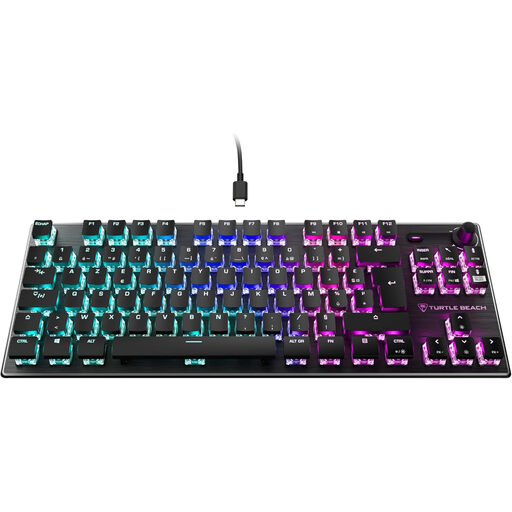 Image unavailable
This model may suit you if you’re looking for a TKL layout and customisable macros; check that AZERTY works with the keys you use and your workflow.
The product information lists linear Titan switches, macros via Turtle Beach software, a wired connection and RGB lighting.
 Image unavailable
A keyboard with a numeric keypad may suit you if you want to keep the extra keys and have room for a full-size model.
The product information lists a wired plug-and-play connection, arrow keys, a navigation cluster and function keys.
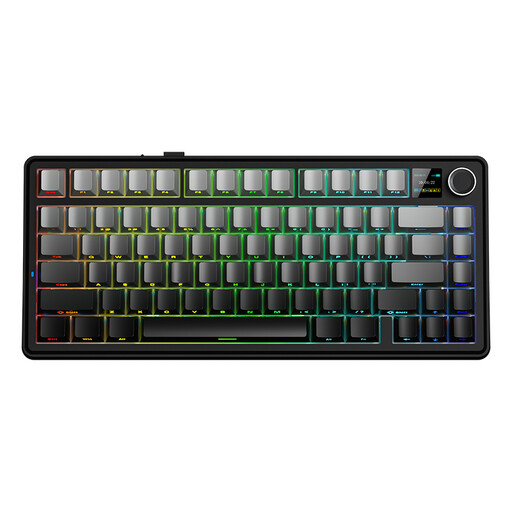 Image unavailable
A 75% layout may suit you if you want a more compact size with navigation keys; check that the US layout works for you.
The product name lists wired, Bluetooth and 2.4 GHz connections, along with a Reaper switch.
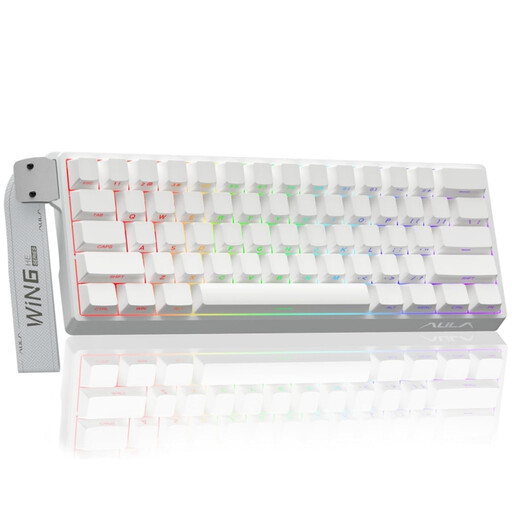 Image unavailable
This compact model may suit you if desk space is limited; check that the 60% layout includes the keys you need.
The product name lists adjustable 0.01 mm actuation and an 8K polling rate. The product description mentions Rapid Trigger.
Not necessarily. Aseprite has shortcuts for navigating between frames and lets you customise key combinations. Start by listing the commands you use; macros are mainly useful if the existing layout isn’t enough.
First, position the two parts at a distance that works for your workspace and check that your animation commands are still within reach. In Aseprite, you can customise key combinations via Edit > Keyboard Shortcuts; if you use keyboard software, also check whether it’s permitted on your work computer.
Before buying, compare the total cost and any accessories you may want. According to ACM ConsuWijzer, for a typical online consumer purchase you generally have up to 14 days after delivery to change your mind, with some exceptions. Dutch statutory warranty is separate from any limited manufacturer’s warranty.
Government guidance does not prescribe either type as a general purchasing choice. Arboportaal does state that, for employees who work at a screen for more than 2 hours a day, the screen and keyboard must not be attached to each other. This is a conditional requirement for setting up a workstation, not a requirement for every buyer.
No. Hot-swappable switches can be replaced, but that doesn’t mean you need to replace them. Before choosing a different variant, check that it’s compatible with the exact model.