What should you look for when choosing?
First, decide which panel and usage best suit your room and the fixed elements in your HUD. Then check the aspect ratio and the connection your headphones need.
| What to consider |
What should you check? |
Who should pay particular attention? |
| Dark-scene contrast and HDR |
Compare independent HDR measurements and consider reflections in the room where you play. Don’t take an HDR label on its own as proof of impressive HDR performance. |
If I want to see starfields and dark cockpit scenes clearly, I weigh black levels against the risk of HUD elements remaining visible for long periods. Around 31% of consumers give dark-scene contrast their top priority. |
| Screen width and space |
Check that the specific game supports ultrawide, that you have enough room on your desk, and that the resolution and refresh rate are supported by the input you use. Philips Netherlands and Dell Netherlands list 3440 × 1440 for the 34-inch ultrawide models mentioned. |
If I want more horizontal screen space, my game needs to support the aspect ratio, and the monitor needs to suit my PC and desk. Around 25% of consumers give ultrawide viewing their top priority. |
| Headphones and audio |
For the exact model, check that it has a suitable audio output and, if you need it, a microphone function. Don’t assume it has headphone support just because it has built-in speakers. |
If I want to use my existing headphones, I need to know whether the connection and any microphone function are compatible with my headset. Around 25% of consumers put the audio connection first. |
| Static images and mixed use |
Compare test results for the exact model, including its VRR performance at changing frame rates. Consider how long fixed HUD or desktop elements remain visible. |
If I also use the same monitor for desktop work, I weigh up fixed windows, moving images and the risk of OLED burn-in together. Around 19% of consumers give this balance their top priority. |
Joybuy product selection
This Joybuy selection includes OLED and QD-OLED gaming monitors with QHD, ultrawide and 4K resolutions. Check that the aspect ratio suits your game and PC, and that the audio connection is compatible with your headphones.
 No image available
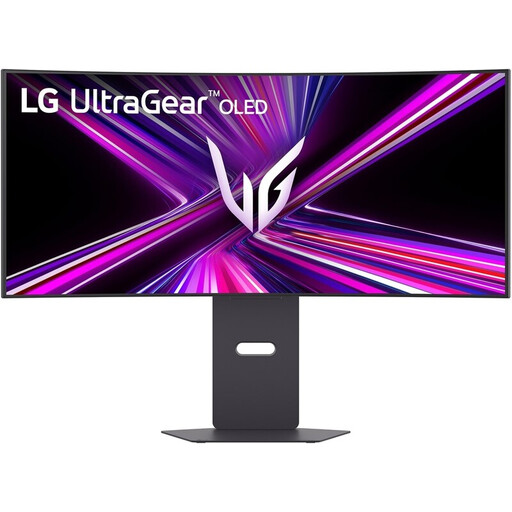
LG UltraGear 34GX900A-B 34-inch WQHD OLED
A good fit if you’re looking for an ultrawide gaming monitor and want to check that it has a dedicated headset connection.
The product description lists a 34-inch WOLED screen with 3440 × 1440 resolution, a 240 Hz refresh rate and a 4-pole DTS Headphone:X connection. Check that it’s compatible with your headphones and microphone.
There may be a risk of OLED burn-in if the same HUD or desktop elements remain on screen for long periods. Also check that your game and PC support 3440 × 1440.
View at Joybuy
 No image available
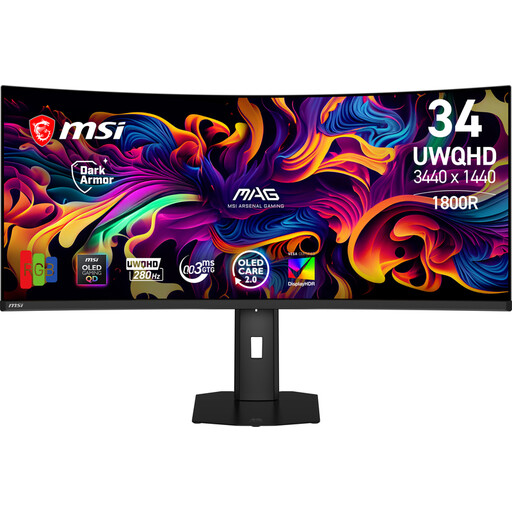
MSI MAG 341CQP QD-OLED X28 34.18-inch
A good fit if you’re looking for a QD-OLED ultrawide and want to connect your headphones to the monitor.
The product description lists 3440 × 1440 resolution, a 21:9 aspect ratio, a 280 Hz refresh rate, HDMI 2.1, DisplayPort 1.4a and a headphone output.
There may be a risk of OLED burn-in if the same HUD or desktop elements remain on screen for long periods. Check that your game and PC support the aspect ratio you want.
View at Joybuy
 No image available
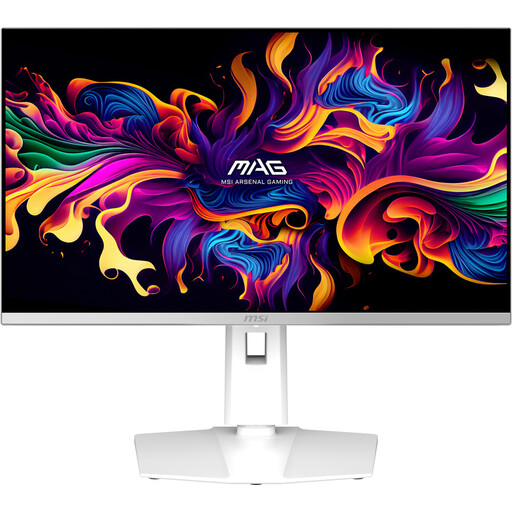
MSI MAG 272QPW QD-OLED X28 27-inch, white
A good fit if you want to pair QHD resolution on a 27-inch OLED monitor with wired headphones.
The product description lists 2560 × 1440 resolution, a 280 Hz refresh rate, HDMI 2.1, DisplayPort 1.4a and a headphone output.
There may be a risk of OLED burn-in if the same HUD or desktop elements remain on screen for long periods. Check that the connection and microphone function are compatible with your headset.
View at Joybuy
 No image available
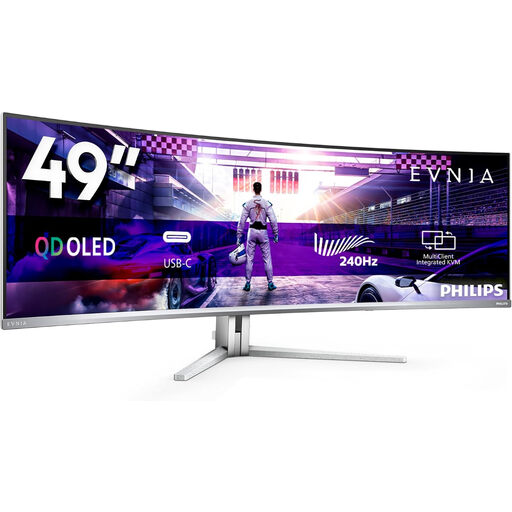
Philips Evnia 49M2C8900/00 49-inch DQHD QD-OLED
A good fit if you want an extra-wide view and can check in advance whether your game supports 32:9.
The product description lists 5120 × 1440 resolution and a 240 Hz refresh rate. It states that the screen is 1195 mm wide, so make sure you have a suitable, stable surface.
There may be a risk of OLED burn-in if the same HUD or desktop elements remain on screen for long periods. The product description recommends two people for lifting or installation.
View at Joybuy
 No image available
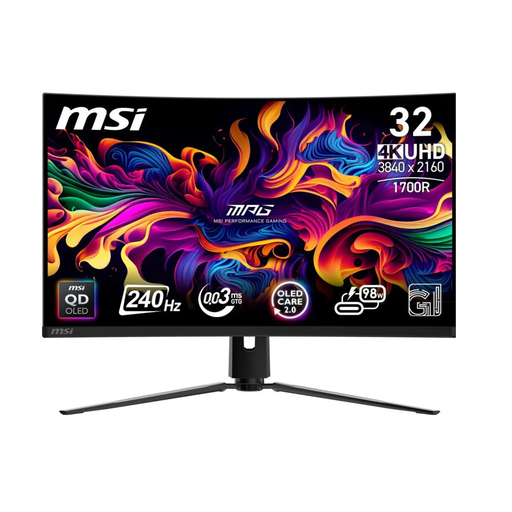
MSI MPG 321CURX QD-OLED 31.5-inch 4K
A good fit if you’re considering a 4K QD-OLED gaming monitor with a stated analogue audio output.
The product description lists 3840 × 2160 resolution, a 240 Hz refresh rate, HDMI 2.1 and a 3.5mm analogue output.
There may be a risk of OLED burn-in if the same HUD or desktop elements remain on screen for long periods. The stated OLED Care 2.0 feature doesn’t rule out this risk.
View at Joybuy
Frequently asked questions
Do I need to connect my headphones to the monitor?
No, you can choose the connection that suits your PC or console and headphones. If you want to listen through the monitor, check that the exact model has a suitable audio output; check microphone support separately. For example, Dell lists a headphone output for the AW3423DWF, but that doesn’t tell you anything about other models.
How do I check whether a monitor supports the refresh rate I want?
Check which combination of resolution and hertz is supported by the monitor, video source and connection you’re using. Dell lists 165 Hz via DisplayPort and 100 Hz via HDMI for the AW3423DWF; these figures apply to that model.
What should I bear in mind when choosing an OLED monitor?
Consider the risk of burn-in if fixed HUD or desktop elements remain visible for long periods, and check the maintenance features of the exact model. ASUS describes a feature on the PG32UCDM3 that turns the screen black when it’s not in use to reduce the risk; this doesn’t mean burn-in is impossible.
Is an ultrawide monitor suitable for every space exploration game?
No, first check whether the specific game supports the aspect ratio you want. Also check that your PC can handle the resolution and refresh rate through the chosen input, and that the screen will fit on your desk.
Can VRR flickering occur on OLED or VA monitors?
RTINGS.com observed VRR flickering at changing frame rates on the OLED and VA monitors it tested. Results vary by model and conditions of use, so look for a test of the exact monitor if you play games with significant frame-rate fluctuations.


