
Layout designer with a small desk
You need room for the monitor, keyboard and yearbook materials. So look beyond the screen size and consider the stand and its adjustability too.


Start by measuring the space left for the monitor stand, keyboard and yearbook materials. Then choose between Full HD, 1920 × 1200 and QHD, depending on your layout work. For photos that will be printed, colour management and checking a proof matter more than a stated colour gamut alone. If you want to connect your laptop with a single cable, check that both the laptop and monitor support video and sufficient power delivery over USB-C.
You need room for the monitor, keyboard and yearbook materials. So look beyond the screen size and consider the stand and its adjustability too.
You switch between page layouts, captions and photo details. Consider whether extra vertical workspace or more pixels would be most useful for your tasks.
You review photos for a printed yearbook. Bear in mind that the colours on screen won’t automatically match the finished print.
First measure the usable space, then choose the resolution, colour features and connections that suit the way you work.
| What to consider | What to look for when buying | Who is this important for? |
|---|---|---|
| Desk space | Measure the space with the stand attached, leaving room for your keyboard and paper. If you’re using a monitor arm, check the VESA size and that the mounting point is suitable. | If you want to work with pages and papers beside your keyboard, every centimetre of desk space counts. That’s why around 36% of consumers prioritise the space a monitor takes up. |
| Layout details | View a page with text, captions and photos from your usual sitting distance. Check that it’s easy to read at your preferred text size. | If you often switch between captions, photos and page layouts, you’ll want to see details clearly without making text uncomfortably small. Around 29% of consumers prioritise these layout details. |
| Colour for print | Check the colour features and align colour management with the printer’s workflow. If colour accuracy is critical, check a proof where necessary. | If you review photos for the printed yearbook, you’ll want to know how the screen image compares with the print. Around 21% of consumers prioritise print colour. |
| Connecting a laptop | Check whether the laptop’s USB-C port outputs video and whether its power delivery is sufficient for your laptop. Also check which features the monitor’s port supports. | If you want to use your laptop with as few separate cables as possible, the connections on both devices need to support video and power. Around 14% of consumers prioritise this convenience. |
The stand takes up space too. BenQ lists separate dimensions for the PD2506Q with and without its stand.
Measure the usable desk space and compare it with the monitor’s dimensions with the stand attached. Before buying, also check that any monitor arm and mount will fit.
A screen and a printing process don’t use the same colour space. A stated colour gamut or factory calibration alone therefore can’t predict the final print.
Align colour management with the print workflow and check a proof when colour matters. Adobe explains how to use a colorimeter for objective screen calibration.
Colour checking may require extra equipment, such as a colorimeter, or a printed proof.
A USB-C port on a monitor doesn’t automatically provide video and sufficient power to a laptop. The Dell P2425 and P2425DE, for example, have different USB-C features.
Check the features of the port on the exact monitor model and on your laptop. Otherwise, you may need a separate power cable or a different video connection.
The models reviewed offer different options for yearbook layout work: a 1920 × 1200-pixel screen and a QHD model with a USB-C hub.
The ThinkVision P24q-30 is a 23.8-inch QHD model for anyone looking for lots of pixels on a relatively compact screen.
BenQ describes the PD2506Q as a monitor for design work, with a 25-inch QHD screen.
Philips says the 24E1N1300AE/01 combines a 23.8-inch Full HD screen with USB-C for compatible laptops.
This Joybuy selection includes 24-inch Full HD monitors and compact QHD models for yearbook layout work. Check the desk space and connections required for each model.
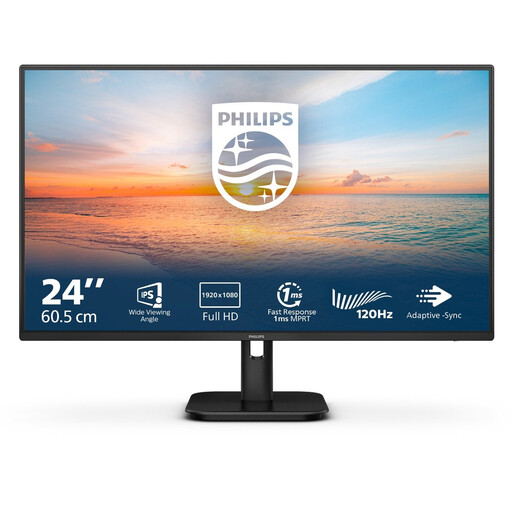 No image available
A Full HD option for page layout if that resolution suits your work.
1920 × 1080 pixels, IPS, 100 Hz and built-in speakers. HDMI and VGA connections; VESA mounting is listed.
 No image available
A compact QHD option for reviewing fine details in pages and photos.
2560 × 1440 pixels and IPS. Dell lists up to 90 W of USB-C power delivery to a laptop; video and charging over this connection depend on the laptop.
 No image available
A QHD option for page layout and photo details, with an adjustable viewing position.
2560 × 1440 pixels and IPS. The product description lists height, tilt, swivel and pivot adjustment.
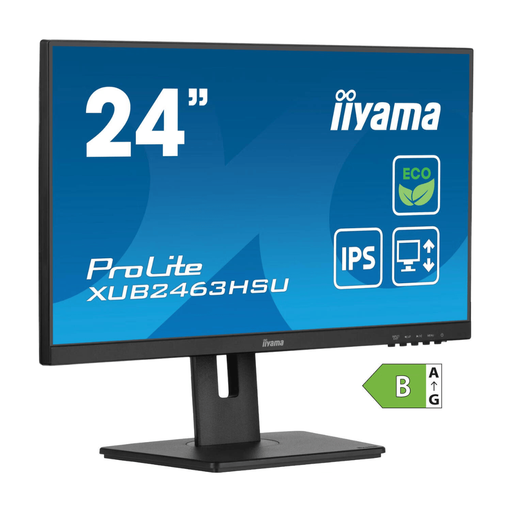 No image available
A Full HD option if you want to adjust the screen height to suit your workspace.
1920 × 1080 pixels, IPS, 100 Hz and built-in speakers. The product description lists 150 mm of height adjustment.
 No image available
A Full HD option for yearbook layout work if the screen resolution suits your needs.
1920 × 1080 pixels and IPS. The product description lists a USB hub, VESA mounting and a height-adjustable, tiltable stand.
Measure the available space with the monitor stand attached, leaving room for your keyboard and paper. Compare it with the dimensions including the stand; for example, BenQ lists an overall depth of 256,9 mm with the stand for the PD2506Q.
No, an sRGB specification alone can’t predict the print result. A screen uses RGB, while print uses a different colour space. Align colour management with the print workflow and check a proof if needed. Adobe explains how to use a colorimeter for objective screen calibration.
No, this is only possible if the USB-C ports on both the laptop and monitor support the video and power features you need. Also check that the monitor’s power delivery meets your laptop’s requirements.
When you buy as a consumer in the Netherlands, you’re entitled to a product that works as it should. The Rijksoverheid states that there is no fixed statutory warranty period. If there’s a fault you aren’t responsible for, contact the seller to find an appropriate solution.
Dutch rules on display screen work apply to employees and employers, not to every private buyer. According to Arboportaal, workplace requirements apply when an employee works at a screen for more than two hours a day. Screen work must also be alternated or interrupted at regular intervals.