
Creating slides with limited desk space
You want to use an external screen without losing space for your keyboard, mouse and other work essentials. Compare the dimensions of both the screen and the stand.


Start by measuring the space for your screen, stand, keyboard and mouse. A more compact monitor is the obvious choice if a larger model would take over your workspace. If a screen of around 24 inches will fit, choose according to how you work: QHD or a 16:10 aspect ratio can give you extra room for slides and notes, while USB-C can be useful if your laptop supports video and sufficient charging through that port.
You want to use an external screen without losing space for your keyboard, mouse and other work essentials. Compare the dimensions of both the screen and the stand.
You switch between slides, notes and a browser, or want to view windows side by side. Compare the extra pixels and aspect ratio with the amount of desk space the monitor will take up.
You want to connect your laptop easily and adjust the screen height. Check whether your laptop supports video over USB-C and whether the charging power is suitable for it.
Start with the space available. Then compare the screen area you need and check that the connections and adjustability suit your laptop and workspace.
| What to consider | What to check before buying | Who is this important for? |
|---|---|---|
| Will the set-up fit on your desk? | Measure the available width and depth. Compare the dimensions of the screen and stand, and leave room for your keyboard and mouse. | If your desk is short on space, you’ll want to know whether the full set-up will fit without taking over your workspace. Around 33% of consumers give fitting on the desk their highest priority. |
| Room for slides and reference material | Compare the exact resolution and aspect ratio. Think about how you want to arrange your windows and set the text size. | If you want to view slides, notes or reference material at the same time, usable screen space matters. Around 27% of consumers put this workspace first. |
| Connecting your laptop | Check your laptop’s video output, USB-C video support, required charging power and the cables supplied. | If you want to connect your laptop with as few separate connections as possible, check that video and charging really do work together. Around 20% of consumers make connectivity their top priority. |
| Adjusting the screen position | Check the available height and tilt adjustments, and how much room the stand takes up. | If you want to set the screen at a comfortable viewing height, compare its adjustment options with your workspace. Around 20% of consumers prioritise an adjustable screen position. |
The diagonal measurement doesn’t tell you how much space the complete set-up will take up. A monitor stand can use space you also need for your keyboard and mouse.
Measure the available desk space and check the dimensions of the exact model, including its stand.
If the stand won’t fit alongside your other work essentials, you may need a different stand or a revised desk layout.
The USB-C ports on both your laptop and monitor must support the video and charging functions you need. A monitor’s stated charging power won’t necessarily suit every laptop.
Check the documentation for your laptop and cable, as well as the exact monitor’s Power Delivery output.
Depending on your equipment, you may also need a separate power connection or a compatible cable.
A small difference in the model code could mean the specifications don’t apply to the version you’re looking at.
Compare the full model code and specifications before you decide.
According to ACM ConsuWijzer, the statutory guarantee is separate from any commercial warranty. If a product is faulty, the seller is responsible for providing an appropriate solution.
Check your statutory rights and the returns policy before considering any additional warranty terms.
An extended warranty could be an unnecessary expense if it offers no extra value for your circumstances.
The Dell models mentioned range from a compact 21.5-inch monitor to models of around 24 inches with QHD or a 16:10 aspect ratio.
The LG 24BA650-B is an approximately 24-inch Full HD monitor with USB-C, suited to a laptop workstation.
The Philips 24E1N5300AE/00 is a 23.8-inch Full HD USB-C monitor for a laptop workstation.
This selection includes compact monitors and models for slides, notes and laptop workstations. Compare the screen size and connections with your own desk and equipment.
 No image available
This 16-inch portable model may suit a compact workstation.
Resolution: 2560 × 1600. Aspect ratio: 16:10. Connections: 2 USB-C and Mini HDMI.
 No image available
The QHD resolution may suit you if you want to view slides alongside reference material on a screen of around 24 inches.
Resolution: 2560 × 1440. USB-C with 90 W Power Delivery. Adjustable stand.
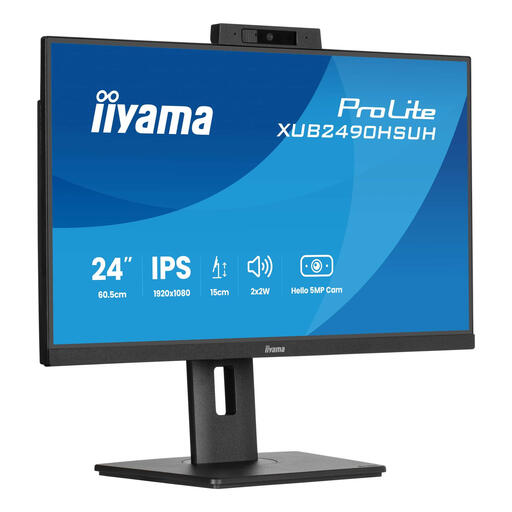 No image available
The described 23.8-inch monitor may suit a permanent workstation where adjustability is important.
Resolution: Full HD. Connections: HDMI and DisplayPort. The description also lists a USB hub and height, swivel, pivot and tilt adjustment.
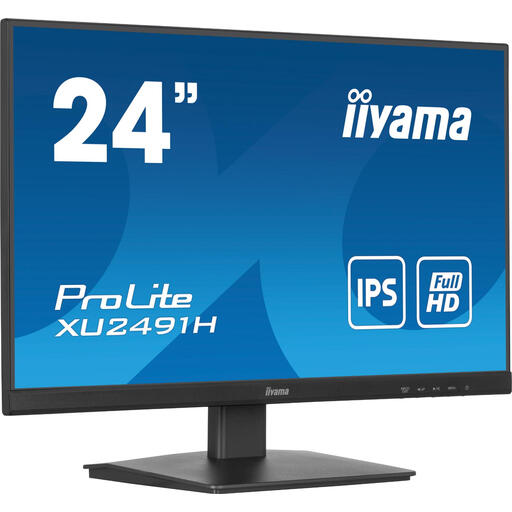 No image available
A described 23.8-inch Full HD monitor to compare with the desk space you have available.
Full HD. Refresh rate: 100 Hz. Connections: HDMI and DisplayPort. The description lists a tilt function and VESA mounting.
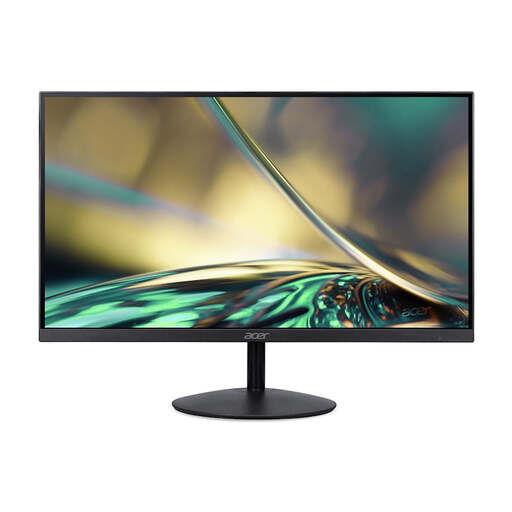 No image available
The described 23.8-inch monitor may suit a desktop or home office; check your computer’s connection.
Resolution: Full HD. Connections: HDMI and VGA. The power adapter is not included as standard and must be purchased separately.
No. If the larger set-up takes up space you need for your keyboard or a comfortable viewing position, a more compact screen may be a better fit. Compare the dimensions, including the stand, then consider the resolution and window layout you need.
No. Check that your laptop and cable support the video function you need, and that the monitor provides enough charging power. LG lists 65 W for the 24BA650-B, but that doesn’t mean it will provide the right power for every laptop.
Set the screen position to suit your workspace and take regular breaks from prolonged screen use. Arboportaal covers workspace set-up and taking breaks as considerations alongside the features of an individual monitor.
For eligible online consumer purchases, you generally have a statutory cooling-off period of up to 14 days after delivery, according to ACM ConsuWijzer. The statutory guarantee is separate from any manufacturer’s warranty; if a product is faulty, the seller is responsible for providing an appropriate solution.
According to Arboportaal, employers must follow rules on screen work and workplace set-up. The guidance covers taking breaks and conditions for employees who work at a screen for more than two hours a day, among other things. This is not a general statutory minimum requirement for every private monitor purchase.