
Planner with limited desk space
Wants to keep room beside the monitor for papers, notes and input devices. So be sure to check the depth of the monitor stand too.


First, measure the available width and depth of your desk. Then decide whether you’ll mainly read one document, work with several windows side by side or take part in online meetings regularly. An adjustable screen of around 24 inches is one option to compare, but make sure the stand fits too and leaves enough room for papers and input devices. QHD, USB-C docking and built-in meeting features meet different needs, so check the exact connections and compatibility with your computer.
Wants to keep room beside the monitor for papers, notes and input devices. So be sure to check the depth of the monitor stand too.
Switches between items such as a running order, a list of participants and messages, and wants to keep everything in view without automatically opting for a larger screen.
Regularly connects a laptop or takes part in remote meetings and wants to assess docking and built-in meeting features separately.
Measure the space needed for the complete set-up, then choose between room for documents, easy connections and features for online meetings.
| What to consider | What should you check? | Who is this important for? |
|---|---|---|
| Desk space | Measure the width and depth of your desk and compare them with the screen, stand and your preferred viewing position. | On a small desk, I want to keep room beside the screen for running orders and input devices. Around 36% of consumers prioritise available desk space over other purchasing needs. |
| Keeping documents in view | Compare a 16:10 screen with QHD for your documents, and check which resolution and text scaling your computer supports. | If I want to see the schedule and participant list at the same time, room for documents matters more than simply having a small stand. Around 29% of consumers prioritise being able to view their documents clearly. |
| Connecting a laptop | Check the exact monitor to see whether USB-C carries video, how much power it supplies and which cables are needed. Check your laptop too. | When I connect and disconnect my laptop frequently, I want as few separate connections on the desk as possible. For around 21% of consumers, ease of connection is the main priority. |
| Online meetings | Check whether the monitor has a camera, microphones and speakers, and how they connect to your computer. | If I regularly meet with volunteers remotely, I want to know whether built-in meeting equipment will suit my set-up. Video calls are the main reason for buying for around 14% of consumers. |
A screen that seems the right size by diagonal measurement may still take up a lot of desk depth once you include the stand, leaving little room for papers.
Measure the depth of your desk and check the dimensions of the stand on the exact model before choosing.
According to Dell, the USB-C port on the P2425 is a data downstream port rated at up to 15 W, not an input for laptop video and power over a single cable.
Check the USB-C function and power output on the exact model. With the P2425, you may need a different cable or a separate laptop power supply.
A separate power supply or another cable may take up extra connection space on your desk.
Compare the P2425 for a 16:10 document set-up with the P2425DE for QHD and USB-C docking.
The business-focused 24B2G5301/00 is worth comparing if you’re looking for Full HD with a built-in USB-C dock.
The ThinkVision T24v-30 is worth comparing if video meetings are a regular part of your work.
The 24BA550-B is worth comparing if you’re looking for an adjustable Full HD monitor with built-in speakers.
This selection of Joybuy products includes Full HD monitors for document work and portable screens for compact set-ups or extra vertical space for documents.
 No image available
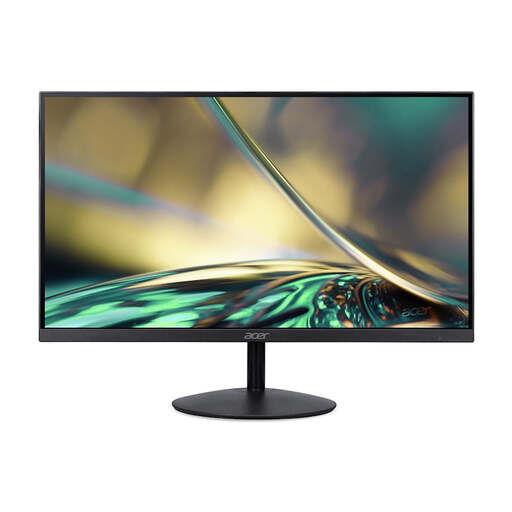
A 23.8-inch screen worth comparing for viewing planning documents at your desk.
Full HD; 100 Hz; 1 ms; HDMI and VGA.
 No image available
A portable screen worth comparing if you’re looking for a compact set-up with extra vertical space for documents.
16 inches; WUXGA (1920 × 1200); 16:10 aspect ratio; two USB-C ports with DisplayPort Alt Mode and up to 65 W Power Delivery; integrated adjustable stand.
 No image available
A portable Full HD monitor worth comparing for a compact computer set-up or touchscreen control.
15.6 inches; 1080p; touchscreen; USB-C and Mini HDMI.
 No image available
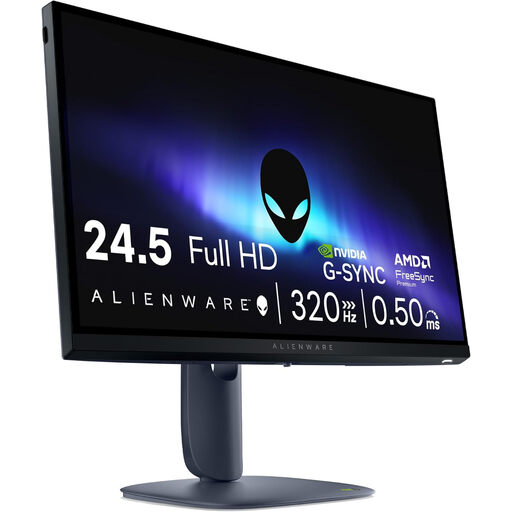
A Full HD screen worth comparing if you have enough desk space for a 24.5-inch monitor.
1920 × 1080 pixels; HDMI 2.1 and DisplayPort 1.4; adjustable design.
 No image available
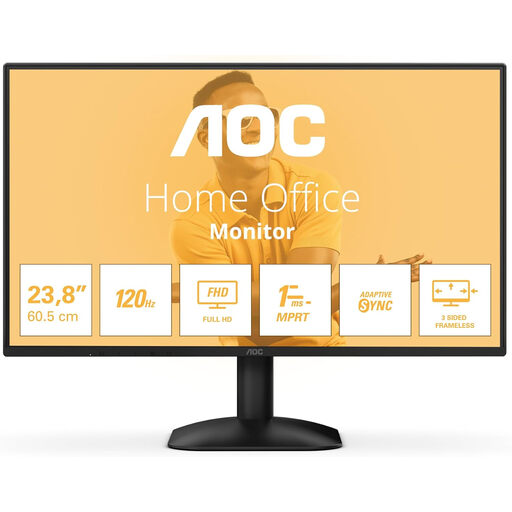
A 24-inch Full HD monitor worth comparing for viewing documents on a computer.
1920 × 1080 pixels; HDMI, DisplayPort and headphone output.
No. First measure the available space and the stand, then decide how much room you need for documents. A screen may seem the right size by diagonal measurement, while its stand takes up too much desk depth.
No. Dell specifies a USB-C downstream data port for the P2425, while Philips describes the 24B2G5301/00 as having a USB-C dock for video, data and power. Check the features of the exact monitor, as well as your laptop’s video output and charging requirements.
Choose an adjustable monitor so you can tailor the set-up to your viewing position, and take breaks from prolonged screen work. Arboportaal outlines screen-work requirements for employers and employees under the applicable conditions; these are not automatically a legal buying requirement for every volunteer.
Compare the energy label for electronic displays and check the exact model in EPREL. The European Commission explains the A to G scale and the additional model information available in the register.
For online purchases by consumers in the Netherlands, you generally have a 14-day cooling-off period from delivery, subject to legal exceptions. If a product is faulty, the seller is responsible for the statutory guarantee; an additional manufacturer’s warranty does not replace this right.