
Vandaag of morgen in huis

Kwaliteit gegarandeerd

Welkomstaanbiedingen ontgrendelen: GRATIS bezorging | Tot 80% korting | Gratis 30 dagen JoyPlus-proefperiode
Download de app
A sit-stand workstation can be a practical solution if you work from home, have frequent meetings or want to alternate between sitting and standing. However, not every sit-stand workstation is suitable for every desk, monitor or laptop. A compact model, for example, might not leave enough room for a keyboard, while a larger one could take up more space than you need.
So don’t focus only on terms such as “ergonomic” or “flexible”. Check the weight capacity, adjustment options, dimensions and connections. This can help you avoid having to buy an extra monitor arm, USB-C hub or new desk a few weeks later.
Manufacturers usually state a maximum load, but that doesn’t automatically mean every setup will be suitable. Add together the weight of your monitor, laptop, keyboard, mouse and any accessories. Curved screens may also have a separate weight limit.
For example, a workstation that supports up to 8 kg gives you less leeway than one with a 15 kg capacity. Never place more equipment on it than the stated limit, and check that your desk is stable and level.
A desk riser with just a top surface may be suitable for a laptop or single monitor. For a dual-monitor workstation, you’ll need a wider surface. Check the depth, too: a screen won’t be comfortable to use if there’s no room for your keyboard or your wrists are pressing against the edge.
As well as checking the surface dimensions, make sure there’s enough room on your existing desk. Otherwise, a large sit-stand workstation could hit a wall, lamp or desk leg.
An adjustable workstation changes height, so cables for your monitor, laptop or docking station need enough slack. A taut cable could get pulled out of its connection when you adjust the height.
A USB-C hub or laptop docking station can be useful if you use several screens with your laptop. Check that your laptop supports video output via USB-C, though. A hub with multiple video outputs doesn’t automatically mean that every laptop can run all the screens at once.
Check the maximum load in kilograms and compare it with the total weight of your equipment. A steel frame can help keep the workstation in place, but stability also depends on the desk and how the weight is distributed.
Check the following:
A model with several fixed height settings is easy to use, but less precise to adjust. A gas-spring mechanism with stepless adjustment offers more flexibility, provided it’s suitable for the weight of your equipment.
Measure the height of your chair, desk and monitor beforehand. When sitting, you should be able to rest your forearms roughly horizontally, and you shouldn’t have to keep looking down at the screen. When standing, make sure you have enough room to stand upright in front of the keyboard.
An ergonomic desk isn’t just about being able to work at a higher level. Your monitor, keyboard and mouse all need to be at a comfortable height. With a monitor arm, you can adjust the screen independently of the keyboard.
If you’re choosing a monitor arm, check your screen’s size, weight and VESA pattern. The Neomounts DS90-325BL1 supports screens from 17 to 32 inches, with VESA 75 × 75 or 100 × 100 mm. Also check whether the edge of your desk is suitable for a clamp or grommet mount.
For a laptop setup, the ports on a USB-C hub are important. Check for:
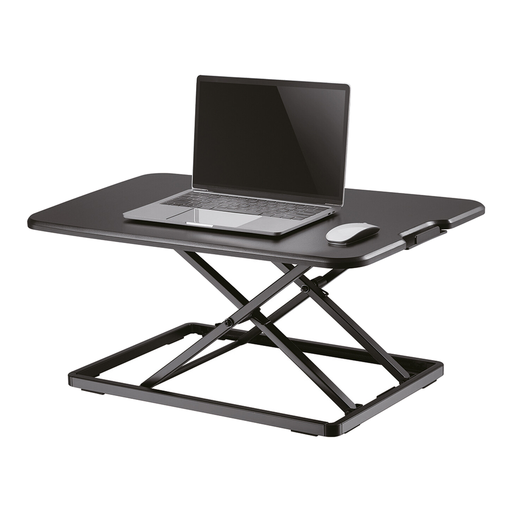
Why it suits this user: This compact sit-stand workstation is designed to sit on an existing desk. With a maximum capacity of 8 kg, it’s suitable for a simple monitor or laptop setup. Its five height settings make it easy to create a basic workstation.
The weight capacity and five fixed height settings are clearly specified. This lets you check in advance whether your equipment will fit, without relying on vague marketing terms.
Steel frame, low profile, easy to move and a stated 5-year warranty.
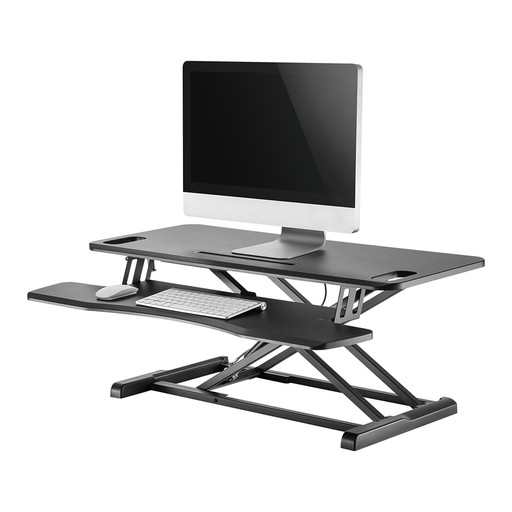
Why it suits this user: The generous work surfaces, measuring 95 × 40 cm and 95 × 30 cm, can accommodate two monitors or a monitor and laptop, as well as a keyboard and mouse.
The stepless height adjustment ranges from 11 to 50,5 cm, and the maximum load is 15 kg. This makes it easier to check that your equipment and preferred working height are a good match.
Gas-spring mechanism, keyboard tray and no assembly required according to the product description.
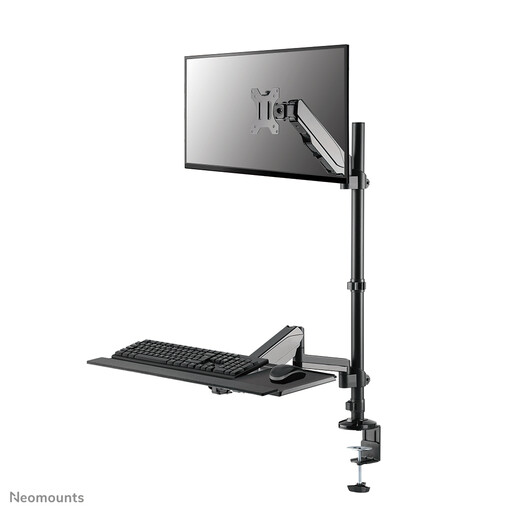
Why it suits this user: This desk-mounted system is a good fit if you want to combine a monitor arm, keyboard tray and standing working position in one setup.
The product specifications list the screen size, VESA pattern, weight limit and height range. This means you can check compatibility before buying.
Height range of 44–95 cm, supports up to 9 kg and includes cable management; the limit for curved screens is 6 kg.
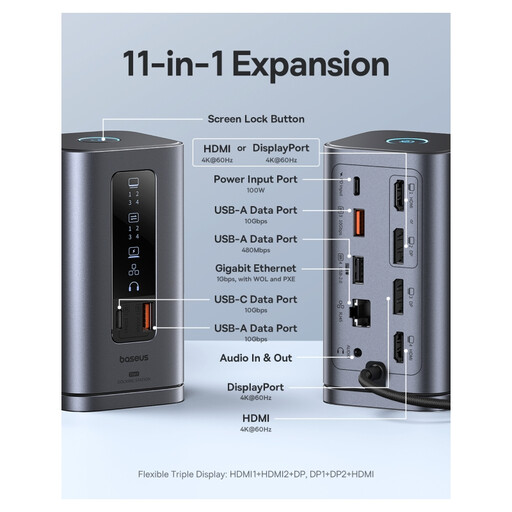
Why it suits this user: This USB-C hub is suitable for a laptop setup with multiple screens, USB devices, a network connection and charging through one central connection.
The ports and speeds are specified. Please note: according to the product information, the USB-C 3.2 port is for data only and doesn’t support charging.
Four video outputs, 100W PD input, RJ45 up to 1000 Mbps and several USB ports. Check beforehand whether your laptop supports multiple screens.
We’ve put together a full, up-to-date list of products that meet these strict selection criteria and the applicable European safety regulations.
Start with a stable, level surface. Position the screen directly in front of you and adjust the height so you don’t have to keep looking down. Keep your keyboard and mouse close together, and make sure the cables aren’t pulled taut when you adjust the height.
Its lifespan depends on its construction, the load it carries and how you use it. Don’t exceed the weight capacity, use a gas spring according to the instructions, and check the fixings and cables regularly. A stated warranty period, such as 5 years for the NS-WS050BLACK, isn’t the same as a guaranteed technical lifespan.
A mechanical sit-stand workstation doesn’t use electricity when you adjust it. A monitor, laptop, USB-C hub or docking station does use power. Consumption depends on the number of screens, your laptop and how long the equipment stays switched on. Turn off peripherals when you don’t need them, and check which devices are powered via USB when using a hub.
