Don’t use your monitor to test collision detection: this feature is built into the desk or comes from a sensor that’s compatible with the desk’s control system. Choose an electric desk based on the feature description for the exact model, and also check the clearance, mounting and cable movement around your monitor. A manual desk is another option if you want to adjust the height yourself, but it won’t offer automatic collision detection.
Who is this relevant to?
Anyone with a vulnerable monitor setup
If your screen, monitor arm or cables are close to a wall or another obstacle, check the full range of movement before adjusting the desk. IKEA’s MITTZON manual calls for enough freedom of movement for the power cable, while Ergotron specifies mounting limits for the LX Pro monitor arm.
Anyone buying an electric sit-stand desk
If collision detection is a must-have, look for this feature in the documentation for the exact model. FlexiSpot lists an anti-collision system for the E7 series; the presence of a feature alone doesn’t tell you which collisions it can detect.
Anyone who already owns a desk
If your desk otherwise meets your needs, first check whether its control system supports a specific sensor and whether the issue is mainly with your monitor setup. LINAK lists compatibility between Desk Sensor 1 and certain DESKLINE systems; a monitor arm won’t change the desk’s collision detection.
What should you look for when choosing?
Electric desk with stated collision detection
Choose this option: if an automatic response to an obstacle while adjusting the desk is important to you.
Bear in mind: a feature listing doesn’t prove that every contact will be detected or prevented.
Sensor for an existing electric desk
Choose this option: if you can confirm that your existing desk has a control system compatible with the sensor.
Bear in mind: LINAK lists specific DESKLINE systems for Desk Sensor 1; it isn’t a universal add-on.
Manually adjustable desk
Choose this option: if you want to adjust the height yourself using a crank.
Bear in mind: manual operation isn’t automatic collision detection; you’ll need to watch out for obstacles and cables yourself.
Keep your desk and adjust your monitor setup
Choose this option: if the screen, monitor arm or cables are what’s getting in the way.
Bear in mind: check that the arm fits your screen and desktop; it won’t add collision detection to the desk.
First, work out which problem you want to solve: collision detection in the desk, or clearance and mounting around the screen. Keep the desk’s path of movement clear, even if the model lists collision detection.
| What to consider |
What should you check? |
Who should prioritise this? |
| Collision detection |
Look for the feature in the documentation for the exact desk. If you’re considering a separate sensor, check that it’s compatible with the control system too. |
If I want to know whether the desk can respond to an obstacle, I check the feature and control system for my model. Around 40% of consumers make collision detection their top purchase priority. |
| Clearance and cables |
Check the clearance throughout the full height range and make sure the cables can move with the desk. |
If my screen is close to a wall, I want to avoid the desk, arm or a cable getting trapped while the desk is moving. Around 30% of consumers give clearance and cable routing top priority. |
| Monitor mounting |
Compare the screen weight, VESA mount, desktop thickness and clearance beneath the desk edge with the limits for the exact arm. |
If I want to fit a monitor arm, it needs to work with both my screen and the edge of my desk. Around 20% of consumers prioritise finding a suitable monitor mount. |
| Operation and aftercare |
Compare manual and electric adjustment, and check the warranty terms alongside your statutory rights before buying. |
If I’d rather adjust the height myself, I want to know what operating the desk involves and what I can do if the product is faulty. Around 10% of consumers give operation and aftercare top priority. |
Common pitfalls
-
Taking ‘anti-collision’ to mean that nothing will ever be hit
LINAK describes collision detection as helping to limit possible material damage, not as a guarantee that every contact will be avoided.
Keep the desk’s path of movement clear and base your choice on the feature description and manual for the exact model.
If the sensor isn’t compatible with the control system you have, you’ll need another solution.
-
Checking only the screen weight when choosing a monitor arm
Arm mounting also depends on factors such as desktop thickness and the clearance available at the desk edge.
Before choosing an arm, compare your screen and mounting location with the specifications for the exact model.
If the desk edge isn’t suitable, you may not be able to mount the arm where you intended.
-
Securing cables tightly to keep them out of the way
IKEA’s MITTZON manual requires the power cable to move freely throughout the full range of movement.
Arrange cables so they won’t be pinched or pulled tight when you adjust the desk.
A cable without enough room to move could be damaged or pulled out of its socket.
Brands and product ranges to consider
FlexiSpot
FlexiSpot lists an anti-collision system for the E7 series.
The series page doesn’t provide comparative collision test results; check the documentation for the version you choose.
IKEA
The manual TROTTEN and electric MITTZON offer different ways to adjust a sit-stand desk.
- The TROTTEN version reviewed here is adjusted using a crank.
- The MITTZON manual requires the power cable to move freely; this information doesn’t substantiate a claim of collision detection.
LINAK
LINAK describes Desk Sensor 1 for owners who want to check whether their existing desk setup is compatible.
- LINAK lists compatibility with DESKLINE systems based on CBD6S and with DL IC systems.
- The sensor isn’t a general-purpose monitor accessory and won’t necessarily work with every desk control system.
Ergotron
The LX Pro 45-682-292 is an example of a monitor arm with specified limits for the screen and mounting location.
- For this model, Ergotron lists a screen weight range of 1,8–10,0 kg and a clamp range of 10–60 mm.
- A monitor arm positions the screen; it doesn’t detect collisions involving the desk.
Products on Joybuy
These products cover three options: an electric desk with listed collision detection, a manually adjustable desk, and ways to adapt a monitor setup on an existing desk. A monitor arm doesn’t detect collisions involving the desk.
 No image available
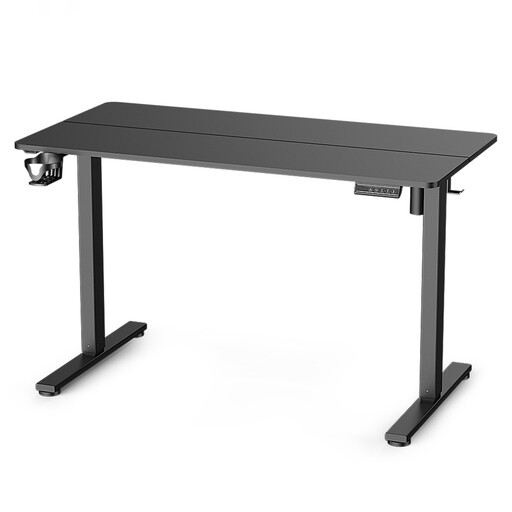
Electric sit-stand desk, 120 × 60 cm, with memory settings and anti-collision
Suitable if you’re looking for an electrically adjustable desk with a listed anti-collision feature.
The product information lists a 120 × 60 cm desktop, height adjustment from 70–116 cm and a maximum load capacity of 80 kg.
The description lists three memory settings and says the system stops and changes direction when it detects an obstacle. Keep the desk’s path of movement clear; the feature doesn’t guarantee that every contact will be prevented.
Joybuy
 No image available
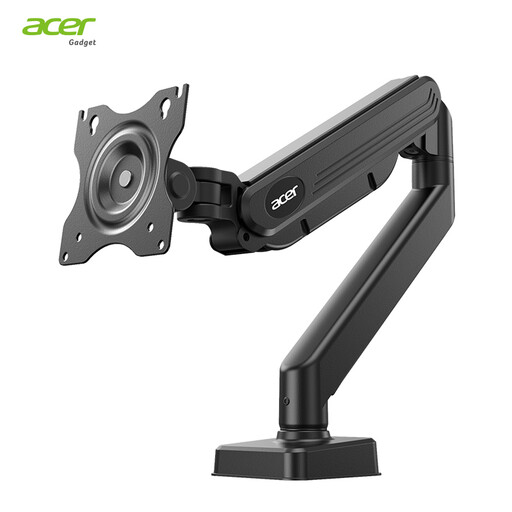
Acer AMS001 single-monitor arm
Suitable if you want to keep your existing desk and adjust the position of one monitor; the arm doesn’t add collision detection.
The product information lists compatibility with 17–34-inch screens weighing up to 9 kg, VESA 75 × 75 or 100 × 100 mm, and clamp or grommet mounting.
Also check the desktop thickness and clearance around the mounting location.
Joybuy
 No image available
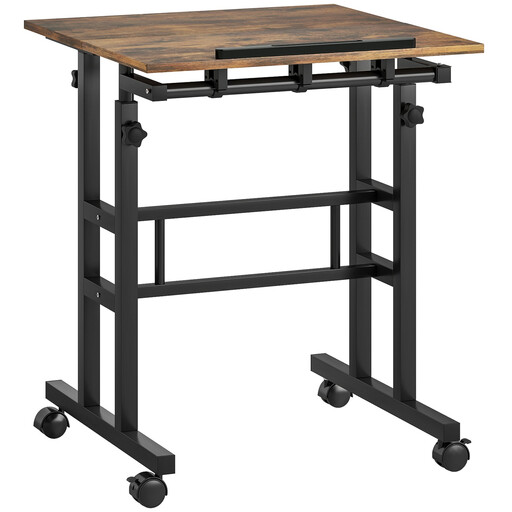
Manually adjustable desk with tilting desktop and castors, rustic brown
Suitable if you want to adjust the height yourself rather than look for automatic collision detection.
The product information lists manual height adjustment from 70,5–120 cm and a maximum load capacity of 100 kg.
Assembly is required. Manual adjustment isn’t an automatic response to obstacles.
Joybuy
 No image available
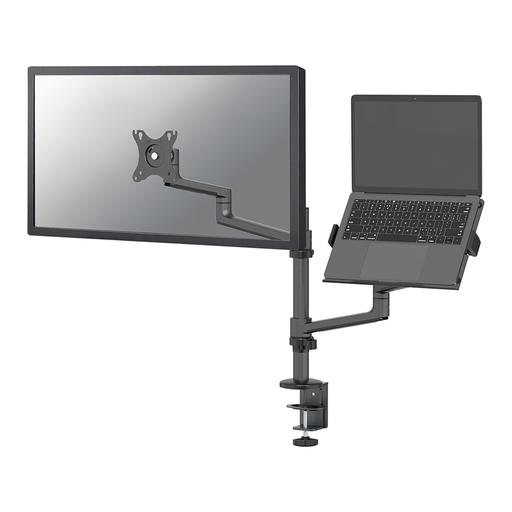
Neomounts DS20-425BL2 monitor arm with laptop holder
Suitable if you want to position both a monitor and a laptop on an existing desk; the arm doesn’t change the desk’s collision detection.
The product information lists a maximum monitor size of 27 inches and weight of 8 kg, and a maximum laptop size of 17,3 inches and weight of 5 kg.
Clamp or grommet mounting and integrated cable management are listed. Check that the mounting location is suitable for your desktop.
Joybuy
 No image available
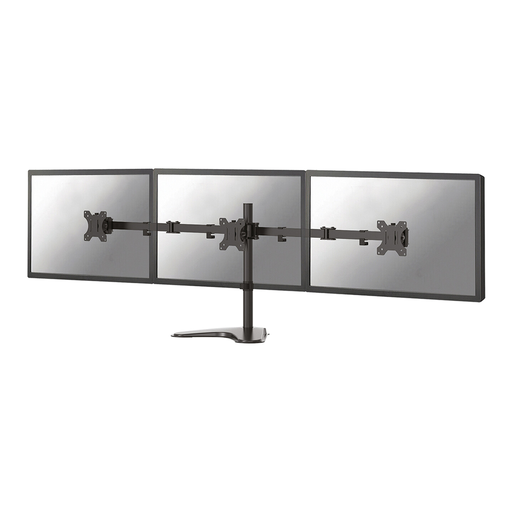
Neomounts FPMA-D550DDBLACK dual-monitor stand
Suitable if you want to position two screens on an existing desk; this stand doesn’t detect collisions involving the desk.
The product information lists a maximum size of 32 inches and weight of 8 kg per screen, with VESA 75 × 75 and 100 × 100 mm.
Height, depth, tilt, rotation and swivel adjustment, as well as cable management, are listed. Check both screens and the space available on your desk.
Joybuy
Frequently asked questions
Can you use your monitor to test when the desk stops after a collision?
No, don’t use a monitor to test for collisions. The sensor reviewed here is designed to help limit possible material damage, not to guarantee that every contact will be prevented. Check the feature in the manual for the exact desk and keep its path of movement clear.
Does LINAK Desk Sensor 1 fit every electric sit-stand desk?
No. LINAK lists compatibility with DESKLINE systems based on a CBD6S control box and with DL IC systems. First, identify the control system in your desk and compare it with the compatibility information.
What should you check before fitting a monitor arm?
Compare the limits for the exact arm with your screen and mounting location. Check the screen weight, VESA mount, desktop thickness and clearance beneath the desk edge, among other things; also allow for the movement of the desk and cables.
Does a CE mark prove that collision detection will protect your monitor?
No. The Netherlands Food and Consumer Product Safety Authority describes CE marking as a manufacturer’s declaration that the relevant European product rules apply; it isn’t a model-specific test result for collisions with a monitor. Check the documented collision detection feature and your setup separately.
Is a manufacturer’s warranty also the full statutory warranty period in the Netherlands?
No. According to the Dutch government, there’s no fixed statutory warranty period in the Netherlands: you’re entitled to a product that works as it should, and you can contact the seller if there’s a problem. A manufacturer’s warranty doesn’t replace this right.


