
Single-screen racer
You want to enjoy long practice sessions without building a wide or triple-screen setup. Compare the placement options and check which connection supports your desired refresh rate.


Choose a 27-inch monitor if you want to keep your setup compact and simple, an ultrawide if you want more horizontal screen space on a single display, or three monitors if your simulator supports this setup and you have enough room. Also check that your PC can handle your chosen resolution and refresh rate; a monitor’s maximum refresh rate doesn’t guarantee that your PC will reach it while racing. If you want to use headphones and possibly a microphone, check the connections on the exact model.
You want to enjoy long practice sessions without building a wide or triple-screen setup. Compare the placement options and check which connection supports your desired refresh rate.
You want more horizontal screen space and are comparing an ultrawide with three monitors in terms of space requirements and your simulator’s settings.
You want to hear race audio through headphones and might also use a microphone. Check whether the monitor has an audio output only or also a suitable microphone input.
Choose this option: if you want to set up a single screen or expand your setup gradually.
Bear in mind: you’ll have less horizontal screen space than with an ultrawide or three monitors. ASUS specifies a maximum of 180 Hz via DisplayPort and 144 Hz via HDMI for the VG27AQ3A; the included stand isn’t height-adjustable.
Choose this option: if you want more horizontal screen space without setting up three separate monitors.
Bear in mind: the monitor’s width, your viewing distance, your simulator’s settings and your PC’s capabilities. A stated maximum refresh rate doesn’t tell you how many frames your PC will deliver while racing.
Choose this option: if your simulator supports triple-screen display and you have room to position the monitors and set their viewing angles.
Bear in mind: you’ll need three monitors, suitable connections and more space to set them up. iRacing’s instructions apply specifically to that simulator, so check support and performance for your own combination of simulator and PC.
Measure the available space and your viewing distance before choosing a size. Also consider which input you’ll use and whether you only need headphone audio or want to connect a microphone too.
| What to consider | What to look for when buying | Who should pay particular attention? |
|---|---|---|
| Field of view and setup | Measure the available width and viewing distance; check your simulator’s settings and, for three monitors, their widths and angles. | If I want a wider horizontal view, I compare one wide screen with three monitors and see what will fit in my space. Around 33% of consumers prioritise field of view and setup. |
| Positioning during long sessions | Check the dimensions, height adjustment and suitability for a monitor mount. | If I want to position the screen to suit my seat and wheel, I look at adjustability and viewing distance. Around 27% of consumers prioritise positioning. |
| Display and PC capabilities | Check your PC’s output, cable, monitor connection and the resolution and refresh rate combination you want. | If I want to use a particular resolution and refresh rate, I check that my PC can handle that combination in my simulator. Around 20% of consumers prioritise smooth performance within their PC’s capabilities. |
| Headphones and microphone | Check whether you only need audio or also a microphone, and look at the connections on the exact monitor model and your PC or headset. | If I want to chat while practising, I want to know where to connect both my headphones and microphone. Around 20% of consumers prioritise headset connections. |
For the ASUS TUF Gaming VG27AQ3A, the stated maximum refresh rate differs depending on the input. The monitor’s specification also doesn’t tell you how many frames your PC will deliver in your simulator.
Consider the resolution, the input you’re using and your PC’s video output together. Check the settings with the simulator you use.
LG specifies that the 27GS75Q-B has a 3-pole audio-only connection and doesn’t list a microphone input.
Check the port description for the exact monitor and find out where you can connect your headset microphone to your PC.
A triple-screen setup requires measurements and configuration in iRacing; a large curved screen has different space requirements.
Measure the space available for your setup and your viewing distance, and check which display options your simulator supports.
LG marks the 27GS75Q-B as discontinued. On its Dutch product page, Dell lists the AW3423DWF as currently unavailable.
Use these models to compare specifications, but check the exact model and current availability before making a decision.
According to AOC, the CU34G2XP/BK is a 34-inch ultrawide with a resolution of 3440 × 1440 and a stated maximum of 180 Hz.
The Odyssey G9 G95C, model LS49CG954EUXEN, is Samsung’s 49-inch 32:9 example, with a stated maximum of 240 Hz.
According to ASUS, the TUF Gaming VG27AQ3A is a 27-inch IPS monitor with a resolution of 2560 × 1440.
The UltraGear range includes various sizes. The 27GS75Q-B is a 27-inch QHD model; according to LG, the 34GX900A-B is a 34-inch OLED ultrawide.
The AW3423DWF is a 34-inch QD-OLED ultrawide. Dell specifies a resolution of 3440 × 1440, a maximum of 165 Hz via DisplayPort and 100 Hz via HDMI.
These product options suit a single 27-inch monitor or a single ultrawide screen for sim racing.
 No image available
A 27-inch 16:9 option for anyone looking to use a single standard monitor.
The product description lists a resolution of 2560 × 1440, a refresh rate of 200 Hz and a Rapid IPS panel.
 No image available
An option for anyone looking for more horizontal screen space on a single ultrawide display.
The product details list 3440 × 1440, 120 Hz, a VA panel and 1800R curvature.
 No image available
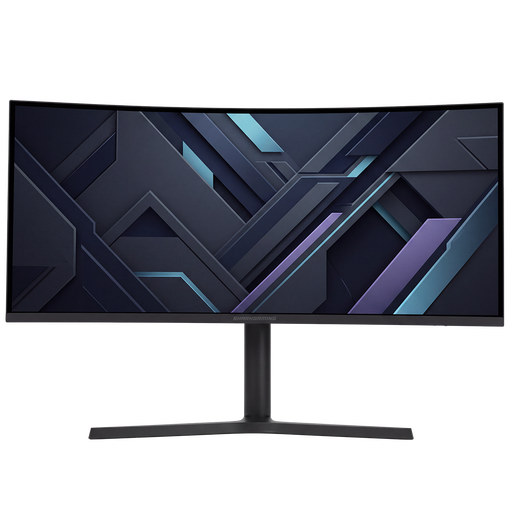
A 34-inch curved ultrawide option for a wide view on a single screen.
The product details list 3440 × 1440, 144 Hz, a 21:9 aspect ratio and 1500R curvature. The product title states that speakers aren’t included.
 No image available
A 34-inch option for anyone comparing ultrawide monitors for racing simulators.
The product description lists 3440 × 1440, a 21:9 aspect ratio, a VA panel, 180 Hz and 1 ms MPRT.
 No image available
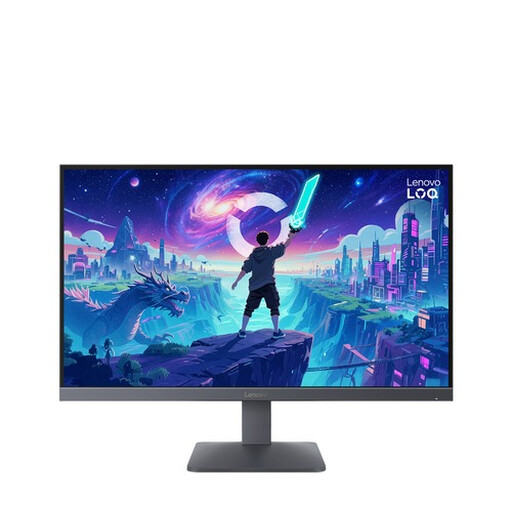
A 27-inch option for anyone looking to use a single standard monitor.
The product description lists Full HD, a Fast IPS panel, 200 Hz and 0.5 ms MPRT.
iRacing documents a window that spans three screens and a combined display created via the graphics card. From your usual driving position, measure the distance to the centre screen, the screen widths and the angles between them, then enter these details in the monitor settings. These instructions apply to iRacing and not automatically to other simulators.
Check the connections on the exact monitor model before assuming the microphone will work. LG describes the port on the 27GS75Q-B as a 3-pole audio-only connection and doesn’t list a microphone input. For voice chat, also check the suitable connections on your PC and headset.
LG warns that displaying the same image on an OLED monitor for a long time may cause faint marks, and describes image cleaning to help reduce them. Check the care instructions and warranty terms for the exact model; this doesn’t mean every OLED screen requires the same care or comes with the same cover.
According to ACM ConsuWijzer, online purchases generally come with a statutory cooling-off period of up to 14 days after delivery; check which exceptions apply to your purchase. The statutory guarantee is separate from any manufacturer’s warranty: if a product doesn’t perform as you could reasonably expect under normal use, the seller is responsible for offering an appropriate solution.
The information cited from Arboportaal on screen work is aimed at employers and employees and isn’t automatically a legal requirement for private sim racing. You can still use its advice on varying your activities and setting up your space when planning your own setup.