
Drivers who want a clearer view of the pit entry
If you practise on a single screen, you’ll need to weigh the track and pit markers you can see against the space in your cockpit and your seating position.


To practise virtual pit entries on a single monitor, first choose a screen that suits your cockpit and viewing distance, then adjust your simulator’s field of view to match. 16:9 is the more compact option, 21:9 gives you more horizontal screen space, and 32:9 takes up the most room. According to iRacing Support, a pit limiter won’t brake for you before the pit speed limit.
If you practise on a single screen, you’ll need to weigh the track and pit markers you can see against the space in your cockpit and your seating position.
If you race from a desk or a small cockpit, it helps to choose a screen that suits the available space and your viewing distance.
When comparing refresh rates and connections, also check which mode your PC and chosen connection actually support.
Start with the space available and your viewing distance from your driving position. Then consider which aspect ratio, resolution and connection will suit your simulator and PC.
| What to consider | What should you check? | Who is this important for? |
|---|---|---|
| View of the pit entry | Compare the aspect ratio and screen width. Measure from your driving position, then set the field of view in your simulator. | If I want a clear view of the pit entry, I need to know whether the screen layout and my field-of-view setting suit my seating position. Around 36% of consumers rank visibility on approach as their main purchase priority. |
| Desk or cockpit space | Measure the available width and depth and compare them with the monitor’s dimensions. Check the mounting details if you’re using an arm. | If my desk or cockpit has limited space, I want to know in advance whether the monitor will fit without making my viewing distance impractical. Around 29% of consumers put available space first. |
| Motion clarity | Check the maximum refresh rate for the connection you’re using, and only compare response times when they use the same measurement method. | If I want to track movement on approach, I look at the display mode my PC and connection can deliver. Around 21% of consumers say motion clarity is their main purchase priority. |
| Resolution and PC workload | Check the native resolution, your PC’s video output and its performance with the simulator you actually use. | If I’m not sure my PC can handle the chosen screen resolution, I want to assess how it works with my simulator first. Around 14% of consumers prioritise the balance between resolution and PC performance. |
iRacing Support bases field-of-view settings partly on your screen and seating measurements. A wider screen doesn’t replace that adjustment.
Measure from your usual driving position and readjust the simulator once you’ve installed the monitor.
According to iRacing Support, the pit limiter won’t brake for you. You’re still responsible for slowing down before the pit speed limit.
Practise your braking point and pit procedure separately from choosing a monitor.
AOC lists 1 ms GtG for the CU34G2XP/BK, while Xiaomi specifies 1 ms MPRT for the G34WQi. These measurement methods aren’t directly comparable.
Check which response-time method is listed for the exact model, and don’t base your choice on the number alone.
A product page doesn’t guarantee that a specific version will be available when you’re ready to buy.
Before purchasing, check availability and the exact model variant on the product page.
The CU34G2XP/BK is one example of a 34-inch ultrawide for a single-screen setup.
The Evnia 27M2N3500NL/01 is an example of a more compact 27-inch QHD option.
The Odyssey G9 G91F is an example of a 49-inch 32:9 screen.
The G34WQi is a 34-inch 21:9 example with mounting details for an ultrawide setup.
The G2725D shows why your choice of connection matters, even with a 27-inch QHD monitor.
This selection focuses on ultrawide and super-ultrawide gaming monitors for single-screen sim racing. Check that the aspect ratio and resolution you choose suit your cockpit, PC and simulator.
 No image available
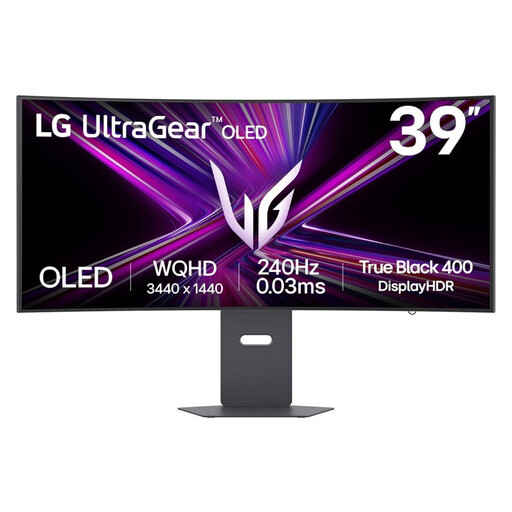
A 39-inch gaming monitor to consider in relation to your cockpit space and viewing distance.
The product name specifies a 39-inch screen size.
 No image available
A 34-inch UWQHD monitor to consider if you want to compare a single-screen ultrawide setup with the space available in your cockpit.
The product name specifies 34 inches and UWQHD.
 No image available
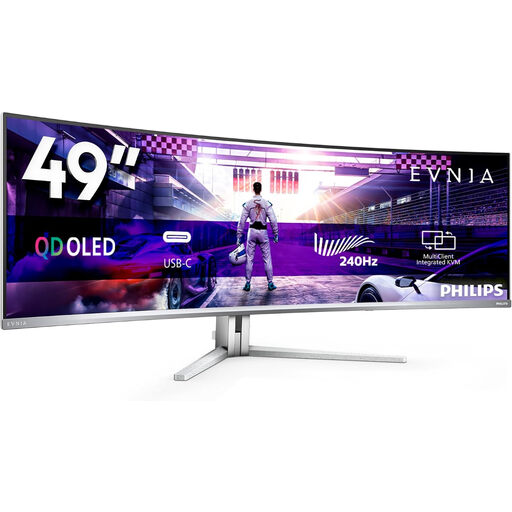
A 49-inch monitor for anyone considering a very wide single-screen setup with enough room to accommodate it.
The product name specifies 49 inches, DQHD, 240 Hz, FreeSync Premium Pro and QD-OLED.
 No image available
A 34-inch ultrawide to compare with the width available on your desk or in your cockpit.
The product name specifies 3440 × 1440, a maximum of 180 Hz via DisplayPort and 100 Hz via HDMI, so the maximum mode varies by connection.
 No image available
A 49-inch screen for anyone considering a very wide single-monitor layout. Check in advance that your setup and simulator can accommodate it.
The product name specifies 32:9, 5120 × 1440, 165 Hz, 1500R, HDMI 2.1 and DisplayPort 1.4. According to the product information, your desk or VESA mount must support at least 15 kg; installation with two people is recommended.
No. First measure your viewing distance and screen width, then adjust your simulator’s field of view to match. iRacing Support recommends using measurements taken from your usual driving position; screen width alone doesn’t determine the right setting.
From your usual driving position, measure the distance from your eyes to the screen and the screen width. In iRacing’s monitor settings, select one flat or curved screen, enter your measurements and use the field-of-view calculation.
No. According to iRacing Support, neither the manual nor the automatic pit limiter will brake for you. You must slow down to below the speed limit yourself before entering the pits. Whether the automatic feature is available depends on the session.
Not without checking the details for the exact model and the port you’re using. Dell lists a maximum of 180 Hz via DisplayPort and 144 Hz via HDMI at 2560 × 1440 for the G2725D.
For eligible distance purchases, you’ll generally have a 14-day cooling-off period, although exceptions and the circumstances of the purchase matter. According to the Dutch government, there is no fixed statutory two-year guarantee period in the Netherlands, but the product must be of satisfactory quality.