First, choose a playback option that works for the films you want to watch: Eye Film Player explains how to cast from Chrome and connect a computer to your TV via HDMI. A streaming device won’t change your TV’s viewing angle; the Consumentenbond advises taking differences between TVs and viewing positions into account. So assess the screen from your usual seat, and check the intertitle language and subtitles available for each film.
Who is this buying guide for?
Viewers who always sit in the same place to the side
You watch from an angle beside the TV and want to know whether another device will help, or whether you should first assess the screen from your usual seat. The Consumentenbond points out that viewing angles can vary between TVs.
Viewers exploring film archives
You want to play films from services such as Eye Film Player on your TV and are looking for a suitable browser, casting or HDMI option. Eye Film Player explains how to cast from Chrome and connect a computer via HDMI.
Viewers who read intertitles
You want to be able to follow written intertitles from your seat, so you check the language and any subtitles for each film. Eye Film Player notes that these can vary by title.
What should you look for when choosing?
First, work out whether you need an additional device or whether your current TV and computer can already play the film. New wireless streaming devices sold on the Dutch market must meet the applicable CE marking requirements; the Dutch Authority for Digital Infrastructure explains these product requirements.
| What to consider |
What should you check? |
Who is this important for? |
| Picture quality from your side seat |
Watch your existing TV from your usual seat; if needed, assess screens from different angles. |
If I sit at an angle beside the TV, I want to know whether the picture and colours remain clear and comfortable to view. Around 36% of consumers rank picture quality from a side seat as their top buying priority. |
| Access to the films you want |
Check the title and the supported casting or HDMI option; Eye explains how to cast from Chrome and connect via HDMI. |
If I want to watch specific silent films, I want to know how to get them onto my TV before choosing. Around 29% of consumers prioritise access to the films they want. |
| Intertitles and subtitles |
Check the language of the intertitles and any subtitles for each film; a device’s text scaling does not automatically apply to text within the film picture. |
If I need written text to follow a film, I want to check the language and readability from my seat. Around 21% of consumers prioritise readable text in films. |
| Connections and extra costs |
Check HDMI connections, network access and the marking on the specific wireless device variant; compare free films with rentals. |
If my computer and TV can already play the film together, I don’t want to buy an extra device without a clear reason. Around 14% of consumers prioritise easy set-up and low additional costs. |
Pitfalls to avoid when choosing
-
Buying a streaming device to fix a limited viewing angle
A streaming device sends a picture to your TV, but it won’t change how the screen looks from the side.
First, watch your current TV from your usual seat and assess the picture from there.
-
Assuming every streaming box has an Eye Film Player app
Eye describes specific browser, casting and HDMI options; this doesn’t confirm that the service is available as a dedicated app on every box.
Before choosing, check that the option you want works with your computer or phone and the device.
-
Assuming silent films don’t require you to check the language
Intertitles and subtitles may be in different languages.
Check the film’s details and view the text from your usual seat.
-
Comparing devices by model name alone
Generations and connections can vary between versions.
Before buying, check the full model name, generation and connections of the version on offer.
Relevant brands to consider
Google
Google TV Streamer could be a good fit if you’re looking for a Google Cast option for your TV.
- Eye Film Player explains how to cast from Chrome to a compatible Google Cast device.
- Google says casting requires a computer with Chrome and a strong connection to the same Wi-Fi network. Check that your chosen combination works; this does not confirm that the streamer has a standalone Eye app.
Apple
Apple TV 4K could be a good fit if AirPlay from Apple devices and supported apps are important to you.
- Apple explains how to stream video from an iPhone or iPad to Apple TV 4K using AirPlay.
- Apple notes that an HDMI cable is required separately. Eye’s reference to Apple TV3 doesn’t confirm that Eye Film Player works in the same way with the current Apple TV 4K; check that your chosen option is supported.
Joybuy products
The products below are Google TV and Google Cast devices, including televisions and a portable projector. They may be suitable for casting; assess a TV’s viewing angle separately from your usual seat.
 No image available
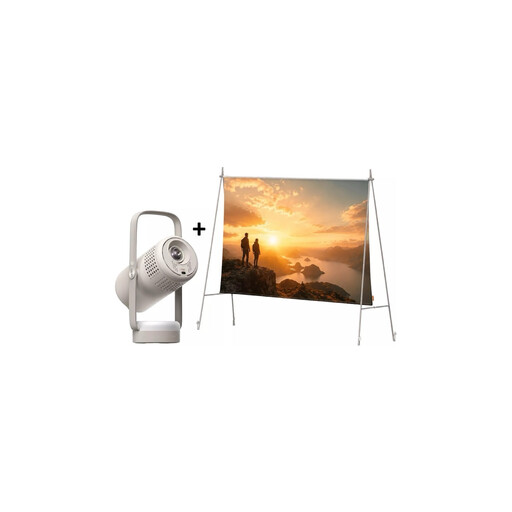
XGIMI Vibe One portable projector, Full HD 1080p, Google TV, with projection screen and stand
Could be a good fit if you’re looking for a portable projection set-up with Google TV and Google Cast; check in advance that your chosen Eye Film Player option works.
Full HD 1080p; built-in battery; JBL audio; projection screen with stand; Match Night EU Edition.
View on Joybuy
 No image available
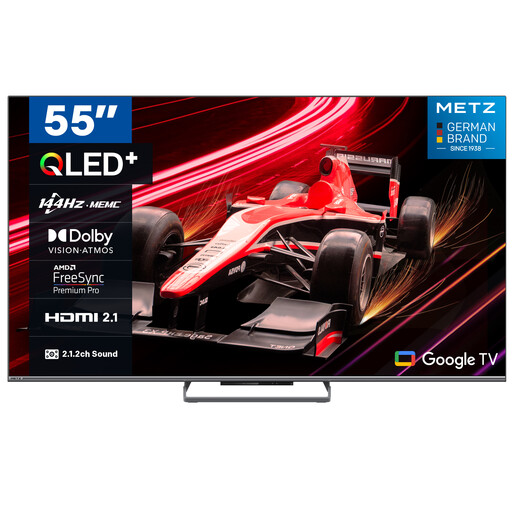
METZ 55MQE8000Z, 55-inch QLED Google TV
Could be a good fit if you want Google Cast on your TV; assess the screen separately from your side seat and check the Eye playback option.
4K HDR 10+; 144 Hz; Google Cast; 2.1.2 sound system.
View on Joybuy
 No image available
METZ 65MQE8000Z, 65-inch QLED Google TV
Could be a good fit if you’re looking for a 65-inch Google Cast TV; check the viewing experience from your seat and make sure your chosen film playback option works.
4K HDR 10+; 144 Hz; Google Cast; 2.1.2 sound system.
View on Joybuy
 No image available
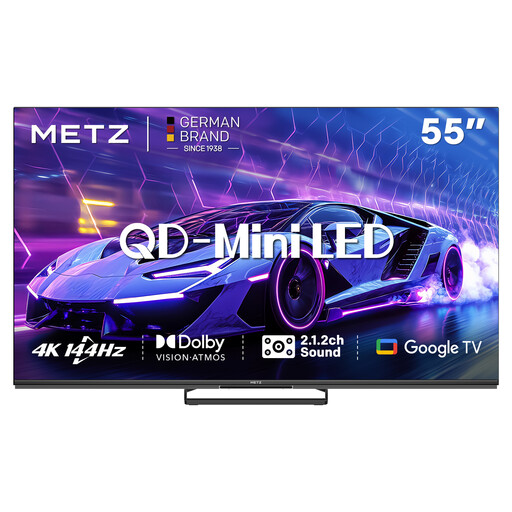
METZ 55MNE8000Z, 55-inch QD-Mini LED Google TV
Could be a good fit if you’re looking for a Google Cast TV with a 55-inch screen; you’ll need to assess its suitability for side viewing in person.
4K HDR 10+; 144 Hz; Google Cast; 2.1.2 sound system.
View on Joybuy
 No image available
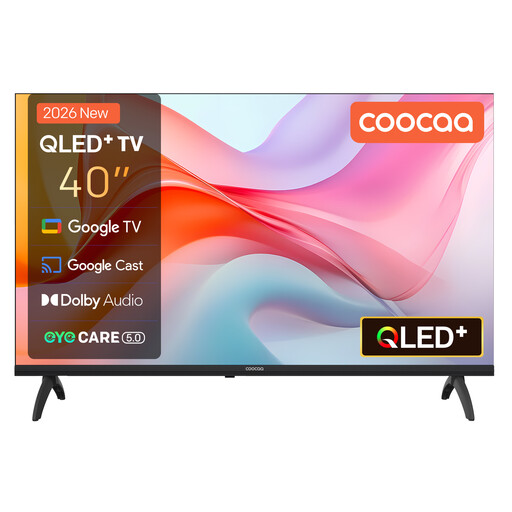
Coocaa 40CGQG41Z, 40-inch QLED Google TV (2026)
Could be a good fit if you’re looking for a Google Cast TV with a 40-inch screen; check the viewing angle from your seat and make sure your chosen playback option is supported.
Full HD; HDR10; Google Cast; Bluetooth 5.1.
View on Joybuy
Frequently asked questions
Will a 4K streaming device improve the picture from a side seat?
No, a 4K streaming device won’t change the screen’s viewing angle. The Consumentenbond points out that viewing angles vary between TVs, so assess yours from your usual seat. Whether you see 4K also depends on the source and the TV.
How do I get Eye Film Player on my TV?
Eye Film Player explains how to connect a computer via HDMI and cast from Chrome to Chromecast. For the casting option described, the source device and Chromecast must be on the same Wi-Fi network; check that your devices and browser are compatible.
Can I set the intertitles and subtitles the same way for every silent film?
Don’t assume so without checking: the language and available text can vary between films. Eye Film Player lists Dutch and German intertitles and English subtitles for a Desmet programme. Google explains text scaling for the device interface, not for text that is part of the film picture.
What should I check on a streaming device’s CE marking?
New wireless devices sold on the Dutch market must meet the applicable product requirements, and the CE marking is relevant. The Dutch Authority for Digital Infrastructure explains these requirements; check the marking on the specific version you want to buy.
Do I need a subscription to use Eye Film Player?
According to Eye, you can watch films that are free to view without an account. Eye says rentals require an account and are available for 48 hours; check the terms for the film you choose.


