Who is this monitor setup for?

Building a panoramic bridge

You want the view from the helm to span several screens. Consider the screen layout, visible bezels and what your PC supports. AMD Eyefinity and NVIDIA Surround explain how to configure multiple screens as a single display.

Skipper who wants separate instrument windows

You want to keep the view from the helm in the centre, with chart or instrument windows alongside it. Whether you can do this depends on the capabilities of your game or additional software.

Player with limited desk space

You want a wide view without a whole row of separate monitors. Compare an ultrawide monitor’s dimensions with the space on your desk, and check that the game supports its aspect ratio.

What should you look for when choosing?

Multiple screens combined into one wide view

Choose this option: if your game supports a wide resolution and your graphics card can drive the screen group you want. AMD Eyefinity and NVIDIA Surround offer configuration options for combining screens into one display.

Bear in mind: visible bezels, and the connections, resolutions and refresh rates supported by your PC and monitors.

Central screen with side screens

Choose this option: if you want to keep the sailing scene in the centre and your game or additional software can display instruments in separate windows.

Bear in mind: without knowing the name of the game, it’s not possible to confirm whether the window layout you want is available. Also check that your PC can connect to all the screens at once.

One ultrawide monitor

Choose this option: if you want a wide, uninterrupted view and your game displays the wider resolution effectively.

Bear in mind: an ultrawide monitor doesn’t automatically give you separate physical screens or instrument windows. Check that you have enough desk space, too.

Consideration What to look for when buying Who it matters to
Continuous view across multiple screens Check that the game and graphics card support the screen layout, resolution and refresh rate you want. AMD Eyefinity and NVIDIA Surround describe configurations for combining screens. If a panoramic view from the helm is your priority, the usefulness of the screen group is crucial; around 36% of consumers put this first.
Being able to read instruments separately Check whether your game or additional software supports separate windows. ASUS lists the VG27AQ3A with a resolution of 2560 × 1440; the interface is easiest to read at your own viewing distance. If you want to use charts or instrument windows alongside the central view from the helm, check that the layout works in your game. Around 29% of consumers put this first.
Desk space Measure the available width and depth, including the stand or monitor arm. The Samsung LC34G55TWWPXEN is a 34-inch ultrawide with 3440 × 1440 pixels; compare its size with the separate screens you’re considering. If you’re short on desk space, you’ll want to know whether the setup will physically fit. This is the main concern for around 21% of consumers.
Display performance within your PC’s capabilities Compare the connections and settings for the exact model. ASUS lists a maximum of 180 Hz via DisplayPort and 144 Hz via HDMI for the VG27AQ3A; the settings you can achieve also depend on your PC and screen setup. If you want smooth visuals without overestimating what your PC can do, check the complete hardware and connection setup first. Around 14% of consumers give this top priority.

Common buying mistakes

  • Looking only at the maximum refresh rate

    The maximum refresh rate can vary depending on the connection. What’s more, a high monitor specification doesn’t guarantee that a game will run at that rate across multiple screens.

    Check the connections and settings for the exact monitor model, as well as what your PC can handle with the screen group you’ve chosen.

  • Assuming ultrawide is the same as multiple monitors

    An ultrawide monitor avoids bezels between physical screens, but it doesn’t automatically provide separate displays for instruments.

    Choose based on the window layout your game supports, not just the width of the screen.

  • Taking a retailer’s product name as definitive proof of the model

    A Joybuy product page named G27Qi also lists ‘G Pro 27i’ in the product details, while Xiaomi gives the EU model code for the G27Qi as P27QCA-RGGL.

    Before you buy, ask for confirmation of the full model code and compare it with the manufacturer’s specifications.

Monitor brands to consider for this setup

ASUS

The TUF Gaming VG27AQ3A is an example of a flat 27-inch QHD screen for a setup with separate monitors.

  • ASUS lists Fast IPS, 2560 × 1440 pixels and VESA 100 × 100 mm.
  • The supplied stand isn’t height-adjustable. ASUS lists a maximum of 180 Hz via DisplayPort and 144 Hz via HDMI for this model.

Samsung

The Odyssey G5 LC34G55TWWPXEN is a 34-inch ultrawide option for anyone looking for a wide view without bezels between monitors.

  • Samsung lists 3440 × 1440 pixels, 1000R curvature and 165 Hz.
  • A wide format doesn’t guarantee that your ship simulator will display the interface properly; check that the game supports it.

LG

The UltraGear 27GS75Q-B is an example of a 27-inch QHD screen with an adjustable stand, suitable as a main or side screen.

  • LG lists IPS, 2560 × 1440 pixels, height adjustment and pivot adjustment.
  • LG marks this specific model as discontinued on its Dutch product page; these specifications don’t indicate current availability.

AOC

The AGON Q27G4XF is an example of a flat 27-inch QHD screen with a height-adjustable stand.

  • AOC lists 2560 × 1440 pixels and 180 Hz for this model.
  • These specifications alone don’t confirm whether your game and PC support the settings you want across multiple screens.

Xiaomi

The G27Qi EU is an example of a 27-inch QHD screen, suitable for a setup with monitors of a similar size.

  • Xiaomi lists model code P27QCA-RGGL, 2560 × 1440 pixels, up to 180 Hz and VESA 75 × 75 mm.
  • A Joybuy product page named G27Qi also lists ‘G Pro 27i’ in the product details. Check the full model code before ordering.

Joybuy monitors for wide views and multi-screen setups

Joybuy picks for this topic, including ultrawide screens and separate gaming monitors.

CRUA 49-inch curved ultrawide gaming monitor

CRUA 49-inch Curved Ultrawide Gaming Monitor, DQHD 5120 × 1440, 165 Hz, 32:9

This 49-inch ultrawide is designed for anyone considering one wide display instead of several separate screens.

The product name lists a curved VA panel with 1500R curvature, 165 Hz, FreeSync, 2× HDMI 2.1 and 2× DisplayPort 1.4. The product description recommends a desk or VESA mount with a load capacity of at least 15 kg, and installation by two people.

Joybuy
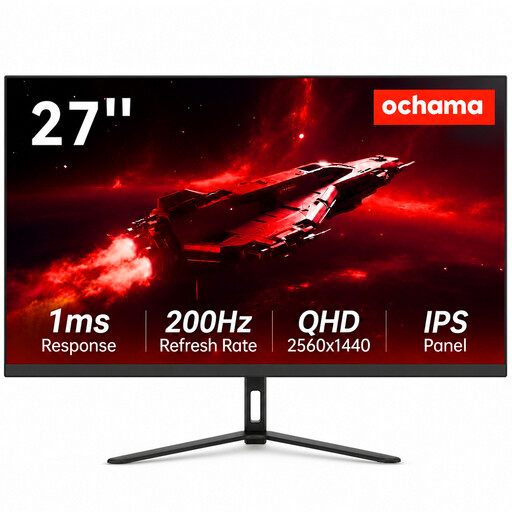
Ochama 27-inch gaming and office monitor

Ochama 27-inch Gaming & Office Monitor, 2K, 200 Hz

This separate 27-inch screen is worth considering for a multi-monitor setup; the product description mentions use in this type of setup.

The product name lists 2K, 200 Hz and a super-slim bezel. Check that the game supports the screen layout you want.

Joybuy

KTC M27P6 27-inch 4K MiniLED gaming monitor in white

KTC M27P6 27-inch 4K MiniLED Gaming Monitor, Dual Mode, White

This separate gaming monitor is worth considering as a main screen or part of a multi-monitor setup; check the screen layout and settings you want against what your game and PC support.

The product name lists 4K 160 Hz and FHD 320 Hz dual-mode options, plus HDMI 2.1, DisplayPort 1.4, Type-C 65 W, VESA compatibility and a height-adjustable stand.

Joybuy

iiyama G-MASTER 45-inch Dual QHD monitor

iiyama G-MASTER 45-inch Dual QHD VA Monitor

This curved Dual QHD screen gives you a wide display area, making it an option for anyone considering one ultrawide monitor instead of several separate screens.

The product description lists 5120 × 1440 pixels, 165 Hz, HDMI, DisplayPort, USB-C, a USB-C dock and a height-adjustable stand.

Joybuy

Frequently asked questions

Do my monitors need to form one large screen?

No, it depends on how you want to use the simulator. For one continuous game view, you can explore AMD Eyefinity or NVIDIA Surround; for separate instrument windows, your game or additional software needs to display them individually.

How do I set up a wide view across multiple screens?

Use the configuration options for your graphics card, then check how it looks in the game. NVIDIA Surround offers settings for things like screen layout, resolution and refresh rate; AMD describes Eyefinity as a way to combine two or more screens into one display.

What should I consider when positioning monitors?

Measure the setup, including stands or arms, and check the available adjustments and VESA size for each model. A VESA specification doesn’t mean a monitor arm is included; consult the model-specific manual for installation instructions.

Can I compare the energy use of different screen setups?

Yes. Compare the information for the monitors you’re actually considering, and make sure the units and measurement conditions match. The European Commission lists energy labels from A to G for computer monitors and directs you to EPREL for model information.

What are my rights when buying a monitor online in the Netherlands?

According to ACM ConsuWijzer, the statutory cooling-off period for a monitor bought online usually ends 14 days after delivery; check which exceptions and returns terms apply to your purchase. Products must also meet what you can reasonably expect from them. So the statutory guarantee isn’t simply a fixed two-year Dutch warranty period.
