
Ship's captain with a compact gaming setup
You want to navigate on a single screen without the monitor or its stand taking over your available desk space. So measure your whole setup, not just the screen size.


If desk space is limited, a 27-inch QHD monitor is a practical choice. A 34-inch ultrawide is worth considering if it fits and your game displays well in 21:9. Next, check which resolution and refresh rate your PC can actually support through the connection you plan to use: a higher stated Hz rating doesn’t automatically make a monitor more suitable for a ship simulator.
You want to navigate on a single screen without the monitor or its stand taking over your available desk space. So measure your whole setup, not just the screen size.
You want more horizontal space for the ship's view or additional windows, and have room for a wider screen – provided the game supports that layout.
You want to read instruments and small text clearly, so you match the resolution, viewing distance and video connection to your PC.
Start by measuring your workspace, then check that the game's display and your PC's connection are compatible with the monitor you choose.
| What to consider | What to look for | Who should pay particular attention? |
|---|---|---|
| Will the setup fit? | Compare the monitor's dimensions, including the stand, with your available desk height and depth. Check separately that your preferred mounting option will fit. | If space is limited, you’ll want to know whether the screen, stand and peripherals will all fit together. Around 36% of consumers say saving space is their top purchasing priority. |
| Will you make use of the extra width? | Check whether your game displays well in 21:9, then compare the desk width you’ll need. | If you want a wider bridge view or more room for windows, check in advance how your game displays in a wider aspect ratio. Around 29% of consumers prioritise a useful horizontal view. |
| Will details be easy to read? | Compare the screen size and native resolution. Also check the scaling settings in your operating system and game. | If you want to read instruments and small text, consider the combination of screen size, resolution and viewing distance. Around 21% of consumers put readable detail first. |
| Is the connection compatible with your PC? | For each monitor port, check the supported resolution and Hz combinations and compare them with your PC's video output. | If you have a particular refresh rate in mind, check that your PC, connection and settings support that combination. Around 14% of consumers prioritise achievable refresh rates and connectivity. |
The space you need also depends on the stand and the rest of your setup. The screen size alone won’t tell you whether everything will fit on your desk.
Measure the available width and depth, then compare them with the dimensions of the exact monitor, including its stand.
If the complete setup doesn’t fit, you may need a different stand or a monitor arm.
A monitor with a 21:9 display doesn’t guarantee that your ship simulator will show the interface or camera view without cropping or stretching.
Before choosing a wider screen, check the aspect ratio and interface display in the game you actually play.
The available display mode can vary between inputs and also depends on your PC. The stated maximum won’t necessarily apply to every connection and resolution.
Compare the specifications for each monitor port with your PC's video output, then decide which combination you need.
A specification your PC or chosen connection can’t make use of may not improve your experience.
A manufacturer's warranty doesn’t automatically cover the full extent of your statutory rights against the seller. ACM ConsuWijzer distinguishes between statutory guarantees and warranties offered by the seller or manufacturer.
Check the warranty terms to see what they cover, and remember that you also have statutory rights against the seller.
The UltraGear 27G610A-B we reviewed is a 27-inch QHD option for a compact setup. LG Netherlands lists a resolution of 2560 × 1440, a 200 Hz refresh rate and AMD FreeSync Premium for this model.
The MAG 274QRF QD E2 we reviewed is a 27-inch QHD alternative for a setup with limited width. MSI lists a resolution of 2560 × 1440 and a refresh rate of 180 Hz.
The Q27G4X we reviewed is a 27-inch 16:9 QHD model. AOC specifies a Fast IPS panel, a resolution of 2560 × 1440 and a refresh rate of 180 Hz for this version.
The Alienware AW3426DWM we reviewed represents the 34-inch ultrawide option. Dell Netherlands lists a resolution of 3440 × 1440 and a refresh rate of 240 Hz for this model.
This selection features 27-inch gaming monitors for anyone looking for a compact-screen option. For each model, compare the stated resolution and connection with what your PC can support.
 No image available
A 27-inch option if you’re looking for a compact QHD setup.
27 inches; WQHD; 200 Hz; IPS panel.
 No image available
A 27-inch option if you’re looking for a compact Quad HD monitor.
27 inches; 2560 × 1440; 180 Hz; FreeSync Premium; HDR10; 2 × HDMI 2.0; 1 × DisplayPort 1.4.
 No image available
A compact 27-inch option to compare if you’re looking for a QHD screen.
2560 × 1440; IPS panel; 144 Hz; Adaptive Sync; DisplayPort 1.4; HDMI 2.0.
 No image available
A 27-inch QHD option if you’d also like to compare an OLED model in the compact-screen category.
2560 × 1440; 240 Hz; DisplayHDR 400 True Black; 2 × HDMI 2.1; 1 × DisplayPort 1.4.
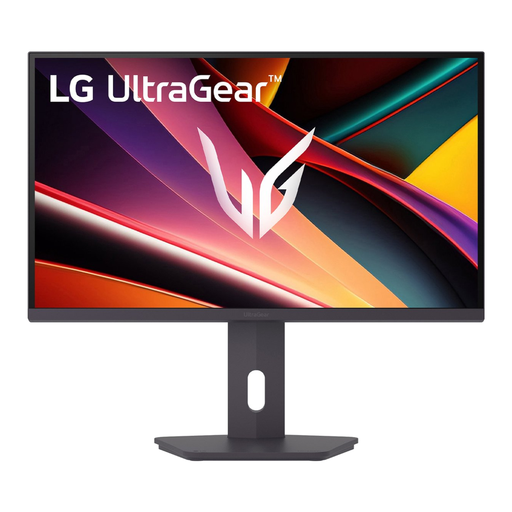 No image available
A 27-inch option if you’re looking for a compact QHD monitor.
IPS panel; 2560 × 1440; 200 Hz; FreeSync Premium; DisplayPort 1.4; HDMI 2.0.
No. Choose one only if the screen and stand fit, and your game makes good use of the wider view. A 27-inch QHD monitor is still an option if saving space matters more.
Compare the resolution and refresh rate supported by the monitor port you plan to use with your PC's video output. Dell lists different QHD limits for DisplayPort and HDMI on the G2725D; check the port specifications for the model you choose.
Adjust the screen position and ambient lighting so text stays easy to read and reflections don’t get in the way. The Arboportaal guidelines for screen-based work are aimed at employers and employees, and aren’t automatically legal requirements for gaming at home.
For a standard online purchase by a consumer in the Netherlands, you’ll generally have a statutory cooling-off period of up to 14 days after delivery. Check the relevant exceptions and returns policy. ACM ConsuWijzer also distinguishes between statutory guarantees and any manufacturer's warranty.
For computer monitors within its scope, the European Commission describes an energy label with a scale from A to G. Compare the label for the exact version you’re considering.