
Search by collection fields
You want to find shells later by combining data fields, rather than simply opening a folder of photos. So start by choosing software that supports the search fields and criteria you need.


Start by choosing your cataloguing software: do you want to search across individual collection fields, or mainly find photos using tags and metadata? That choice will determine which operating system is right for you. Then compare screen space, storage and ports with the way you work. Remember to plan a separate back-up for both your photos and your catalogue data.
You want to find shells later by combining data fields, rather than simply opening a folder of photos. So start by choosing software that supports the search fields and criteria you need.
You photograph your specimens and want to search photos using keywords and metadata. Screen space and a practical import and back-up routine are important too.
You enter information away from your usual workspace and need to balance portability with screen space and ports for transferring photos.
A good fit if: you want to find shells using individual fields and combined criteria, and plan to use Access for this.
Bear in mind: Microsoft describes Access as a PC app. Before buying, check the Windows version and whether you have the licence you need.
A good fit if: photos, tags and image metadata are the starting point for your searches. digiKam describes advanced searches across specific database fields and offers versions for Windows, macOS and Linux.
Bear in mind: check that the available fields suit your shell records; photo management software is not automatically a complete object database.
| What to consider | What should you check? | Who is this important for? |
|---|---|---|
| Searching the right catalogue | Test a few shells to see whether you can combine the fields you want, such as species name and find location. Then check the software version, operating system and licence. | If you want to find shells using several collection fields, your software’s search function is crucial; around 36% of consumers prioritise searching by collection fields. |
| Viewing photos and data side by side | Compare screen size and resolution. Also check that the specific laptop has the connection you need for your camera, card reader or scanner. | If you want to find photos using keywords and metadata and view them as you enter information, screen space matters; around 29% of consumers prioritise photo management above all else. |
| Storing your catalogue and photos | Compare the SSD capacity with the files you have and check the ports for separate back-up storage. Test that you can restore your photos and database. | If you want to avoid keeping your collection on just one laptop, make back-ups of both your photos and catalogue files part of your routine; around 21% of consumers prioritise data retention. |
| Entering information in different locations | Compare the dimensions, weight, screen space and ports of the specific configuration. Assess battery life based on how you use it. | If you often enter information away from your usual workspace, a more compact screen size may be easier to take with you; around 14% of consumers prioritise entering information on the go. |
Your software needs to support the combination of search criteria you want. A laptop is no substitute for suitable catalogue software or well-set-up collection fields.
Start by testing the fields and searches you’ll actually want to use on a few items.
Setting it up may take extra time; you may also need separate software or a licence.
Manufacturers may offer different configurations and bundle contents. For example, the HP ProBook described here is sold without a charger, while the Lenovo IdeaPad Slim 5 listing is for a bundle that includes accessories.
Compare the full model or product number, the specifications you select and what’s included in the box.
If an accessory you need is missing, you may have to find a suitable option separately.
Extra internal storage isn’t a separate copy if the laptop is your only place to keep the files. digiKam recommends regular back-ups and data integrity checks as part of its workflow.
Make a separate back-up of both your photos and database files, and test that you can restore them.
A separate back-up requires storage space or a back-up service, as well as time to maintain the copies.
The Dell 14 DC14255 is an example of a compact Windows configuration. On the configuration page we reviewed, Dell lists Windows 11 Home, 16 GB RAM, a 512 GB SSD and a 14-inch screen, among other specifications.
The IdeaPad Slim 5 Gen 8 bundle is an example of a 16-inch Windows configuration. Lenovo lists an IdeaPad Slim 5 with 16 GB RAM and a 512 GB SSD in the bundle.
The HP ProBook 4 G1i 16, product number D4TM6EA#ABH, is a business configuration with Windows 11 Pro, 16 GB RAM, a 512 GB SSD and a 16-inch WUXGA screen.
The Vivobook 16 OLED (M1605) product range includes several 16-inch screen configurations. ASUS describes a WUXGA 1920 × 1200 OLED version.
These Joybuy laptops are Windows options for a catalogue organised around individual collection fields. If you want to use Microsoft Access, check the requirements and licence for your needs in advance.
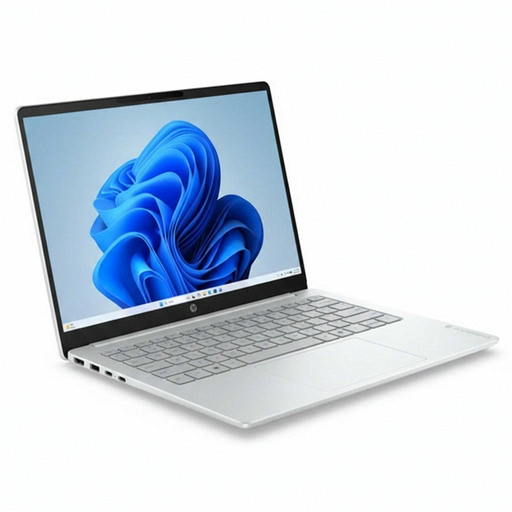 No image available
A Windows 11 Home configuration for anyone using a field-based catalogue; Microsoft describes Access as a PC app.
14-inch screen; Intel Core 3 304; 8 GB RAM; 512 GB SSD; Windows 11 Home.
 No image available
A compact Windows 11 Home configuration for a field-based catalogue; check that your chosen catalogue software is compatible with this configuration.
14-inch screen; AMD Ryzen 5 7520U; 8 GB RAM; 512 GB SSD; Windows 11 Home.
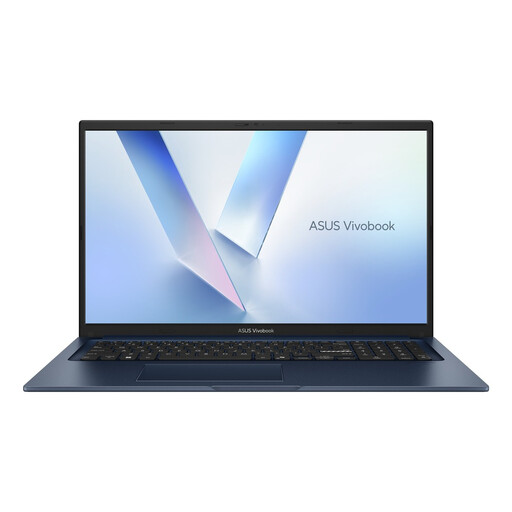 No image available
Worth considering if you’d like more screen space while entering information; check that a larger laptop suits your workspace and how you use it.
17.3-inch Full HD screen; Core 5 320; 8 GB RAM; 256 GB SSD; QWERTY keyboard.
 No image available
A 16-inch option to compare if you want to view collection details alongside images; check the software requirements for this configuration.
16-inch WUXGA OLED screen; Snapdragon X processor; 16 GB LPDDR5X; 512 GB SSD; Windows 11 Home.
 No image available
A compact option to compare with your catalogue software and workflow; check the operating system on the exact configuration before buying.
14-inch screen; Ryzen 7 8840HS; 16 GB memory; 1 TB PCIe SSD; QWERTY keyboard.
The search fields and criteria described are software features; the available information doesn’t specify a requirement for a separate graphics card. Choose your catalogue software first, then check the system requirements for that version and any photo-editing software you plan to use.
No. Microsoft lists Access as a PC app in the system requirements for Microsoft 365. If you plan to use Access for your catalogue, check the Windows version and the licence you need before choosing a laptop.
First, test a small selection of photos to see whether the tags and search fields you want work as expected. digiKam describes advanced searches across specific fields and recommends regular back-ups with data integrity checks as part of its workflow.
According to the Dutch government, if a product is faulty, the retailer must provide a solution, not the manufacturer. A manufacturer’s warranty or an extended warranty is in addition to your statutory consumer rights; check the terms before paying for one.
According to the Dutch government, when you buy remotely from a business, you often have a 14-day cooling-off period. Check the terms and exceptions that apply to your specific purchase; this relates to consumer purchases and doesn’t establish a right for every business purchase.