
A collector who needs larger text
You want to read and enter names and catalogue fields comfortably. Try the display in your own catalogue software; Microsoft Support explains how to adjust text size and display layout in Windows.


First, choose a screen setup that makes both the catalogue text and your catalogue software easy to read. With a mini PC or compact desktop, you can choose the screen separately; an all-in-one PC combines the screen and computer. Also check the storage, connections, included accessories and backup options.
You want to read and enter names and catalogue fields comfortably. Try the display in your own catalogue software; Microsoft Support explains how to adjust text size and display layout in Windows.
You link images to descriptions and want to be able to restore your catalogue files. The Natural History Museum describes digital collections that include historical, geographical and taxonomic data. Microsoft Support explains how File History can copy files to a separate destination.
You want a setup with a computer, screen and input devices that will fit on your desk. A mini PC uses a screen you choose separately; an all-in-one PC combines the computer and screen.
Try the magnification in your own catalogue software. Microsoft Support explains how to adjust text size, display scaling and Magnifier, but it’s still worth checking how the software itself displays beforehand.
A good fit if: you want a compact computer and to choose a monitor that suits your magnification settings and working position.
Keep in mind: check the screen, connections and any input devices for the specific model and setup you’re considering.
A good fit if: you want to pair a standalone computer with a screen you choose separately.
Keep in mind: check the connections and which input devices are included with the specific configuration.
A good fit if: you want to choose the computer and screen as one setup, and the fixed screen configuration works for you.
Keep in mind: you choose the screen as part of the computer, so you can’t select it independently.
| What to consider | What should you look for? | Who should pay particular attention? |
|---|---|---|
| Readability and display layout | Try different text sizes and display scaling in your catalogue software; check the screen configuration and video connection. | If I want to read catalogue fields clearly and still see photos, I’ll try the magnification in my own software. Around 36% of consumers put readability first. |
| Photos and catalogue files | Check the storage on the exact model and whether you can use an external drive or network location for backups. | I want to keep and restore descriptions and shell photos, not just store them on the computer. Around 29% of consumers prioritise files and the ability to restore them. |
| Workspace and included accessories | Compare the computer and screen dimensions; check the video ports and whether a keyboard and mouse are included. | The whole setup needs to fit on the desk space available to me, including the screen and input devices. Around 21% of consumers start with their desk layout. |
| Complete setup and support | Check the installed operating system and which accessories are included with the model you choose. | I want to know in advance what I’ll need for my workspace and whether the operating system is still supported. Around 14% of consumers make completeness and support their top priority. |
Windows offers settings for text size and display, but the practical result also depends on the software you use to catalogue your collection.
Try your own catalogue software with larger text and display scaling before choosing a screen configuration.
With a mini PC, you choose the screen separately. The Lenovo configuration reviewed, 12XDCTO1WWNL3, does not list a keyboard or mouse.
Check the connections and included accessories for the exact model, then compare them with what you already have.
A separate monitor and any additional input devices will also take up desk space.
If your catalogue files are stored only on the computer, you don’t have a separate recovery copy.
Check whether your catalogue folder is copied to an external drive or network location, and try restoring a file.
You may need an external drive or network location as a separate backup destination.
Microsoft ended regular Windows 10 support on 14 October 2025. A PC running Windows 10 therefore won’t necessarily receive regular security updates.
Before buying, check the installed operating system and whether there’s a supported upgrade path.
The Pro Mini 400 G9 shows how a compact Windows desktop can be used with a screen chosen separately.
The ThinkCentre Neo 50s Gen 5 is a small form factor desktop for which you choose the screen separately.
The Dell 24 All-in-One EC24250 is an example of a computer with an integrated screen.
This selection features mini PCs for which you choose the screen separately. Before buying, check that your catalogue software works with the operating system on the model you’ve chosen, and that you have the monitor and input devices you need.
 No image available
A mini PC for a setup with a monitor chosen separately. Check beforehand that your catalogue software works with its operating system.
Intel Core i5 8250U/8350U, 8 GB DDR4, 256 GB SATA SSD and Windows 11. The description lists HDMI and Type-C video outputs, Bluetooth 5.2 and Wi-Fi 5.
 No image available
This mini PC suits a setup with a separate screen. Check the connection and make sure your catalogue software is compatible with Windows 11 Pro.
Intel Celeron N5095 (4C/4T), 16 GB LPDDR4X and 256 GB M.2 2280 SATA SSD. The product name lists HDMI 2.0 and Wi-Fi 5; the description lists two HDMI outputs.
 No image available
A mini desktop for a workspace with a separate screen. Check that your catalogue software works with Windows 11 Pro.
AMD R5 7430U, 16 GB LPDDR4X 3200MT/s and 512 GB M.2 2280 SATA SSD. The product name lists HDMI 2.0, DP 1.4b and USB-C video output.
 No image available
This model is only an option if your catalogue software works with NVIDIA DGX OS. Confirm compatibility before making a choice.
NVIDIA GB10, 128 GB RAM and 4 TB SSD. The product name lists NVIDIA DGX OS; the product description gives the dimensions as 15 × 15 × 5,05 cm.
 No image available
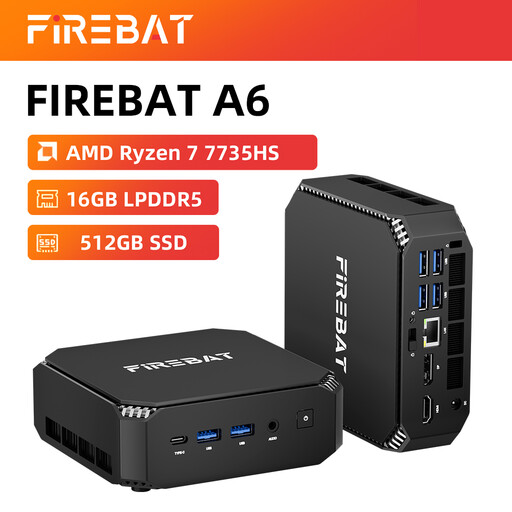
This mini PC is designed for a setup with a separate screen. Check the video connection you need and make sure your software is compatible.
AMD Ryzen 7 7735HS, 16 GB RAM and 512 GB SSD. The product name lists dual M.2 slots, output to three screens and Wi-Fi 6.
Yes. Windows has a text size setting, as well as display scaling and Magnifier. Try your catalogue software yourself: the Windows setting doesn’t guarantee that all the text and input fields will appear as you’d like.
Start by adjusting text size and display scaling. Microsoft Support notes that a lower resolution can make text look less sharp, so also check the recommended resolution for the screen you choose.
Back it up to an external drive or network location, and check that the folder containing your catalogue is included. Microsoft Support explains that File History can keep copies of included files and restore earlier versions.
According to the Dutch government, when you buy as a consumer, you’re entitled to a product that meets your expectations. There’s no fixed statutory warranty period; if a product is faulty, you should contact the seller. A manufacturer’s warranty is additional.
According to the Dutch government, in many cases you have a 14-day cooling-off period when buying at a distance. Check the terms that apply to your purchase. This cooling-off period is separate from your rights if a product is faulty.
The Dutch government says that accessibility requirements came into force on 28 June 2025 and lists computers among the products covered. The rules include obligations and exemptions for businesses; they don’t prove that a particular computer or catalogue application will be readable enough for you.