Start with your catalogue software and test your preferred text magnification in it. Then work out how much screen space you need for catalogue fields and, if relevant, an image. Windows, macOS and ChromeOS all offer magnification options, but Microsoft Support says the desktop versions of Microsoft 365 cannot be installed on a Chromebook. Check the connections on the model you choose, too, and plan how you’ll back up your catalogue.
Who is this buying guide for?
Catalogue creator who needs larger text
Wants to read titles, composers and locations while keeping the catalogue overview easy to use. Test your preferred magnification in the application you use; Microsoft Support, Apple Support and Google Chromebook Help describe magnification options for their operating systems.
Manager of an existing catalogue
Wants to keep using existing files and possibly desktop software. Before choosing, check which operating system and app your catalogue requires. Microsoft Support says that Access is a PC app and that the desktop versions of Microsoft 365 cannot be installed on Chromebooks.
Entering printed sheet music
Wants to transfer details, perhaps using a scanner or second screen, and back up the growing catalogue. Microsoft Support and Apple Support describe backup options using external storage; also check that the laptop’s connections are compatible with your equipment.
What should you look for when choosing?
Windows laptop
A good fit if: your catalogue software runs on Windows or you need Microsoft Access as a desktop app.
Consider: a larger built-in screen may take up more space; test the magnification in your own catalogue.
MacBook with macOS
A good fit if: your catalogue software and files work on macOS, and the built-in screen zoom suits the way you use it.
Consider: Microsoft describes Access as a PC app, so check your software and the connections on your scanner or monitor first.
Chromebook with ChromeOS
A good fit if: your catalogue works in a suitable web app or browser-based workflow, and you can manage your files effectively there.
Consider: Microsoft Support says the Windows and Mac desktop versions of Microsoft 365 cannot be installed on a Chromebook.
For this catalogue task, the main things to consider are readability, software compatibility, your input setup and how to restore your files.
| What to consider |
What should you check? |
Who is this important for? |
| Readability with larger text |
Test your preferred magnification in your own catalogue app and check the screen size and resolution of the exact configuration. |
If I want to read titles, composers and locations in larger text without losing the overview, I try the magnification in my own app. Around 36% of consumers say readability is their top priority. |
| Existing catalogue software |
Make a note of the exact app, file formats and desktop features you need; open a sample file on the platform you’re considering. |
Anyone who wants to keep using their current app and files should first check that they work on the chosen operating system. Around 29% of consumers put compatibility first. |
| Data entry and connections |
Compare the connections on your scanner and monitor with the ports on the exact laptop, and test your setup. |
If I want to enter printed sheet music using my existing equipment, I check that everything connects without awkward workarounds. Around 21% of consumers make this their top buying priority. |
| Backing up your catalogue |
Set up a backup and try restoring a sample file, too. |
For consumers who want to be able to restore their completed catalogue, a working backup is an important part of choosing. Around 14% put data protection and the necessary features first. |
Common pitfalls
-
Looking only at the screen size in inches
Screen size doesn’t tell you how your catalogue app will look at your preferred magnification. Screen specifications can also vary between configurations.
Try the data-entry fields with a representative file at your preferred magnification, and check the screen specifications for the exact configuration.
-
Assuming Microsoft 365 offers the same desktop apps on every operating system
Microsoft Support says the Windows and Mac desktop versions of Microsoft 365 cannot be installed on Chromebooks. Microsoft describes Access as a PC app.
Check the exact catalogue app you need and open an existing file on the platform you’re considering before you buy.
If your existing desktop app is essential and doesn’t work on the platform you choose, you may need a different workflow or laptop.
-
Leaving peripherals and backups until after you buy
Ports vary between laptop configurations. You’ll also need to set up backup options, such as Windows File History or Apple Time Machine.
Compare the plugs on your scanner and monitor with the laptop’s ports, choose a backup destination and check that you can restore a sample file.
Depending on your setup, you may need a suitable adapter and an external backup device.
Brands to consider as a guide
HP
The HP OmniBook 3 17-dm0670nd is an example of a Windows laptop with a 17.3-inch Full HD screen.
- HP lists USB-C, USB-A and HDMI for this model.
- A larger built-in screen takes up more space. Screen size alone doesn’t tell you whether enlarged catalogue text will be comfortable to read.
Acer
The Aspire 16 NX.J7BEH.003 and Chromebook Plus 515 NX.KNUEH.005 represent two different options: Windows and ChromeOS.
- For the Aspire configuration mentioned, Acer lists a matte IPS screen with a resolution of 1920 × 1200 pixels and HDMI.
- The benefits of the separate RTX 3050 graphics card for straightforward catalogue entry haven’t been established. Microsoft Support says the desktop versions of Microsoft 365 cannot be installed on a Chromebook.
Apple
The 15-inch MacBook Air M5 is a macOS option if your catalogue software is compatible.
- Apple Support documents screen zoom; Apple lists Thunderbolt/USB-C for connection and expansion.
- Check that your catalogue software and existing USB equipment work with the configuration you choose. Microsoft describes Access as a PC app.
Lenovo
The IdeaPad Slim 3 16IRH10 is a Windows product line to consider if a second screen or existing connections are important to you.
- Lenovo lists HDMI, USB-A and USB-C with DisplayPort for this product line.
- Check which screen, memory and storage configuration applies to the specific model.
Joybuy products for this catalogue task
This selection focuses on Windows laptops with a large built-in screen, for anyone whose catalogue software runs on Windows. Always test your preferred magnification in your own application.
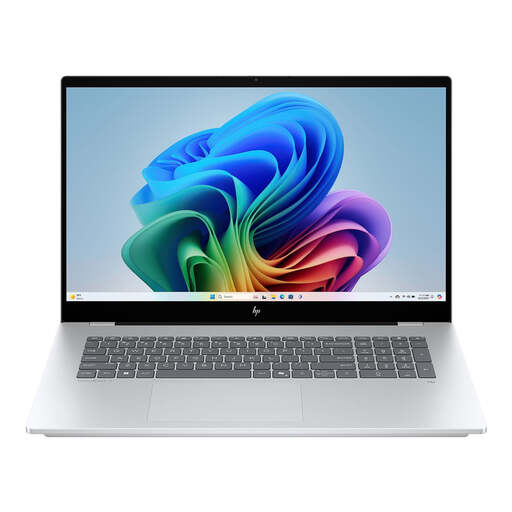 Image unavailable
HP OmniBook 7 NG AI PC 17-dc0051nd D75LTEA#ABH
A Windows laptop to consider if your catalogue software runs on Windows; test your preferred magnification in your own app.
The power adapter is sold separately.
View at Joybuy
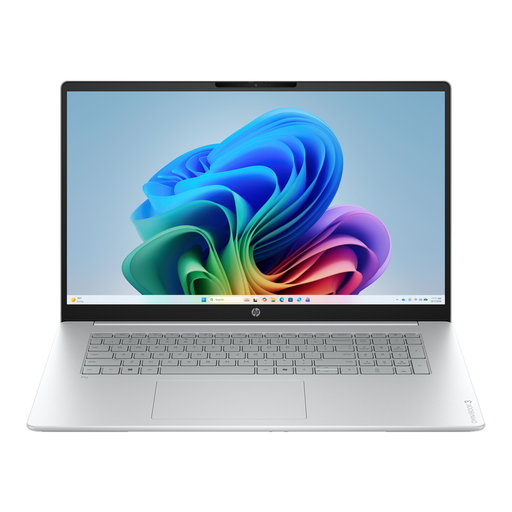 Image unavailable
HP OmniBook 3 AI PC 17-dg0005ndx – Intel Core 3 310, 12GB RAM, 512GB SSD, Full HD IPS, Windows 11 Home
A Windows laptop for anyone using catalogue software on Windows; the configuration listed has a 17.3-inch screen.
The title specifies Full HD IPS. The laptop is supplied without an AC adapter.
View at Joybuy
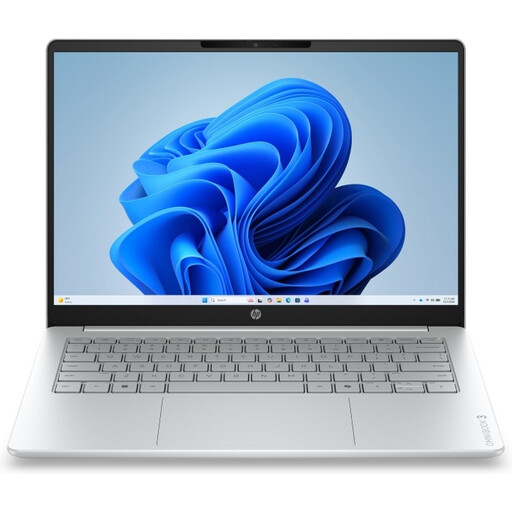 Image unavailable
HP OmniBook 3 17-dp0050ndx – AMD Ryzen 5, 8GB RAM, 512GB SSD, Full HD IPS, Windows 11 Home
A Windows laptop for a catalogue app that runs on Windows; the configuration listed has a 17.3-inch screen.
The title specifies Full HD IPS. The AC adapter must be purchased separately.
View at Joybuy
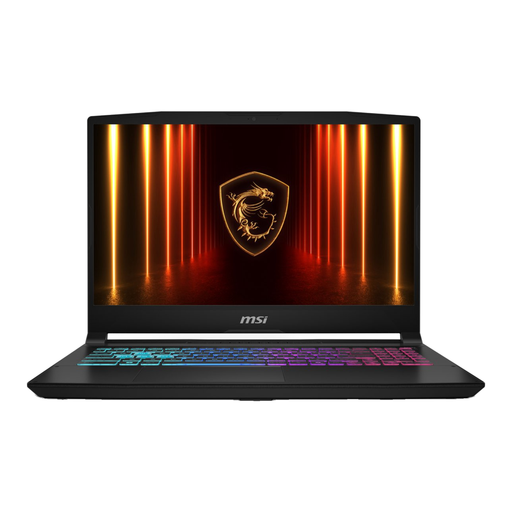 Image unavailable
MSI 17 HX B14WGK-264NL – 16G, 1TB SSD, QWERTY keyboard
A Windows laptop to consider if your catalogue software runs on Windows; the product title lists a 17.3-inch screen.
The power adapter is sold separately.
View at Joybuy
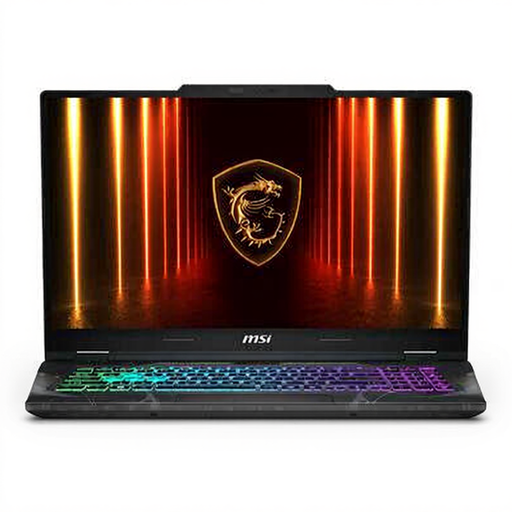 Image unavailable
MSI Cyborg 17 B2RWEKG-023NL – Intel Core 7 240H, 16GB DDR5, 512GB SSD, RTX 5050, QWERTY
A Windows laptop to consider if your catalogue software runs on Windows; the title lists a 17.3-inch screen.
The product title specifies a Full HD screen.
View at Joybuy
Frequently asked questions
Does a laptop for this catalogue need a touchscreen or a dedicated graphics card?
There’s no evidence that either is needed for the data-entry task described. First, test the catalogue software with your preferred magnification, and don’t choose based solely on an unproven assumption about these features.
How do you enlarge text while cataloguing?
In Windows, you can adjust the display scale or use Magnifier. On a Mac, you can turn on screen zoom in Accessibility; Chromebooks also have zoom and magnification settings. Then check that your catalogue app and its data-entry fields are still easy to use.
How can you avoid losing your catalogue?
Set up a backup and test that you can restore your files. Microsoft Support describes using Windows File History to back up to, among other options, an external drive or network location; Apple Support describes automatic backups with Time Machine and external storage.
What are your rights in the Netherlands when buying a laptop online?
According to the Dutch government, distance purchases usually come with a 14-day cooling-off period, although there are exceptions. The Netherlands has no fixed statutory guarantee period: if a product is faulty, you may be entitled to a free repair, replacement or refund. This doesn’t automatically apply to faults caused by normal wear and tear or damage you’ve caused yourself.


