
Hobbyist with limited workspace
You scan maintenance forms now and again and want a device that takes up little room but can feed in several sheets automatically.


If you mainly scan loose, double-sided forms and space is limited, consider a compact scanner with an automatic document feeder. For larger batches, capacity matters more. If you want to handle files from multiple devices, check the exact model’s wireless options and scan destinations. Also compare the paper types it supports and check whether its software can create searchable files.
You scan maintenance forms now and again and want a device that takes up little room but can feed in several sheets automatically.
You collect forms for each maintenance session or project and want to spend less time reloading paper while scanning.
You want to find documents later or work with them from more than one device. So, check the model’s software, connectivity and scan destination.
Suitable for: one fixed computer, limited workspace and small to medium-sized batches. Canon lists an automatic 20-sheet feeder for the imageFORMULA R10.
Bear in mind: it connects via USB, so check that the included software works well on your computer.
Suitable for: regularly scanning larger batches. Epson lists a 50-sheet feeder and paper protection for the WorkForce DS-410.
Bear in mind: a desktop setup takes up a different amount of space from a compact, portable scanner; also check which paper weights the model supports.
Suitable for: anyone who needs a wireless connection. Brother lists Wi-Fi and a 20-sheet feeder for the ADS-1800W.
Bear in mind: its feeder holds fewer sheets than the Epson DS-410’s stated capacity of 50; also check that the scan destination and power options suit your needs.
| What to consider | What should you check? | Who is this important for? |
|---|---|---|
| Automatic feeding and double-sided scanning | Match the feeder capacity to your usual batch and check whether the model scans both sides. Canon lists 20 sheets for the R10; Epson lists 50 sheets for the DS-410. | When I scan a batch of forms after a maintenance session, I don’t want to feed in every sheet separately. Around 33% of consumers particularly value smooth batch feeding. |
| Space and connectivity | Check that the scanner fits your workspace and whether you need a USB or Wi-Fi connection. Canon lists USB power for the R10; Brother lists Wi-Fi for the ADS-1800W. | When there’s little worktop space in my hobby room, I want a scanner that fits my setup and connects in the way I need. Around 25% of consumers particularly want to save space. |
| Finding documents later | Check OCR, file format and scan destination separately. Epson lists searchable PDF output for the ES-590W. | When I want to find maintenance forms later by project or maintenance term, I want to know whether the software can create searchable files. Around 25% of consumers particularly want a searchable archive. |
| Unusual or important paper | Compare the paper weight and supported media with your forms. Canon specifies 64–128 g/m² for the R10; Epson lists paper protection and 50–209 g/m² for the DS-410. | When a job sheet is thin, sturdy or difficult to replace, I want to know in advance whether the feeder can handle it. Around 17% of consumers particularly want to handle unusual originals with care. |
Manufacturers quote speeds under specific conditions. When testing the Canon R10 in the United States, TechGearLab reported a lower measured speed and software issues. This is a finding from that test setup, not a prediction for every installation.
As well as pages per minute (ppm), compare feeder capacity, double-sided scanning and the software on your computer. Allow time to prepare and check your files.
A wireless connection and text recognition are separate features, so a scanned file won’t necessarily be searchable.
Check the exact model’s scan destination, OCR and searchable PDF output. Without these features, organising or finding files may involve extra work.
The stated capacity doesn’t automatically apply to every paper type or mixed batch. Thin forms, cards and irreplaceable originals need extra care.
Compare the paper weights and supported media with your documents. Don’t feed important originals automatically without first checking the model specifications and instructions.
The ADS-1300 is designed for USB use; the ADS-1800W adds Wi-Fi.
The imageFORMULA R10 is a compact scanner for USB connectivity and use at a single workstation.
The WorkForce DS-410 is suited to larger batches; the ES-590W adds wireless scan destinations and OCR.
According to Ricoh, the iX1300 offers Wi-Fi, a continuous feeding path and a separate return path for certain unusual documents.
These models are suited to scanning maintenance forms, from compact USB scanners to scanners for larger batches and unusual documents.
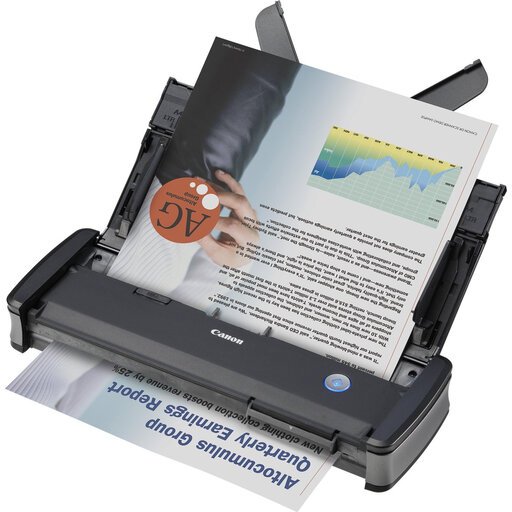 No image available
A compact USB scanner for batches of forms with information on both sides.
Automatic 20-sheet feeder; double-sided scanning; supports ID and embossed cards. The stated Wi-Fi option requires a separate WU10 unit.
 No image available
An ADF for batches, plus a flatbed for bound or delicate documents.
Automatic 50-sheet feeder; double-sided scanning; flatbed; scanning to editable PDF files is listed.
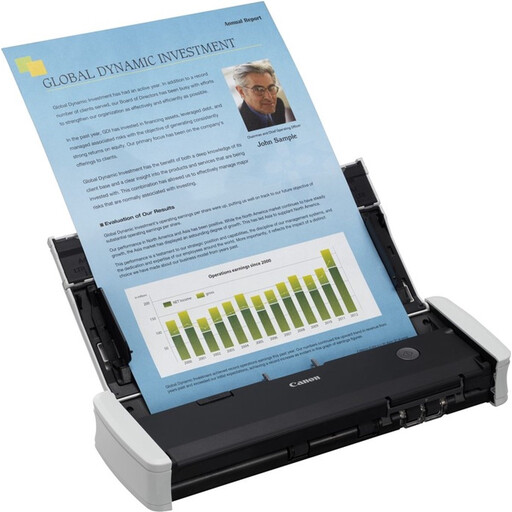 No image available
A compact option for double-sided forms when working at a single computer.
Automatic 20-sheet feeder; double-sided scanning; USB connection; built-in CaptureOnTouch Lite software.
 No image available
A scanner with a U-turn paper path, designed for setups with limited extra space.
ADF and sheet-fed; paper protection; supports booklets up to 5 mm thick.
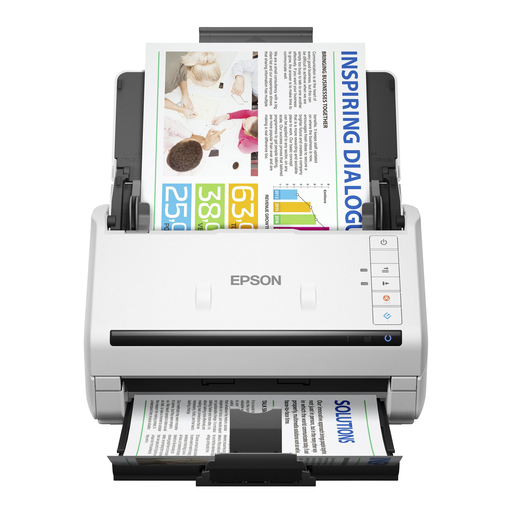 No image available
A good choice for larger batches, with a slow mode for delicate documents.
Automatic 100-sheet feeder; double-sided scanning in a single pass; USB 3.0; double-feed detection system.
Choose a capacity that suits the number of sheets you usually scan at once, and check that the paper falls within the stated sizes and weights. Capacities of 20 or 50 sheets are model specifications, not a guarantee that every mixed batch will feed successfully.
Follow the connection and software instructions for your model. Brother provides model-specific guides for the ADS-1800W, while Epson provides installation and user guides for the DS-410. If feeding problems persist, check that your paper is among the media the scanner supports.
For a consumer purchase in the Netherlands, the seller must provide a solution if the product doesn’t meet what you could reasonably expect, according to the Dutch government. A manufacturer’s warranty or paid extension is additional; statutory warranty doesn’t have one fixed duration for every product.
Scanning a form isn’t prohibited in itself, but take care when using or sharing personal data. The Dutch Data Protection Authority describes an exception for purely personal or household use; this doesn’t necessarily apply to professional use or wider publication.
No, not always. According to the Dutch government, many distance purchases come with a 14-day cooling-off period, but there are exceptions. Check the terms and conditions for the specific purchase.