What should you look for when choosing?
Use the indicative breakdown to decide which need matters most in your studio, then choose a scanner and workflow to match.
| Consideration |
What should you check? |
Who is this more important to? |
| Secure sharing |
Check the supported scan destinations, user settings and access permissions in your storage environment. |
If several people use the scanner, I want forms containing personal data to be available only in the right place and to the right colleagues. Around 36% of consumers put secure sharing first. |
| Batch processing |
Compare the feeder capacity with a typical session and check whether double-sided scanning is supported. |
When I regularly scan a batch, I want to reload the paper less often and capture completed forms on both sides. Around 29% of consumers prioritise batch processing. |
| Unusual originals |
List the sizes, paper weights and thicknesses you need to scan, then check which feed path each model uses. |
If I scan receipts, cards or thicker items as well as forms, I want to know which path is suitable for each original. Around 21% of consumers consider paper compatibility the most important factor. |
| Finding files again |
Check the supported file formats, text recognition, system compatibility and storage destination. |
When I want to search or edit scans later, I want the software to work with our computers and workflow. Around 14% of consumers prioritise searchable text. |
Feeder capacity varies by model: Brother lists 20 sheets for the ADS-1800W; Epson lists 50 sheets for the DS-410 and 100 sheets for the DS-790WN. These are model specifications, not a measure of the overall speed of your workflow. For the DS-C490, Epson describes a U-turn path and a straight-through path; according to Epson, the straight-through path is designed for items including booklets up to 5 mm thick. So start by listing the documents you actually need to scan.
A network connection does not automatically determine who can open scans. If team members share a scanner, agree on destinations and access permissions for your storage environment. Built-in user settings are only useful if they suit the way you work.
Scanners at Joybuy
This selection focuses on scanners for regular batches of forms and models with an alternative paper path. For each model, check that the connection, software and feeder suit your workstation and the originals used in your studio.
 No image available
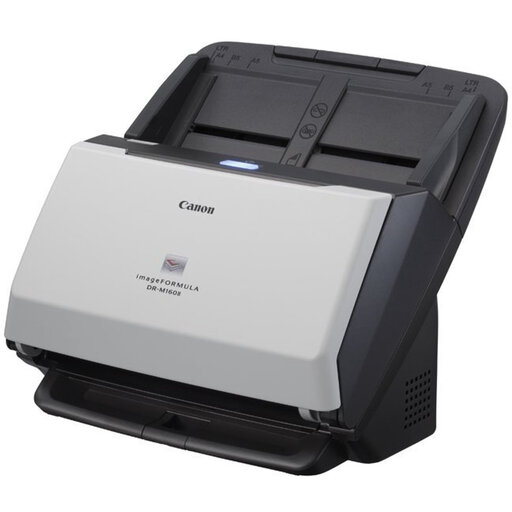
Canon imageFORMULA DR-M160II
An option to consider for regular batches at a fixed scanning station connected to a computer.
Joybuy lists a 60-sheet ADF, automatic double-sided scanning, USB and CaptureOnTouch 3. The product information also mentions scanning to editable PDF files.
Joybuy
 No image available
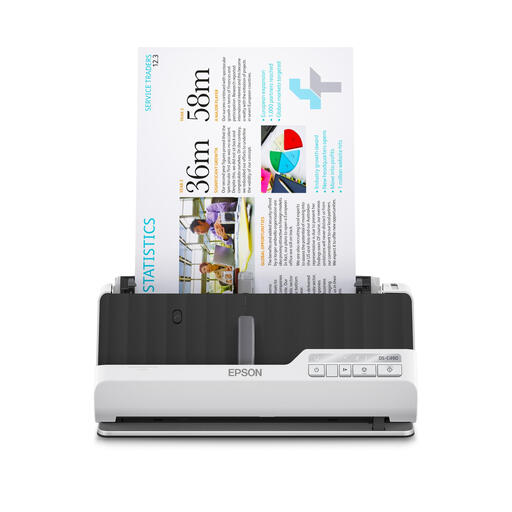
Epson DS-C490
An option for forms and other supported originals that may need different paper paths.
The product information lists automatic double-sided scanning, plus U-turn and straight-through paper paths. Epson describes the straight-through path as suitable for booklets up to 5 mm thick.
Joybuy
 No image available
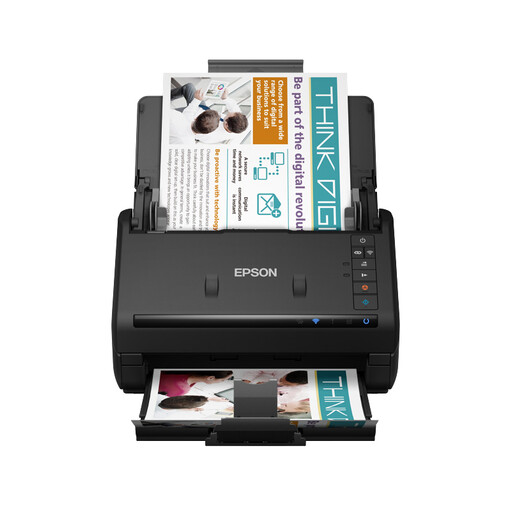
Epson WorkForce ES-500WII
An option to consider if you want to scan regular batches from different devices.
Joybuy lists a 100-sheet ADF, automatic double-sided scanning and Wi-Fi. Check that the listed connection and software work with your studio’s devices and storage destination.
Joybuy
 No image available
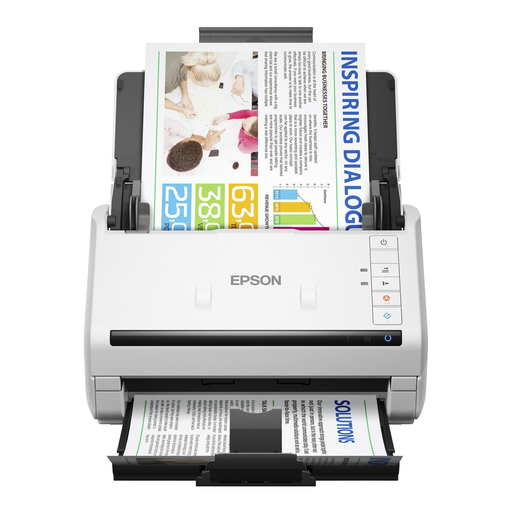
Epson WorkForce DS-530 II
An option for regular batches if double-sided processing and handling different types of paper are important.
Joybuy lists a 50-sheet ADF and double-sided scanning in a single pass. The product information also mentions creased, long and delicate paper; check that the originals you need to scan meet the model’s requirements.
Joybuy
 No image available
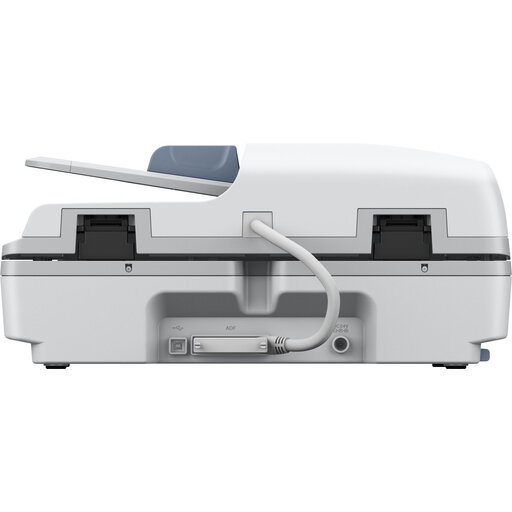
Epson WorkForce DS-6500 Power PDF
An option to consider for document processing with an ADF and flatbed.
Joybuy lists a 100-sheet ADF and double-sided scanning. According to the product information, shared network use requires an optional network interface panel. Also check that the software described suits your storage workflow.
Joybuy
Frequently asked questions
Does the scanner itself need to support user accounts if the studio scans personal data?
Not necessarily. The organisation must arrange appropriate security and access for the chosen storage environment. The Dutch Data Protection Authority stresses that personal data must not be accessible to unauthorised people. Epson describes user accounts for the DS-790WN; features like these may suit your workflow, but you still need to configure destinations and permissions properly.
How can you check for missing or duplicated pages?
Check the original and the complete scan before putting the paper forms away. Epson lists an ultrasonic double-feed sensor for the DS-C490; this model-specific feature does not replace checking the final document.
What maintenance should you factor into your choice?
Check each model’s maintenance instructions and the availability of cleaning materials and replaceable feed components. Ricoh describes both cleaning and replacing the roller set for the ScanSnap iX1600; maintenance requirements and replacement intervals can vary by model.
Do consumer rights automatically apply if the studio buys for business use?
No, not automatically. ACM ConsuWijzer states that anyone entering into an agreement mainly or exclusively for business use is not covered by consumer protection. So check who the contracting party is and read the warranty and service terms for that purchase before ordering.


