
Team with a shared scanning desk
Colleagues use the same scanner and want to send forms directly to the right shared destination.


For a shared scanning station, a network scanner with on-device controls is a good fit when several colleagues need to send forms to set destinations. A compact personal scanner may be enough for small, occasional batches, but check how scan destinations work for all users. If the forms contain personal data, also assess access to saved scans and how they are stored and retained.
Colleagues use the same scanner and want to send forms directly to the right shared destination.
You scan loose sheets, sometimes double-sided or in different sizes, and want to keep feeding and checking them straightforward.
If forms contain personal data, you also need to set up appropriate access to the scanner and saved files. The Dutch Data Protection Authority emphasises that security measures depend on the processing involved and the context.
When scanning maintenance forms at a shared station, priorities can vary. Start by looking at the form’s journey, from feeding and operating the scanner to choosing the right destination and managing access.
| What to consider | What to look for when buying | Who should pay particular attention? |
|---|---|---|
| Sending scans to the right destination | Check whether you can scan from the device to the network folder you use, and whether destinations or profiles are easy to set up. | If colleagues share a scanner, I want to send forms to the right folder without extra steps. Around 33% of consumers give shared scan destinations top priority. |
| Feeding batches of paper | Compare duplex scanning, ADF capacity and double-feed detection with the size and weight of your forms. | If I regularly scan double-sided forms or mixed paper, I want to spend less time turning pages by hand and checking the feed. Around 25% of consumers prioritise reliable paper feeding. |
| Finding forms again | Check whether the workflow can create searchable PDFs and whether you can set up consistent file naming and checks. | If forms need to be found later, I want to know whether scans will be saved in a clear, searchable format. Around 25% of consumers put easy retrieval at the top of their list. |
| Access to scans | Establish whether forms contain personal data, then assess accounts, storage destinations, access permissions and retention policies together. | If maintenance forms contain personal data, I want to prevent unauthorised people from opening the files. Around 17% of consumers make appropriate access restrictions their top priority. |
A quoted speed doesn’t tell you how long the whole process takes. Choosing a destination, checking the result and rescanning if needed are all part of it.
Allow time to choose the right destination, check the scan and rescan if necessary.
Test your intended scanning route with representative forms, and assess the controls, destination selection and how easy it is to check the result.
Size, paper and feed limits vary by model. A quoted ADF capacity doesn’t mean every unusual form is suitable.
Compare your thickest, smallest and most delicate forms with the specifications for the exact model.
Originals that aren’t suitable for automatic feeding may need to be scanned by hand or handled another way.
If forms contain personal data, appropriate security also depends on who can open saved scans and how the files are stored.
Assess the whole journey from paper to saved file, and match access permissions and retention policies to the data you process.
Setting up accounts, storage permissions and retention policies also involves work beyond the scanner itself.
The ADS-4700W is an option for a shared workspace where wired or wireless networking, touchscreen controls and automatic document feeding are useful.
The WorkForce DS-790WN is designed for standalone network scanning, with user accounts that can be set up individually.
According to Canon, the imageFORMULA DR-S350NW combines network operation with browser-based scanning and scan jobs launched from the device.
The ScanSnap iX1300 and iX2500 are examples of more compact or personal scanning workflows. Check separately whether the version you choose suits multiple users.
These Joybuy products are sheet-fed scanners for handling loose forms. Features for paper feeding, duplex scanning and scan destinations vary by model.
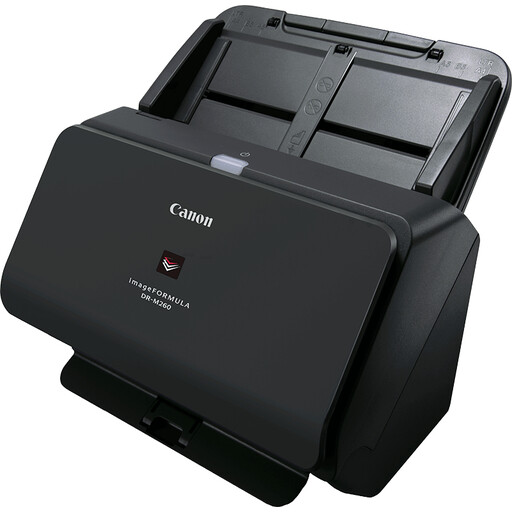 Image unavailable
An option for loose documents if network or SharePoint integration is important to your scanning workflow.
The product description mentions handling a range of media and ultrasonic double-feed detection. The installation described requires a USB connection to a computer and driver installation.
 Image unavailable
A compact sheet-fed option if desk space is limited and you can start scans from a computer.
The product description mentions an A4 document feeder and a U-shaped paper path. The scanning process described starts via USB from a computer running Document Capture Pro; the listed file formats are PDF, JPG and TIFF.
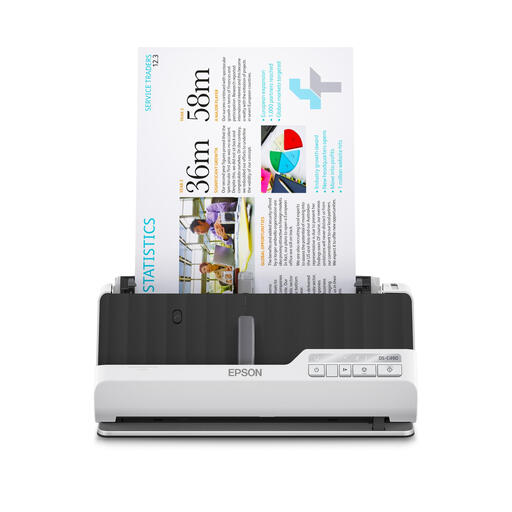 Image unavailable
Worth considering if you scan double-sided forms and need destinations such as network folders.
The product description mentions automatic duplex scanning, an ultrasonic sensor for double-feed detection and paper protection. It also lists U-shaped and straight paper paths, shortcut keys and network destinations.
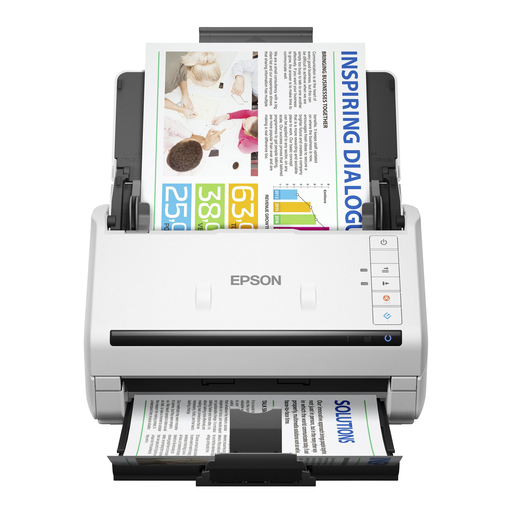 Image unavailable
An option for batches of double-sided documents if you want to scan both sides in a single pass.
The product description lists a 100-page ADF, double-feed detection and prevention, and a slow mode for delicate documents. The installation described uses USB to connect to a computer with scanning software.
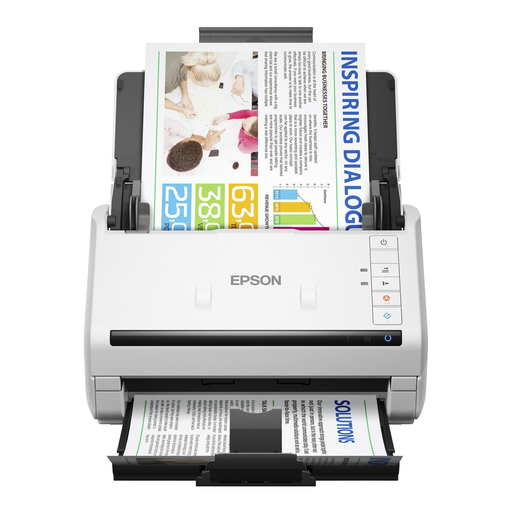 Image unavailable
An option for double-sided batches and business documents processed using computer software.
The product description lists a 50-page ADF and duplex scanning in a single pass. It also mentions handling creased, long or delicate documents; the installation and scan settings described use a USB connection and software.
No. Wi-Fi alone doesn’t guarantee that everyone can scan to the right destination. Check whether staff can choose the intended destination on the device and whether profiles and access settings suit the way you work.
Choose a set destination and a recognisable scan profile, test it with representative double-sided and unusual forms, then check the scan and its destination. Canon describes direct scan jobs to destinations including a shared folder for the imageFORMULA DR-S350NW; you’ll need to configure the route for your own environment.
If forms contain personal data, the organisation must protect that data appropriately. The Dutch Data Protection Authority says that appropriate measures depend on the processing involved and the risks, so assess access to both the scanner and saved scans. The GDPR doesn’t set a specific retention period that applies to all personal data, although other laws may prescribe particular periods.