
If you regularly scan stacks of handouts
If you often scan loose lecture handouts, compare the ADF capacity and duplex function. Also consider how much space the scanner takes up when the feeder is open.


When choosing a sheet-fed scanner for a shared desk, focus on the size of the paper stacks and how users want to save their scans. A compact wireless model takes up less space but has a smaller feeder; a larger ADF is better suited to longer stacks, while a USB model may be a good choice if one connected computer is all you need. Also check for duplex scanning, scan destinations and whether OCR makes the text usefully searchable.
If you often scan loose lecture handouts, compare the ADF capacity and duplex function. Also consider how much space the scanner takes up when the feeder is open.
Decide whether everyone needs to scan from their own device, or whether one computer or a fixed destination will do. Agree who can access the saved files, too.
Check which OCR method and software come with the model, and create a test file. This lets you check whether the text in your handouts is usefully searchable before you dispose of the paper copies.
Best suited to: scanning short stacks most of the time, when different users don’t want to keep connecting to the same computer. Brother lists Wi-Fi and a 20-sheet ADF for the ADS-1800W.
The trade-off: you’ll need to reload the feeder more often with larger stacks. Also check that the power supply and scan destinations suit your shared setup.
Best suited to: several users regularly scanning lots of loose, sometimes double-sided handouts. Epson lists a 100-sheet ADF, duplex scanning and PC-free scanning for the WorkForce ES-590W.
The trade-off: allow for a permanent spot for the scanner. The stated scan speed isn’t the same as the total time needed for scanning, OCR and checking the results.
Best suited to: situations where scans go to one connected Mac or Windows computer and a 60-sheet ADF is enough. Canon lists USB and built-in scanning software with OCR for the imageFORMULA R30.
The trade-off: Canon lists USB and no network interface for this model. Its stated colour speed for A4 at 200 dpi is lower than its black-and-white speed.
| What to consider | What should you check? | Who should pay particular attention? |
|---|---|---|
| Stack handling and duplex scanning | Compare the ADF capacity in sheets, duplex scanning and speed using the same paper size, colour setting and resolution. | If you often scan a stack of loose or double-sided handouts, you’ll want to spend less time stopping to reload the paper. Around 40% of consumers consider stack handling their top priority. |
| Access and storage | Check whether the exact model scans via USB, to a network destination or without a PC, and whether it works with the devices you plan to use. Agree who can open the files. | If several people use the same desk, you’ll want to save scans to the right destination and manage access to the files. Around 30% of consumers focus primarily on shared access and storage. |
| Searchable files | Check that the software is compatible with the system you use, and test OCR on a representative handout. | If you want to find passages by searching for text later, you’ll want to know whether OCR works well with your files. Around 20% of consumers give searchability top priority. |
| Space and power | Measure the space with the paper feeder and output open, and check which power supply and accessories are needed. | If your scanning area is small or shared, you’ll want to make sure the scanner fits on the desk with enough room for the paper. Around 10% of consumers focus primarily on the space available. |
A stated scan speed doesn’t automatically tell you how long the whole process will take, including setup, OCR and checking the results. Canon lists different speeds for colour and black-and-white scanning at A4 and 200 dpi for the R30; speed can also vary depending on settings and the computer environment.
Only compare speeds when the settings are the same, and try a representative double-sided set if possible.
A scanner may need more space with the feeder and output open than its closed dimensions suggest. This matters at a shared desk, where you’ll also need room to handle the paper.
Measure the available space with the scanner ready to use, including room for the paper output.
According to Canon, the Canon imageFORMULA R30 uses USB; Brother lists Wi-Fi for the ADS-1800W. So the connection you want depends on the model.
Check how the exact model connects and where it can send scans.
When an organisation processes personal data, it must protect it appropriately and manage access rights properly, according to the Dutch Data Protection Authority.
Agree in advance who manages the scan destination and who can open the files.
The ADS-1800W is designed for short stacks and shared workspaces where wireless scanning could be useful.
The WorkForce ES-590W is designed for larger stacks and scanning to a range of destinations.
The imageFORMULA R30 is suited to a permanent scanning area with a connected Mac or Windows computer.
These Joybuy products are designed for scanning loose handouts in a shared workspace. They include compact and desktop models, with USB or wireless connections depending on the model.
 No image available
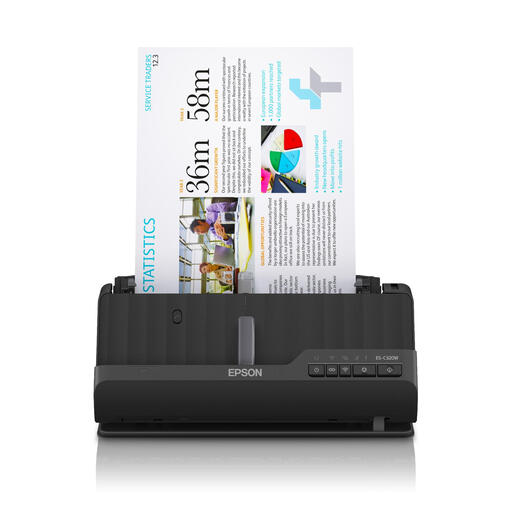
This compact model may suit loose handouts in a workspace where room is limited.
The product description mentions a U-shaped paper path, a USB connection to a computer and the ability to scan booklets up to 5 mm thick.
The product name lists 600 × 600 DPI and A4.
 No image available
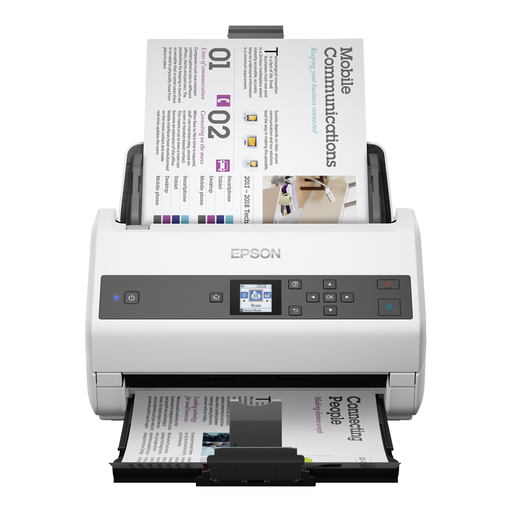
This model may suit a shared desk where you want a compact scanner with a wireless connection.
The product description mentions Wi-Fi, automatic duplex scanning and a U-shaped paper path.
The product name lists 600 × 600 DPI and A4.
 No image available
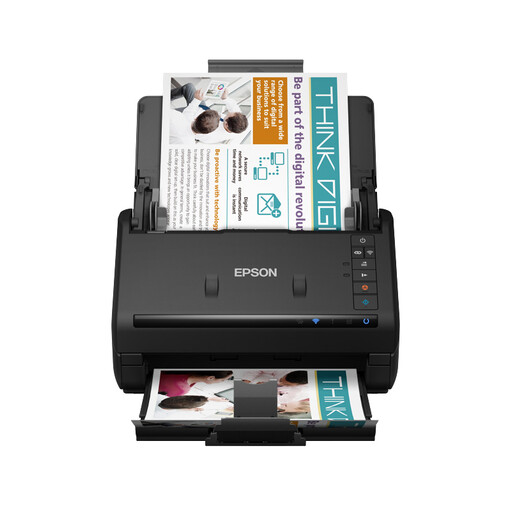
The stated feeder capacity and automatic duplex function may suit longer stacks of double-sided handouts.
The product description lists a 100-sheet ADF, automatic double-sided scanning and a USB connection to a computer.
The stated speed is 85 ppm/170 ipm; this isn’t the total time needed for scanning, OCR and checking the results. The network interface is listed as optional.
The product name lists 600 × 600 DPI and A4.
 No image available
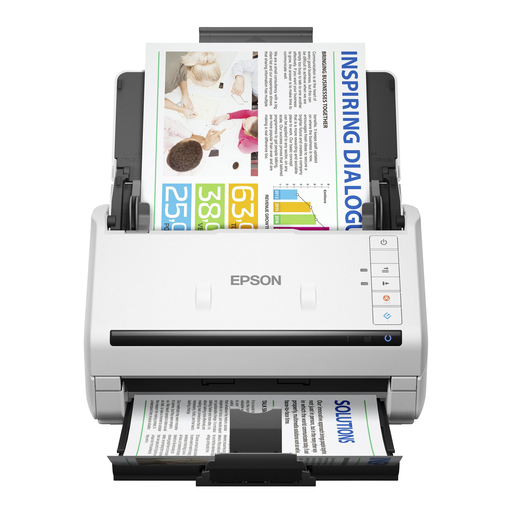
This model may suit longer stacks of double-sided handouts and a shared scanning area.
The product description lists a 100-sheet ADF, double-sided scanning, Wi-Fi and USB 3.0.
The stated speed is 35 ppm/70 ipm; the actual total processing time depends on more than this figure alone.
The product name lists 600 × 600 DPI and A4.
 No image available
The feeder and duplex function may suit a permanent computer setup where several pages are scanned one after another.
The product description lists a 100-page ADF, double-sided scanning in a single pass and USB 3.0.
The product name lists 600 × 600 DPI and A4.
First decide whether users will scan from their own devices, a dedicated USB-connected computer or a configured destination. Brother lists Wi-Fi and scan presets for the ADS-1800W; Epson says the ES-590W can scan from its screen without a PC. Check that the connection and destination on your chosen model suit the devices and arrangements at your workspace.
For the ADS-1800W, Brother recommends cleaning the scanner glass and rollers as described in the manual if you have these problems, after switching off and unplugging the scanner. For other models, follow the relevant maintenance instructions.
You don’t need an extended warranty to have statutory rights when buying as a consumer; these apply in addition to any manufacturer’s or seller’s warranty. According to ACM ConsuWijzer, if a product breaks too soon under normal use, the seller must repair or replace it free of charge, or refund the purchase price where applicable. There is no single fixed statutory warranty period that applies to every scanner. If an organisation is making the purchase, you can’t automatically assume that consumer rights apply.
The private-copy exception for personal use does not give you permission to distribute that copy. The Dutch government makes this distinction; whether sharing with a group is allowed on another legal basis or with permission depends on the material and the rights of use. So don’t assume that sharing is automatically permitted.
When an organisation processes personal data, the Dutch Data Protection Authority requires appropriate security and properly managed access rights. Set up shared storage and accounts accordingly. Whether these obligations apply to scanning done solely for personal use needs to be assessed separately.