For stacks of maintenance forms, choose a sheet-fed scanner based on its input capacity. If the back of the forms has been filled in too, check whether the exact model scans both sides automatically. For smaller batches at different locations, a compact USB scanner may be more practical. If the scanner will be shared, check the connections, where files are saved and who can access them. Run a test scan to check the completed fields and page order.
Who is this suitable for?
Scanning stacks of forms
If you want to process several loose maintenance forms without starting each sheet individually, compare the input capacity and check whether the model scans both sides. Brother and Canon list these features for specific models.
Keeping completed forms
If forms include notes, ticked boxes or information on the back, look for double-sided scanning and check a test scan before putting the originals away. Canon and Epson describe double-sided scanning features on specific models.
Scanning at different workstations
If you scan in more than one place or share the device, compare the power supply and connection options, and agree where files will be saved and who can access them. Brother and Epson list different connection options for specific models.
What should you look for when choosing?
Start by considering how many forms you scan in each session. Then check whether both sides are captured and whether the scanner suits the place and workflow you use to process the files.
| What to consider |
What should you check? |
Who is this important for? |
| Processing stacks |
Count the sheets per session and compare this with the input capacity for the paper you use. Also check that the paper size and weight are supported. |
When I have a stack of forms, I want to stop less often to reload the paper. Around 36% of consumers prioritise processing stacks. |
| Both sides and completed fields |
Check whether the exact model scans both sides automatically, and run a test scan with a completed back page, small notes and tick boxes. |
If there’s information on the back, I want to save it with the front and check that it’s legible. Around 29% of consumers prioritise preserving completed information. |
| Scanning on the go |
Check that the required USB connection and power supply are available, and that the software works with the device you use. |
When I move between workstations, a setup that suits my laptop matters more than a large input tray. Around 21% of consumers prioritise portability. |
| Shared files |
Check which devices can connect, where scans are saved and who will have access. |
When scanning as a group, I want to know in advance where files will go and who can open them. Around 14% of consumers prioritise a shared workflow. |
Common pitfalls
-
Assuming an automatic feed mode means there’s an input tray for stacks
Epson describes the WorkForce ES-50 as having an automatic mode for continuous scanning. Brother lists a 20-sheet ADF for the ADS-1300. These specifications don’t mean the same thing when it comes to processing a stack.
Compare the stated sheet capacity of the exact model with the stack you want to scan.
-
Confusing double-sided printing with double-sided scanning
If there’s information on the back, it’s the scanning specification that determines whether both sides are captured automatically.
Look for double-sided scanning on the exact model, then check both sides using a completed test sheet.
-
Saving shared scans without agreeing where they’ll go
If forms contain personal data, the storage method and access arrangements should suit your chosen workflow. The Dutch Data Protection Authority states that an organisation processing personal data must decide on appropriate security measures.
Before scanning as a group, agree where scans will be saved and who will have access.
Relevant brands to compare
Brother
Compare the ADS-1300 for scanning with one computer and the ADS-1800W if wireless connectivity is important.
- Brother says both models have a 20-sheet ADF and double-sided scanning. The ADS-1300 has USB-C power, while the ADS-1800W also offers wireless connectivity.
- With larger stacks, the stated input capacity may mean you need to reload the scanner part-way through.
Canon
The imageFORMULA R10 is a portable USB sheet-fed scanner; the DR-C225 II is a desktop alternative with a higher stated input capacity.
- Canon lists double-sided scanning and a 20-sheet ADF for 80 g/m² paper for the R10. For the DR-C225 II, Canon specifies 45 sheets of A4 80 g/m² paper and USB.
- Check the paper path and space required for the exact model; these specifications don’t automatically apply to all Canon scanners.
Epson
Compare the ES-C320W for a compact Wi-Fi setup with the USB-powered WorkForce ES-50 for small batches of loose documents.
- Epson lists Wi-Fi, USB and a U-shaped or straight paper path for the ES-C320W. For the ES-50, Epson describes an automatic mode for continuous scanning.
- The ES-50’s automatic mode isn’t a stated ADF capacity for a stack.
ScanSnap
The iX1600 is a desktop option to compare if you regularly scan larger stacks.
- According to ScanSnap, the iX1600 has a 50-sheet input capacity for standard A4 80 g/m² paper, double-sided scanning and USB or Wi-Fi.
- The manufacturer says the stated capacity depends on the paper thickness; a larger input capacity isn’t necessarily needed for a one-off project.
Sheet-fed scanners on Joybuy
These Joybuy product picks are designed for digitising loose forms, from compact document feeders to models with a flatbed or higher input capacity.
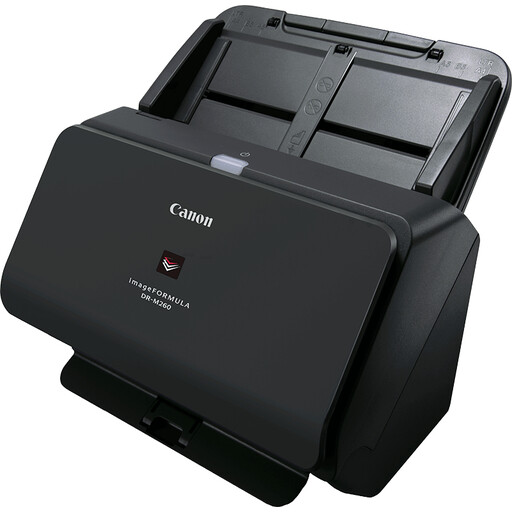 Image unavailable
Canon imageFORMULA DR-M260
A sheet-fed scanner for loose documents; the product description mentions support for network and SharePoint workflows.
Resolution according to the product name: 600 × 600 DPI. The description states a scanning speed of up to 60 pages per minute.
View on Joybuy
 Image unavailable
Canon imageFORMULA DR-F120
The combination of a flatbed and automatic document feeder gives you options for loose forms and documents that need to be scanned flat.
The description lists a 50-sheet ADF and double-sided scanning at 20 pages per minute. Resolution according to the product name: 600 × 600 DPI.
View on Joybuy
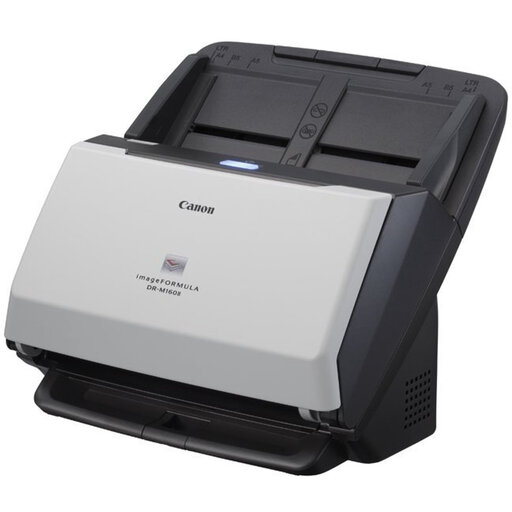 Image unavailable
Canon imageFORMULA DR-M160II
An ADF scanner for A4 documents; the description mentions batch processing and compatibility with Windows and Mac.
The description lists a 60-sheet ADF and automatic double-sided scanning at 60 pages per minute. Resolution according to the product name: 600 × 600 DPI.
View on Joybuy
 Image unavailable
Epson DS-C330
The product description mentions a U-shaped paper path for a compact setup.
Resolution according to the product name: 600 × 600 DPI.
View on Joybuy
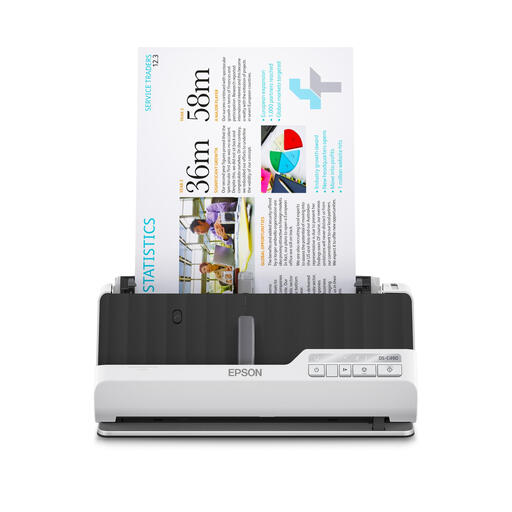 Image unavailable
Epson DS-C490
An ADF and sheet-fed scanner for A4 documents; the product description mentions compatibility with Windows, Mac and Chromebook.
The description lists automatic double-sided scanning and a standard capacity of 10 sheets. Resolution according to the product name: 600 × 600 DPI.
View on Joybuy
Frequently asked questions
Do I need a scanner that scans both sides?
If maintenance forms have been filled in on the back too, automatic double-sided scanning helps capture both sides in a single pass. Check the feature for the exact model and, with a test scan, make sure the pages have been saved in the right order.
How can I avoid missing information or getting forms out of order?
First, check that the paper size and weight fall within the model’s specifications. Then scan a few representative forms, including any pages with writing on the back, and check the results before processing the rest. Follow the exact device’s manual for feeding and cleaning instructions.
Can I scan and share maintenance forms with names on them for a school project?
That depends on what the forms contain and how they’re processed. According to the Dutch Data Protection Authority, processing personal data requires an applicable lawful basis under the GDPR, and the organisation carrying out the processing must decide on appropriate security measures. Check what arrangements the project has for storage and sharing; don’t assume that consent is always the required lawful basis.


